<< Previous [1] [2] [3]
Overlaying an entire warped layer would probably cause problems elsewhere in the panorama, so we only want to overlay a small part of this layer, containing just the legs.
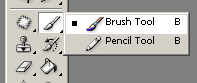
Activate Photoshop's Brush tool, choose a white brush of suitable size:


Activate the layer mask by clicking on the mask in the Layers palette. Then paint on the mask using the white brush:
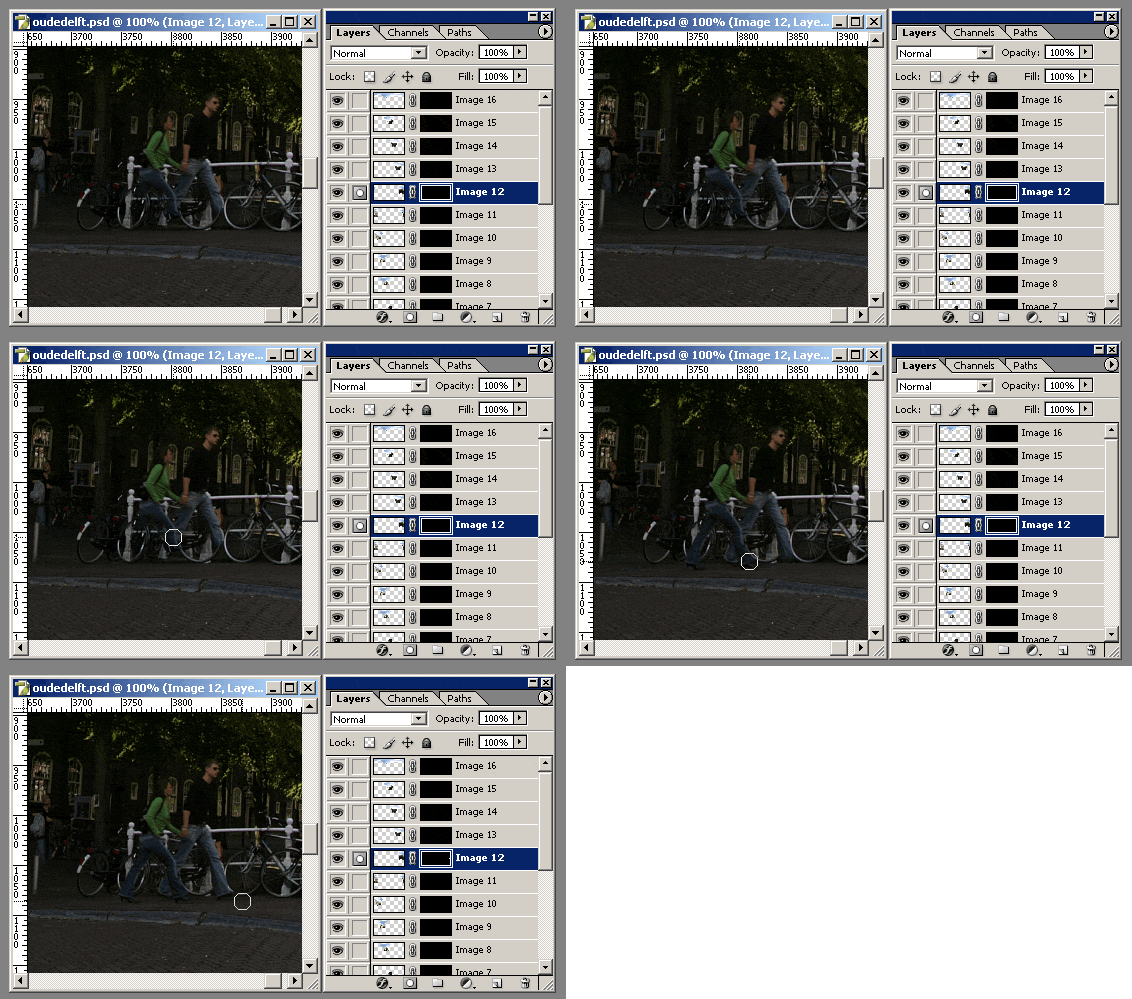
You can switch to Photoshop's Quick Mask mode by pressing the Backslash (\) key. This overlays a red mask over the transparent areas of the layer mask, and thus shows you which part of the layer mask has been edited.
Finally, choose 'Layer / Flatten image' to merge the layered file into a single image.
How to straighten a curved horizon
<< Previous [1] [2] [3]
Overlaying an entire warped layer would probably cause problems elsewhere in the panorama, so we only want to overlay a small part of this layer, containing just the legs.
Activate Photoshop's Brush tool, choose a white brush of suitable size:
Activate the layer mask by clicking on the mask in the Layers palette. Then paint on the mask using the white brush:
You can switch to Photoshop's Quick Mask mode by pressing the Backslash (\) key. This overlays a red mask over the transparent areas of the layer mask, and thus shows you which part of the layer mask has been edited.
Finally, choose 'Layer / Flatten image' to merge the layered file into a single image.
More tutorials
Straightening a panoramaHow to straighten a curved horizon
<< Previous [1] [2] [3]