Before you look any further, make sure that you are running the latest version of PTGui. The current
version is PTGui 13.10. See the
version history for possible bugs that
have been fixed in recent versions.
Licensed users can upgrade at a reduced price, or free of charge, depending on the date of the original license purchase.
Detailed documentation for every feature and parameter is included with PTGui: in PTGui choose 'Help -> Help for this tab'.
If this does not solve the problem, post your technical support questions to the PTGui Support Forum. You will quickly get an answer from the PTGui authors or from other users.
1.1. I paid for a PTGui license but haven't received the email
1.2. I have purchased a PTGui license a couple of years ago. Do you offer discounted upgrade pricing?
1.3. I am a licensed user of PTGui Standard; can I upgrade to PTGui Pro?
1.4. Which version should I purchase, PTGui Standard or PTGui Pro?
1.5. Where can I find the license conditions for PTGui?
1.6. Do you offer special student pricing?
1.7. My organization needs a formal quote, or a pro forma invoice before we can purchase a license. Can you arrange this?
1.8. My organization can only purchase via a purchase order. Can you accept one?
1.9. Can I still download older PTGui versions?
1.10. Can I install PTGui on both my PC and my laptop?
1.11. What is your upgrade policy?
1.12. How do the subscription licenses work?
1.13. Does my subscription automatically renew?
1.14. Do you also offer monthly subscriptions?
1.15. Do you offer subscriptions for the personal license?
1.16. Can I purchase a perpetual floating license or company license?
2.1. How does activation work?
2.2. How does the floating license work?
2.3. Can we use an on-premise license management server to manage the floating license?
2.4. My computer is not connected to internet. Can I use PTGui?
2.5. I'm planning to switch from a PC to a Mac, is that possible?
3.1. Is PTGui or the documentation available in other languages?
3.2. My lens database is empty, is that normal?
3.3. Can PTGui work with 16-bit images from start to finish (ie, no 8-bit conversion)?
3.4. Can I use PTGui to create virtual tours?
3.5. Sensor sizes: millimeters vs inches?
3.6. My images were taken with a (e.g.) 28mm lens, but after optimization, PTGui reports it as a 31.5mm lens
3.7. Can PTGui read RAW/DNG files?
3.8. Will PTGui read RAW files from camera XXX?
3.9. What does 'Apply Template' do?
3.10. Apply Template does not copy the control points from the template. Why is that?
3.11. What kind of computer hardware do you recommend for use with PTGui?
3.12. Does PTGui preserve the metadata of my images?
3.13. Can I stitch images from a shift lens with PTGui?
3.14. Where does PTGui store its settings?
3.15. PTGui doesn't fully use my computer's processor(s); the CPU load is less than 100% during stitching
3.16. After optimizing, PTGui shows me the average control point distance. What distance should I aim for?
3.17. Why does PTGui Pro close my project and open a new blank project after I press Save and Send to Batch Stitcher?
3.18. PTGui asks me whether I would like to re-initialize the project. What does this mean?
3.19. Can PTGui create those interactive photos where the camera is rotated around the object?
3.20. After stitching a project in the PTGui Pro Batch Stitcher, the project is modified!
3.21. I have edited my RAW / DNG files in Photoshop or another application. Does PTGui recognize my changes when I use the raw files in PTGui?
3.22. What can I do to reduce the stitching time PTGui on my system?
3.23. I have moved or rotated images in the Panorama Editor by hand using the Edit Individual Images mode. But PTGui tells me it needs to optimize the panorama and this undoes my changes. Why?
3.24. Can PTGui stitch greyscale images?
3.25. PTGui keeps changing the output size in the Create Panorama tab. Why?
3.26. How does PTGui calculate the optimum output size of a panorama?
3.27. Why does PTGui 11 use a different optimum size than PTGui 10?
3.28. What exactly does the Fisheye Factor parameter do?
3.29. Can I install different versions of PTGui side by side?
3.30. I've upgraded from PTGui 11 to PTGui 12 and now my panoramas look different.
3.31. I've upgraded from PTGui 11 to PTGui 12 but stitching is much slower now!
3.32. What kind of tiles does the PTGui Viewer use internally?
3.33. When was PTGui first released?
4.1. I am trying to edit the seams of a layered panorama in Photoshop, but I only see the bottom layer with the merged panorama; the other layers are transparent.
4.2. Another application crashes when opening TIFF files generated by PTGui, or it displays garbled images.
4.3. My computer crashed while PTGui is running
4.4. PTGui shows a message 'PTGui was unable to detect control points for some of the images, therefore you need to add a few control points by hand'. Help! What should I do now?
4.5. PTGui is randomly rotating my images!
4.6. I'm having trouble stitching my panorama. Can you help?
4.7. After editing a 360 degree panorama in Photoshop and importing back into PTGui, I'm seeing a vertical line in the panorama
4.8. When installing on a Mac I get the error "PTGui Pro cannot be opened because the identity of the developer cannot be confirmed. macOS cannot verify that this app is free from malware."
4.9. I'm unable to open a QuickTime VR .mov panorama
4.10. I'm attempting to stitch images taken with multiple cameras but I'm running into stitching errors
4.11. My panoramas stitched using a template in the Batch Builder have misalignments. This only happens in the Batch Builder; the panorama is perfect if I use the same template in the GUI.
4.12. The Batch Builder seems to ignore the settings in my template; my panoramas come out different than expected.
4.13. I tried to enter my license key, but it doesn't work
4.14. For the floating license, what happens if the computer crashes or goes offline while PTGui is running?
4.15. What about hardware modifications?
4.16. My computer died / was stolen. How can I deactivate my license?
4.17. How can I transfer my license to another computer?
4.18. On how many computers is my license activated?
4.19. I lost my license key
4.20. We are running PTGui on multiple computers in a network environment. How can we deploy PTGui without activating each computer manually?
4.21. PTGui says 'failed to activate your license'. How can I resolve this?
4.22. Out internet connection is behind a proxy server. How can we activate PTGui?
4.23. The panorama in the PTGui Viewer is full of black dots!
4.24. I'm using PTGui 10; the stitching process hangs and never completes.
4.25. Can a license be activated for all users on a computer?
4.26. Panoramas published using Publish to Website are not displayed correctly using Firefox, the image is flashing.
4.27. The brightness or contrast in the Detail Viewer differs from the stitched panorama!
4.28. I'm getting an error message "These images cannot be linked because they have different dimensions. Linked images should have the same pixel dimensions." Why?
4.29. One of the source images is not included in the blended panorama. Why is that?
4.30. The image in the Detail Viewer looks different from the final panorama. I'm using exposure fusion / tone mapping.
4.31. PTGui is dislaying OpenCL errors, or the computer crashes while running PTGui on a Windows computer with NVIDIA graphics.
4.32. In Finder on my mac, all raw files are listed as type 'PTGui RAW'
4.33. I'm trying to level the panorama by dragging in the panorama editor. The panorama only moves; the curvature doesn't change.
4.34. Our network does not have internet access but we want to use the floating license. How can we set up a proxy server so that PTGui can be activated?
4.35. PTGui reports 'failed to initialize OpenCL'
4.36. My RAW images from the Nikon Z8/Z9 are garbled in PTGui
4.37. PTGui 10 crashes on macOS
5.1. The horizon of my panorama is curved instead of straight
5.2. I get color/brightness differences between the images in my panorama
5.3. How can I change the resolution (ppi or dpi value) of the generated panorama?
5.4. I see misalignments in the stitched panorama. What can I do to improve the result?
5.5. Some control points in my project have a relatively high control point distance. Will the alignment of my panorama improve if I delete all control points with an error above a certain threshold?
5.6. My drone panoramas are showing misalignments at the horizon. How can I get a straight horizon?
6.1. My panorama contains curved lines. How do I get straight lines to remain straight in the panorama?
6.2. How do I use the Horizontal line and Vertical line control points?
6.3. How can I calibrate my lens parameters?
6.4. Does PTgui allow stitching of photos that have the camera in different locations?
6.5. How can I stitch mosaics, like partial scans from a flatbad scanner of a large image?
6.6. My panorama was taken with the camera tilted up or down. Now there's a lot of unnecessary black space above/below the panorama, increasing the size of the output. Can it be cropped away before stitching?
6.7. How can I have better control of the overlap area (i.e. the location of the seams)?
6.8. How can I create a vertical panorama? PTGui rotates my panorama 90 degrees!
6.9. I want to cover the tripod in my (360x180 degree) spherical panorama. How do I add a nadir cap?
6.10. How can I change the default settings for new panoramas?
6.11. How can I stitch extremely large panoramas?
6.12. How can I align a set of images, all taken in the same direction (not a panorama)?
6.13. How can I use exactly the same stitching settings for different sets of images?
6.14. How can I correct a single image for lens distortion?
6.15. How can I show a panorama on my website?
6.16. How can I publish a panorama to Facebook?
6.17. Why does Facebook display my panorama as a flat image, not as an interactive panorama?
6.18. How can I use PTGui to add the metadata required by Facebook to an already stitched panorama?
6.19. How do I level/straighten a panorama using horizontal / vertical line control points?
6.20. How can I correct a single image for vignetting in PTGui Pro?
6.21. My spherical panorama still has a hole in the top and/or bottom. How do I fill the missing parts to make the panorama truly spherical?
6.22. After running Publish to Website my panorama has black holes at the top and bottom; how do I get rid of these?
6.23. PTGui leaves some blank space around my panorama. How can I crop the panorama so that it fills the canvas entirely?
6.24. How can I tell PTGui to output panoramas at a specific size?
6.25. How can I defish a fisheye image in PTGui?
6.26. How can I extract a 'flat' image from a spherical panorama?
6.27. I have taken multiple panoramas from the same viewpoint, to create a time lapse movie. How can I ensure that subsequent panoramas are aligned when played back in sequence?
6.28. My project contains one or more images without any recognizable detail and it's impossible to place control points. How can I stitch my panorama?
6.29. How can I view a finished panorama interactively on my computer?
6.30. I would like to send a panorama to a friend/client/... Is it possible to view a panorama interactively without needing to install a plugin first?
6.31. I need to align/overlay an image to an already stitched panorama. How can I do this?
6.32. How can I stitch a PTGui project from the command line?
6.33. Can I use PTGui to arrange pictures into a collage? Can I disable the warping/distorting of images?
6.34. How can I stitch panoramic video in PTGui?
6.35. Is there a way to stitch many panoramas using the same settings?
6.36. How can I make 'little planet' images in PTGui?
6.37. How can I stitch images from Adobe Lightroom in PTGui? Do you offer a Lightroom plugin?
6.38. Can you tell me how to make 3d (stereoscopic) panoramas in PTGui?
6.39. How can I stitch two back-to-back circular fisheye images?
6.40. How can I retouch the nadir of a spherical panorama?
6.41. How can I stitch images taken with a 360° one shot camera in PTGui?
6.42. How can I prevent PTGui from placing control points in certain areas?
6.43. We are trying to parse a PTGui .pts project file. Can you explain how the lens parameters are stored?
6.44. How can I rotate individual images? The rotation buttons in the Project Assistant tab only seem to rotate all images together.
6.45. I have 6 cube face images. How can I combine them into a panorama?
6.46. How can I align a panorama against a reference image?
6.47. I'm generating many panoramas with the same camera setup. How can I create a template for the Batch Builder?
6.48. Which settings should I use to create time lapse movies using the Batch Builder?
7.1. What is the best way to take images for HDR stitching in PTGui Pro?
7.2. My images don't contain EXIF exposure information. Can I still use them to stitch HDR panoramas?
7.3. PTGui Pro doesn't recognize my bracketed exposures!
7.4. PTGui Pro displays the wrong EV values! My images were taken at -2, 0, +2. This is confirmed by the EXIF data but PTGui shows something else in the Image Parameters tab.
7.5. What does linking images do?
7.6. Can I retouch an HDR panorama, e.g. to remove ghost images of moving people?
7.7. I would like to stitch my panorama in PTGui Pro, but use another application (e.g. Photomatix or Photoshop) to create the HDR.
7.8. Can I use PTGui Pro for exposure fusing / tone mapping / HDR generation of non-panoramic images?
7.9. Can I extract artificial bracketed images from my (non bracketed) RAW files and have PTGui Pro assemble those into an HDR panorama?
7.10. I have read the previous answer but I still would like to stitch my pseudo bracketed images generated from RAW files!
7.11. The brightness or contrast in the Detail Viewer differs from the stitched panorama!
8.1. Which GPUs are supported by PTGui?
8.2. Which graphics card should I buy?
8.3. Does PTGui support using multiple GPUs?
8.4. PTGui reports 'no supported GPU device available' even though my (Windows) computer has an NVIDIA GPU supporting OpenCL.
Your license is issued immediately after we receive your payment, and we send you a confirmation email at the same time.
Unfortunately, email delivery is not always reliable. Spam filtering, a full mailbox, or other mail server issues may prevent our messages from reaching you. If you have a Junk or Spam folder, please check it for messages from PTGui Support <support@ptgui.com>. You may also want to add this address to your list of trusted senders.
You can access your license and invoice at any time by logging in to your account using the email address you used for your purchase.
To log in, we will send a one-time access code to your email address. If you do not receive this code either, please contact us at support@ptgui.com. If possible, contact us from a different email address, preferably at a different domain, so that our reply is not affected by the same email delivery problem.
You can complete the purchase by bank transfer, credit card, or PayPal. The pro forma invoice is non-binding, so you can cancel the order at any time simply by not making payment.
Please note that we do not accept purchase orders and cannot agree to customers' purchase terms or conditions. We’re sorry, but we don’t accept purchase orders. All purchases must be placed through our Buy page.
For the same reason, we can’t review or accept customers’ own purchasing terms, contracts, or legal conditions. All sales are made under our EULA. PTGui licenses are priced as standard software licenses, and the legal costs involved in reviewing individual terms would exceed the profit on the license.
If your purchasing process requires a formal quotation before payment, you can request a pro forma invoice (see Q1.7). Once payment is received, the license and final invoice will be issued immediately. Yes, many older versions of PTGui are still available for download by licensed users. See the Downloads archive.
On macOS you may need to bypass Apple's security restrictions (see Q4.8). A personal license may be activated on up to two computers simultaneously, but only for personal use by the licensed person. If other people wish to use PTGui, multiple personal licenses or a company license should be purchased instead.
The company license is purchased for a certain number of computers. PTGui can be activated simultaneously on this maximum number of computers.
The floating license is purchased for a number of simultaneous users. It can be installed on many computers, only the number of concurrent users is limited.
Conditions apply; see the End User License Agreement for details. Every personal license comes with one year of free upgrades. In addition to this, we will continue to offer all minor version updates for your licensed version free of charge even after one year. In other words, if you purchase a license at the time when PTGui 13 is available, all 13.x updates will be included. If PTGui 14 gets released within one year, you will be able to upgrade free of charge and also get all 14.x updates.
To any major version released after more than one year, you can upgrade for a fee (see Upgrade pricing). Upgrading is voluntary, you will be able to continue using your licensed version forever.
If you have a company license subscription, you will have access to the latest version of PTGui for as long as your subscription is running. The company license and floating license are offered exclusively as yearly subscription. This always gives access to the latest version of PTGui for the duration of the subscription.
At the end of the subscription term you can renew your license by paying for the next year. Automatic renewal is also possible, but we will do this only if you opt in.
All your files are stored on your computer; you will have access to all generated panoramas even after the license has expired. First of all, the personal license is a one-off payment and does not need to be renewed.
For the company and floating subscription licenses we offer an automatic renewal option. Automatic renewal is optional, we don't want you to continue paying for a subscription you don't need.
If you don't check the automatic renewal box on the order form, we will only bill you once. Near the end of the subscription we will send you a renewal offer by email. If automatic renewal is enabled, we will then charge your card for the next term at the moment your subscription expires. Otherwise, you can renew manually in your account, or start a new subscription at a later time.
You can enable or disable automatic renewal at any time in your account. No, for the time being the only subscription option is a yearly subscription. We may offer monthly subscriptions in the future. No, at this time we only offer subscriptions for the company license. You can purchase a company license subscription though. No, the floating license and the company license are available only in subscription form.
When you run PTGui for the first time on your computer it will ask you for your license key. This license key together with your computer's hardware configuration is sent to our servers. Assuming the permitted total number of installations is not exceeded, we will then activate your license on this particular computer.
A personal license may be activated on 2 computers simultaneously, but only for personal use by the licensed person.
A company license is purchased for a certain number of seats. It can be activated on this number of computers.
If you move PTGui to a different computer, deactivate the old machine via Help - License Info - Deactivate. This releases the seat and makes it available for use on another computer. If you can no longer access the computer, go to your account and request us to deactivate your computer. Deactivation may incur a processing time of up to 24 hours.
A license may be deactivated and reactivated as often as needed. However to prevent abuse of the deactivation facility, PTGui is required to verify the activation status at least once every 30 days. If an internet connection is available, this happens automatically while PTGui is running. Otherwise, offline activation must be repeated manually every 30 days.
The floating license is handled differently: the same license can be installed on many computers; only the number of computers that can run PTGui concurrently is limited. See Q2.2.
Other conditions apply; see the End User License Agreement for details. Our floating license offers maximum flexibility in larger organizations. Whereas our regular per-computer license is limited to a number of installs, the floating license permits PTGui to be installed on all Mac, Windows and Linux computers in the network. A license is purchased for the maximum number of concurrent users. Our cloud based license servers are used, so there's no license server to manage.
When the user launches PTGui, it will contact our license servers and check if any seat of the configured license is available. If so, PTGui will start and it will hold on to the license seat for as long as it is running. To do so it must be able to stay in contact with the license servers, so an internet connection is required all the time. When the user closes PTGui, the license seat will be released and instantly become available for use on another computer. No, the license management is handled by our cloud-based license servers. PTGui needs to be able to contact the license servers while running. If internet access in your network is restricted, we do support a proxy server which can act as a gateway to the license servers. See Q4.22. Setting up a proxy server specifically for activating PTGui is simple; see Q4.34. For the personal and the regular (per-computer) company license: yes, offline use is supported. The floating license requires a network connection all the time though.
To activate the computer with the personal or the regular company license, a network connection is required. If the computer running PTGui is not connected to Internet, it can still be activated using another computer with internet connection. Select Activate Offline to do so. This generates a code which is to be entered on a web page. The web page returns another code which can be entered in PTGui to complete the activation. You can transfer the codes between the computers using an USB drive for example.
Computers may be deactivated and reactivated as often as needed. However to prevent abuse of the deactivation facility, PTGui is required to verify the activation status at least once every 30 days. This means that if no internet connection is available, offline activation must be repeated every 30 days. No problem, the same license can be used on Windows, macOS and Linux. You will be able to transfer the license to another computer.
Yes, PTGui and its documentation are available in English, Deutsch, Nederlands, Español, Français, Português, 日本語, 한국어 and 中文. The language can be selected in Options/Preferences. Yes, it is. You can use it to store your optimized lens data. Yes, PTGui performs all image processing in 16 bit if a 16 bit output format is selected on the Create Panorama tab. PTGui Pro even supports 32 bit floating point images. PTGui includes a viewer for publishing panoramas on a website. See Q6.15 for more information.
The web viewer included with PTGui is just a basic viewer for publishing individual panoramas. For a true virtual tour consisting of multiple panoramas linked by hotspots, clickable floor plans, etc, dedicated panorama publishing software exists. All panorama publishing software can load panoramas in 360 x 180 degree equirectangular projection, as created by PTGui. See Q6.15 for software recommendations. To determine the lens projection, PTGui needs to know the dimensions (in millimeters) of the camera's sensor. Some manufacturers state the sensor size in fractions of an inch (e.g. 1/2.5"). The inch-designation dates back to TV camera tubes in the 50s and it does not appear to be mathematically related to the actual sensor size. See Table of sensor formats and sizes (Wikipedia) for a conversion table.
Note that RAW files are not regular image files. The RAW file records the data straight from the camera's sensor, which needs to be demosaiced and processed further before it can be used. Therefore RAW files should rather be seen as a digital 'negative' which first needs to be developed to get the actual image.
This development is done using standard settings, although PTGui Pro does allow you to adjust exposure and white balance in the HDR/Exposure tab.
If you need more control, use a dedicated RAW converter instead and save the converted RAW files as 16 bit TIFF images. The TIFF files can then be loaded into PTGui. This preserves the image quality and full dynamic range of the source images. Be sure to convert all source images in a panorama using the same settings, otherwise color or brightness differences may remain visible in the panorama.
Also, any adjustments made to the RAW file in Photoshop RAW (or other RAW converters) are ignored by PTGui. These programs do not actually change the RAW file; instead they write the modifications to a so-called sidecar (.xmp) file. The sidecar file contains closed proprietary data and cannot be read by other software. Therefore, if you need to make changes to RAW file or need finer control over the conversion, use a dedicated raw converter and save the images to 16 bit TIFF format.
Finally, since all RAW files are different it's possible that LibRaw does not (yet) support your camera. In that case it's also necessary to convert your images to TIFF before loading them into PTGui. PTGui uses the open source LibRaw library for decoding raw files. See Supported Cameras on the LibRaw website for a list of cameras supported by LibRaw, or try loading your images in the free trial version.
PTGui can only read raw files supported by LibRaw. If LibRaw does not support your camera, use a dedicated raw converter to convert the images to 16 bit TIFF.
See Q3.7 for more information. This copies the settings of another project to the current project, except for the images and the control points. This function is accessible both from the 'Apply Template' item in the File menu, and from the toolbar in PTGui. A template can be any PTGui project. In Tools/Options/Folders&Files, a folder can be configured where you store your templates (on Mac go to the PTGui menu, Preferences, Folders&Files). The template selection dialog will by default open in this folder. The 'Apply Template' button on the toolbar shows a drop down list of all templates in the configured template directory, for quick access.
Templates can be useful for a quick initialization of a project (lens settings, rough alignment of images), although this is usually not necessary since the Project Assistant can figure out the alignment of the panorama by itself.
Another use for templates is when you have an exact reproducable setup (high quality panoramic head with fixed angles). In this case you could copy all settings of a previous project and there would be no need for placing control points and optimizing.
By default, applying a template copies all settings from the template to the current project except for the source images and the control points. In PTGui Pro this behavior can be modified in the Project Settings tab, section 'template behavior'. By default applying a template copies all settings from the template except for the actual source images and the control points (see Q3.9). Control points are never copied since they are specific to the source images. For example a control point could originally point to the corner of a building in the template project, but in another project the same coordinates may be in the middle of plain blue sky. In other words the control points are meaningless outside the context of the original images.
If you just need a project to be stitched exactly like the template project, control points are not needed at all. Control points are only used by the optimizer to determine the best image parameters. The stitcher only uses the optimized image parameters and ignores the control points. Therefore it's sufficient to apply the template (which copies the image parameters) and proceed straight to Create Panorama without running the optimizer. PTGui does not require any special hardware, even for stitching large panoramas. But if you're looking for high performance we recommend a computer with the following specifications:
Other EXIF data is currently not copied to the output file. The above metadata is written to JPEG, TIFF, psd and psb images. For .hdr no metadata is written. The .exr format does not support EXIF or XMP metadata and PTGui only includes the exposure information. The color profile is read and written in the .exr specific 'chromaticities' tag. But note that this is not widely supported. Many other applications (including Photoshop) ignore this entirely, and assume all .exr files have a linear sRgb color profile. First of all, you don't need a shift lens if you have PTGui! Shift lenses are often used for architectural photographs: photographing a building from ground level, while tilting the camera upwards, normally results in converging vertical lines. Shift lenses compensate for this effect by shifting the optical axis of the lens relative to the center of the image plane. The result is a photograph where parallel lines remain parallel.
The same effect can be achieved in PTGui: open the Panorama Editor window, press Ctrl-P to switch to 'Panorama Edit' mode. Now drag the panorama upwards or downwards until parallel lines in the scene are parallel in the panorama. You may need to increase the vertical field of view (using the slider to the right of the panorama).
If you do want to stitch images taken with a shift lens in PTGui, change the following parameters:
Windows:
macOS:
Linux:
To open this folder, do Tools - Open Folder - PTGui Configuration Folder in PTGui. Most configuration data is stored in Configuration.xml in this folder. The default folders for Templates and Batch Lists also reside here.
One should aim for the lowest control point distance possible, but the actual lowest distance that can be achieved depends on many factors. In general if your images were shot properly using a tripod with calibrated panorama head, a control point distance well below 5 should be achievable. Most remaining misalignments can usually be masked by the blender. An average distance higher than 5 usually indicates a problem, see Q5.4 for solutions.
It's particularly important to look at 'outliers': if a control point has a distance of 20 while the average is below 5, this control point might have been placed on a moving object, or on a similar feature close to the proper location. Use the 'Delete worst control points' function (in the Control Points menu) to remove such outlying control points.
After generating control points and aligning the images the batch stitcher overwrites the project file with the modified version. Since the Batch Stitcher will modify the project file, problems could occur if the project would remain opened at the same time in the main PTGui Pro window: both instances would be writing to the same project file, discarding each other's changes.
For this reason, PTGui Pro will close the project after sending it to the batch stitcher if the Batch Stitcher is configured to modify the project. This ensures that only one instance of the project is open. A warning message is shown before the project is closed but the warning is no longer shown if 'don't show this again' had been selected. To re-enable the warning message, go to Options/Preferences and click 'Reset all warning messages'.
In previous version of PTGui, a temporary copy of the project would be sent to the batch stitcher. This functionality is still available through 'Send Temporary Copy to Batch Stitcher'. This creates a copy of the current state of the project in a temporary file, which is sent to the batch stitcher for stitching. When stitching has finished the temporary project file is deleted by the batch stitcher. If PTGui fails to properly align your images, the following question may appear:
"The optimizer failed to achieve a good alignment of the images. Possibly the current misalignment of the images causes the optimizer to get stuck. Re-initialization of the project may help in such a case. Would you like to re-initialize the project and try to optimize again?"
If you click OK, PTGui will reset the yaw, roll and pitch of all images to zero and reinitialize the lens settings based on the EXIF data. Then it will attempt to figure out the image positions from scratch and subsequently reoptimize the project.
In particular in cases where the optimizer got stuck in a so-called local minimum such an initialization from scratch can be the solution.
This function can be triggered manually using the Initialize and Optimize (in the Project menu). These are commonly called 'Object Movies'; they cannot be created through stitching and therefore PTGui does not support this. A software package for creating object movies is Object2VR. The batch stitcher of PTGui Pro can not only stitch projects, but it can also set up a new panorama project by generating control points, aligning the images, etc. It will do so if instructed by the 'Do Align Images and save the modified project' checkbox in the Project Settings tab. If the project or template is already set up completely and the panorama should only be stitched, make sure that the above checkbox is unchecked.
To use the modified RAW files in PTGui, export them to 16 bit TIFF files and load those in PTGui instead. Since RAW files typically only have 12 or 14 bits per channel, the full dynamic range will be preserved by the 16 bit TIFF file, so there is no loss of quality. The time required to stitch a panorama is influenced by many factors, such as the dimensions of the panorama, the computer hardware and by other applications running at the same time. Some general hints to improve the stitching performance:
Instead, let the PTGui optimizer do all the hard work through control points. Control points tell PTGui which points of two images should overlap. By providing 3 or 4 control point for a pair of overlapping images, PTGui will know how they overlap and the optimizer will align the images with pixel accuracy.
For more information watch our our Video Tutorial. PTGui was designed to efficiently stitch RGB color images (with or without transparency). It can read single channel greyscale TIFF files but the output will always be in RGB format. If you require single channel greyscale TIFF files as output, use third party software such as Photoshop to convert the output to the desired format. By default (the Create Panorama tab will show 'fix at 100% of optimum size'), PTGui will output your panorama at the so called Optimum Size. The optimum size is the output size at which the resolution of the panorama equals the resolution of the source images. For more information see Q3.26.
Because the optimum size depends on several parameters, including the focal length of the lens which is usually fine tuned by the optimizer, the optimum size may vary slightly after each optimization. This depends also on control point placement. If this fluctuation is unwanted, in the Create Panorama tab pick a desired size and select 'Fix at ... megapixels'. From now on PTGui will keep the number of pixels in the panorama constant. The optimum size is the output size at which the resolution of the panorama equals the resolution of the source images. In other words, no detail from the source images is lost.
Because image warping is not uniform across the panorama, there is no true optimum size: some parts of the source images may get enlarged while other parts may be reduced in size. Therefore, somewhat arbitrarily, PTGui considers the optimum size to be the size where the angular resolution of the center of the source images equals the angular resolution of the center of the panorama. If images from multiple lenses are used, this calculation will be based on the source image having the highest resolution.
Because the optimum size depends on the focal length, and the focal length is adjusted by the optimizer after editing control points, the optimum size may vary slightly for different projects using the same lens. See Q3.25.
For a spherical equirectangular panorama the optimum size is calculated as follows:

Here, w is the calculated optimum width of a 360° equirectangular panorama, f is the lens focal length (in mm), rp is the source image width in pixels, rm is the sensor width in mm. This formula is applicable for both fisheye and rectilinear lenses. For example, an 8mm fisheye lens on a full frame 24 megapixel (6000 * 4000) camera gives an optimum width of 2*pi*8*6000/36 = 8378 pixels. So the 2:1 equirectangular image is 8378 x 4189 pixels, or 35 megapixels.
Or, in another form:
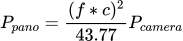
Here Ppano is the optimum panorama size in megapixels, f is the focal length, c is the crop factor (1 for full frame, 1.6 for APS-C) and Pcamera is the sensor size in megapixels. The sensor is assumed to have a 3:2 aspect ratio.
In other words: to get a higher resolution panorama, either use a longer focal length, or a smaller sensor (with the same number of pixels in a smaller surface). Also, the amount of overlap or the camera orientation will not affect the optimum size. In PTGui 11 a new lens parameter, the 'fisheye factor' was introduced (see Q3.28). This allows it to perfectly model all practical fisheye projections. PTGui 10 didn't include this parameter and used equidistant projection for all fisheye images. The difference between the actual projection and equidistant projection was modeled using the lens distortion (a/b/c) coefficients. When calculating the optimum size, the lens distortion coefficients are not taken into account, resulting in an error in the calculated optimum size. PTGui 11 does take the fisheye factor into account when calculating the optimum size.
In other words, the optimum size is calculated more accurately in PTGui 11 than in PTGui 10. Regardless, it's still a somewhat arbitrary measure (see Q3.26) and it's possible to output at any desired size. There is no single fisheye projection, different fisheye lenses exhibit different optical projections. For example, equidistant, equisolid or orthographic fisheye lenses exist. For more information see Fisheye Projection (PanoTools wiki). Visually, these projections differ by the amount of compression or stretching of the image near the edge of the fisheye circle. PTGui up to version 10 simply modeled every fisheye lens using the equidistant projection. The deviation of the actual projection from equidistant projection was compensated for by using the a/b/c lens distortion correction polynomial. This worked, but with caveats: because the relation between focal length and field of view differs for each kind of projection, PTGui could misestimate the size of the cropping circle for circular fisheye lenses. And secondly, the control point generator would have more difficulty finding control points (especially near the edges of the image) if the wrong fisheye projection was used.
In PTGui 11 this was solved by introducing the Fisheye Factor parameter. Fisheye lenses are now modeled using the following formula:
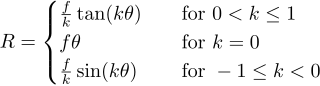
Here, k is the fisheye factor, f is the focal length, θ is the angle of the light ray entering the lens and R is the radial distance from the image center of the projected light ray.
By varying the fisheye factor k the equation morphs into the different fisheye projections. Values of the fisheye factor for the common projections are:
Equidistant: k = 0
Stereographic: k = 0.5
Orthographic: k = -1.0
Equisolid: k = -0.5
Rectilinear (non-fisheye): k = 1.0
In normal use of PTGui the fisheye factor is initialized to the known value of the lens before running Align Images. PTGui knows the fisheye factor for many common models of fisheye lenses. If EXIF data is available PTGui can often recognize the brand and model of the fisheye lens automatically, and set the fisheye factor accordingly. If no EXIF data is available, the brand and model of the fisheye lens can be selected from a list. In practise no lens follows the above projection model exactly, therefore a/b/c lens distortion correction is used to compensate for any remaining small differences between the ideal and actual projection.
The fisheye factor of a lens can be determined by the PTGui optimizer. When optimizing the fisheye factor, care must be taken to avoid interference by the a/b/c lens distortion correction parameters: in the Lens Settings tab, press the Reset button to reset a/b/c to zero. Then in the Optimizer tab, enable optization of the fisheye factor and disable optimization of a/b/c. As always, for accurate optimization of the lens parameters, images without parallax should be used. Yes, this is possible. Any version (trial, Pro, beta) can be installed in parallel to your current version of PTGui. In Windows, the installer will ask you for an installation folder (e.g. C:\Program Files\PTGui) and a Start Menu folder. If you enter different folder names, your current version will not be overwritten. On Mac, PTGui is distributed in a disk image (.dmg file). Double click the .dmg file to mount it. Inside there's the PTGui application. Drag the application to the desktop, then rename the application. Finally move the application from the Desktop into the Applications folder.
PTGui project files will by default be opened in the last installed version. To change this under Windows: right click on a PTGui project file, at 'Opens With' click on Change, click 'More Apps', click 'Look for another app on this PC', then browse (under Program Files) to the particular version of PTGui to use.
On macOS: ctrl+click on a PTGui project file, select 'Open With', 'Other...', select the PTGui application to use, enable 'Always Open With' and click Open.
Keep in mind that the settings and license information are shared by all PTGui applications for the current user.
If you accidentally overwrote your licensed version of PTGui with a trial version, you can re-download your licensed version even if it was an older version; see Q1.9. Many new features have been added to PTGui 12: automatic optimum seam placement, a new 'zero overlap' blending algorithm, color management and a new HDR processing workflow. Internally all processing is now done on linearized floating point pixel data. A new Post Processing side bar was added to the panorama editor for adjusting the toning curve and image saturation. The toning curve is now applied to raw files, which would look somewhat dull in PTGui 11. Color management ensures that out-of-gamut colors and clipped highlights after stitching and blending are properly handled.
Automatic seam placement in PTGui Pro 12 means that the seams will be placed entirely different from PTGui 11. Generally this will make stitching errors less noticeable, but as a side effect objects may suddenly appear in the PTGui 12 panorama which would be hidden in the PTGui 11 panorama. It's possible for example that PTGui 12 decides to show the tripod in the nadir of the panorama if this is considered to result in the optimum seam placement. This may happen even if a separate nadir image without tripod is available. PTGui is not smart enough to understand that the tripod is something you don't want to show in the panorama. The solution is to mask any unwanted objects using red masks in the Mask tab. Just a coarse mask or a couple of red dots is sufficient: PTGui understands the mask is part of something that should be removed and it will attempt to route the seams around the entire object.
Also, automatic seam placement will cause the outer part of the source images to be used more, whereas PTGui 11 would simply place the seams in the middle of the overlap area, as far away as possible from the edges of all source images. Some lenses at wider aperture have better image quality in the center, and PTGui 12 may decide to use some of the worse parts of the source image. Again, seam placement can be adjusted by adding green or red masks.
Automatic seam placement can be disabled entirely by disabling 'Find Optimum Seams' in the Blending side bar of the panorama editor. You'll also find a 'precision' slider there: moving this slider to the right will cause PTGui to calculate the seams at a higher resolution. But be careful, at the highest 1/1 setting it will take several minutes, or even hours, and use much memory. And the seams must be recalculated after every change to the panorama.
Another thing that's changed in PTGui 12 is the blending. The new Zero Overlap blending algorithm works very well in combination with optimum seam placement. Because it doesn't use any overlap it will give seamless results even if the seam is routed just very close around an object. The traditional multiband blending algorithm needs a certain amount of overlap and will cause the excluded object to still appear as a faint 'ghost' image if it is close to the seam. In general, Zero Overlap blending can also cope better with moving clouds and waves in water and it better handles exposure differences. But it may have trouble with finely patterned surfaces like ceilings or carpets. Also if a seam cuts through a moving object this may be more visible than with multiband blending. You can switch between Zero Overlap and Multiband in the Blending side bar to compare the results.
To get the same blending as with PTGui 11: disable 'Find Optimum Seams' and choose 'Blender: Multiband'.
Handling of raw files was improved by adding a toning curve, but if you prefer the less contrasty look of PTGui 11, go to the Post Process tab in the panorama editor and reduce the 'Shape' and 'Shift' sliders of the Toning Curve closer to zero. Fine adjustments to the slider can be made by holding down the Shift key while dragging the slider. Settings can be saved to a file or to a template. And keep in mind that PTGui does not intend to replace a dedicated raw converter: images will definitely look better when you convert your raw files in Photoshop, Lightroom or another raw converter (see Q3.7).
The new Toning Curve is also applied as part of tone mapping. The Post Processing tab replaces the Contrast and Saturation settings that were previously available in the Tone Mapping settings.
Handling of bracketed images has changed in PTGui Pro 12. In PTGui Pro 11 it was possible to stitch an HDR panorama from bracketed images without linking the images. In PTGui Pro 12, linking bracketed images is mandatory! Linking is required for getting optimum seam placement to work: when creating blend planes, the seams must be placed in the same location in each blend plane. To calculate the seams, PTGui must know which images belong to the same bracketed set, and you tell this by linking the bracketed images. If the images were taken by using the camera's auto bracketing, they will follow a repeating exposure pattern. PTGui will recognize this and offer to link the images when running Align Images. You can also force PTGui to link the images by selecting Images -> Link HDR Bracketed Exposures. If PTGui reports that no bracketed sets were detected, this means that the exposure pattern is not repeating in exactly the same way for each bracketed set. You can still link images manually: go to the Source Images tab, select a group of images, right click and choose 'Link Selected Images'. Repeat this for all bracketed sets.
Not linking bracketed exposures will lead to unexpected results in PTGui 12: the automatic optimum seam placement may decide to include or exclude entire images, because the same area is covered by multiple overlapping (bracketed!) images. Zero overlap blending will cause the excluded images not to be used at all. And optimizing or otherwise editing the panorama may completely change the seams, causing entirely different source images to be flipped into the panorama even when making just minor changes. Again, do Images -> Link HDR Bracketed Exposures to make sure that the images are linked.
Even though images have to be linked, it's still possible to use hand held bracketed images. When linking the images, just tell PTGui that the images were not taken from a tripod. The images will get independent yaw/pitch/roll coordinates even though they are linked. There's a new 'Link' checkbox in the Image Parameters tab to configure this for each set of bracketed image separately. PTGui Pro 12 performs automatic optimum seam placement. Calculating the best location of a seam among millions of pixels takes considerable processing time. It's also something that cannot easily be done in parallel: using a different starting point may result in a completely different optimum seam. Seam placement has a cascading effect: changing the seam at one side of the panorama may eventually affect the position of another seam at the opposite side. This cascading means that the seams have to be calculated sequentially and the process therefore cannot make efficient use of multiple CPU cores or the GPU.
If optimum seam placement is not desired, it can be disabled in the Blending side bar and the panorama will be stitched much faster. Switching to Multiband blending will speed up stitching even more, the new Zero Overlap blending is somewhat slower. The PTGui Viewer uses a custom 14 face polyhedron as the internal representation. The first (beta) version of PTGui was released 10th of July 2000. Originally PTGui was a front end to Helmut Dersch's Panorama Tools library. Even though PTGui has improved much over the years, and it is not using Panorama Tools anymore, the workflow is still similar. Even the first beta version was already capable of stitching spherical panoramas.
The GPU is the most likely culprit: probably the problem will resolve by disabling GPU acceleration in Options - Advanced (Windows) or Preferences - Advanced (Mac). If you have an nvidia GPU, nvidia's 'Game Ready Driver' is known to cause issues, in particular when running multiple GPU accelerated applications at the same time. To resolve this, install their stable 'Studio Driver' instead. Download nvidia drivers here. For AMD graphics cards: download AMD drivers here.
The GPU cannot be shared well with other applications; if you use (for example) Adobe Lightroom at the same time, disable GPU acceleration in either Lightroom or PTGui.
If the computer does not crash but rather becomes unresponsive while running PTGui, this might be caused by PTGui using more RAM than is available. This may happen if other memory hungry applications are run at the same time. You can reduce the maximum amount of RAM used by PTGui in Options - Advanced (Windows) or Preferences - Advanced (Mac). For a start try setting this to half of the amount of physical RAM.
If you observe crashes in PTGui but the operating system continues to run properly then this could be a bug in PTGui. The Windows version of PTGui includes a crash reporter; we encourage you to submit the crash data to us for analysis. Mac users please send the crash report to us at support@ptgui.com; crash reports on the Mac can be found in <User>/Library/Logs/CrashReporter/.
If you keep encountering problems, please post to the PTGui support forum, we'll be happy to help you.
If you see the above message, this means that PTGui was not able to find control points for all images. The human eye is still better in recognizing patterns than a computer and in this case you will need to help PTGui a bit. To do so, first open the Control Point Assistant (in the Tools menu). The Control Point Assistant will tell you what the problem is, for example 'Image 4 does not have any control points'.
Besides single images lacking control points it's also possible that there are clusters of images linked by control points: for example image 1,2 and 3 are linked by control points and image 4,5 and 6 are linked by control points, but there are no control points between images in either cluster. To create a panorama all images should directly or indirectly be linked by control points, so in this example adding control points between image 3 and 4 would solve the problem.
Suppose the Control Point assistant tells you that image 4 does not have control points: go to the Control Points tab in the main window, and choose image 4 in the left pane. In the right pane find an image which partially overlaps image 4 (most likely image 3 or image 5). Find an object which is visible in both images, click on that object in the left image and click on the same object in the right hand image. As you see a colored marker has been added. Repeat this until you have added at least 3 control points. Then go back to the Control Point Assistant and see if there are any other images that need control points.
When done, go back to the Project Assistant tab in the main window: the above error message is now gone. As the last step the project needs to be optimized: click on the blue underlined link to do this. The optimizer will re-align the images such that the control points match as closely as possible. Verify the result in the Panorama Editor window: the panorama should now be set up properly.
The above workflow is shown in detail in our Video Tutorial.
Sometimes an image contains no recognizable details at all (for example if the images contains pure blue sky only). In that case see Q6.28.
For more information use the on line help available for the Control Points tab and the Control Point Assistant window: in most screens you can get context help by pressing F1 (Windows) or Fn+F1 (Mac). The orientation of the images the main window is synchronized with the orientation of the images in the stitched panorama. For example, if you rotate an image in the Panorama Editor 90 degrees clockwise, the image thumbnail in the Project Assistant will be rotated clockwise as well. And if you rotate the entire panorama 90 degrees, all images in the Project Assistant will be rotated too.
If PTGui seems to randomly rotate your images after running Align Images, most likely it was unable to properly align the panorama, resulting in misaligned and randomly rotated images in the Panorama Editor. It may seem that the misalignments are caused by the random rotation but it is in fact the other way round: due to the misalignments the images get randomly rotated in the panorama, and the orientation of the images in the Project Assistant simply reflect the orientation of the images in the panorama.
Also see Q6.44. First of all, if you are new to PTGui check out our Video Tutorial. It may help you understand what the problem might be. In particular make sure that all images are taken from exactly the same viewpoint and that the camera is rotated around the entrance pupil of the lens (which is usually close to the front of the lens). In general a regular tripod is not suitable for taking panoramas; you need a dedicated panoramic head to ensure that the camera is rotated around the front of the lens and not around the tripod screw.
If this does not solve the issue please post your panorama to the PTGui support forum and we'll be happy to take a look. Large files cannot be uploaded to the forum directly; instead create a zip file with your panorama and upload it to a file publishing site such as wetransfer, Dropbox or Google Drive. Then include the URL of the uploaded file in your forum post. To allow us to help you quickly, upload at least the PTGui project file (.pts). Depending on the problem we may need the image files as well.
You can work around this limitation in Photoshop by extending the panorama: a section from the right hand side of the panorama is pasted next to the left hand side, and vice versa. Subsequent adjustments will then take properly into account the pixels 'over the edge'. When done editing, reduce the panorama to the original size.
We've created a set of Photoshop scripts to accomplish this with a single mouse click: download PhotoshopExtendCanvas.zip. Please see readme.txt inside the zip file for installation instructions.
The signature verification can be bypassed as follows: Ctrl+click on the PTGui application, select 'Open'. In the subsequent warning window, click 'Open'. QuickTime VR (or QTVR) was a special dialect in the QuickTime .mov video format supporting interactive playback of spherical panoramas. For many years this has been the format of choice for embedding panoramas in web pages: the QuickTime plugin was installed on every Mac and on many Windows computers (it was included with iTunes for Windows). With the introduction of QuickTime X in 2009, Apple has dropped support for QTVR panoramas. These days HTML5 is the format of choice for displaying panoramas on web pages (see Q6.15).
QTVR panoramas can still be viewed by installing QuickTime 7, but be aware that this creates a security risk: exploits for QuickTime 7 exist and Apple is no longer updating the software. That said:
Installing QuickTime Player 7 on your Mac
Download QuickTime 7 for Windows.
Windows users can alternatively use the DevalVR player (Unicode) which can also play back QTVR panoramas.
Pano2VR can be used to convert an existing QTVR .mov file to another format.
This requirement is very critical: even photos taken from viewpoints spaced only a few centimeters can have significant parallax, causing clearly visible stitching errors on nearby objects. When taking panoramas with a single camera parallax should be avoided by using a panoramic tripod head: this ensures that the camera is rotated around the 'no parallax point' which is usually located near the front of the lens.
When using multiple cameras, parallax is unavoidable which means that it is simply impossible to stitch the images perfectly. This problem is particularly apparent in panoramic video because this can only be created from multiple cameras. The only real 'solution' is to lower your expectations and accept that stitching errors will be visible. That said, for the best results consider the following:
Whether the batch stitcher will generate control points is controlled by this setting in the project:
Project Settings -> Batch Stitcher actions -> Do 'Align Images' and save the modified project
This option should be checked in the template used in the Batch Builder, unless the image positions in each panorama will be absolutely identical. Also see Q6.47.
Project Settings -> Batch Stitcher actions -> Do 'Align Images' and save the modified project
Also see Q4.11.
If you do require PTGui to generate control points but would like to keep the panorama size and projection as set in the template, see: Q6.24. The license key is quite long and it is easy to make mistakes. Therefore please copy/paste the key from the original order confirmation email. Select the code and press Ctrl+C, then paste into PTGui using Ctrl+V. On mac use Cmd+C and Cmd+V instead. If you don't have the license key anymore, login to your account to retrieve it. Be sure to login with the email address used for purchasing the license.
A license key purchased before September 2021 would look like this:
Keys purchased from September 2021 have a shorter format:
If you forgot to deactivate, you can request deactivation of your old hardware from your account, though processing may take up to 24 hours in this case. If you can no longer access the computer please go to your account and request us to deactivate your computer. Deactivation may incur a processing time of up to 24 hours. We will notify you by email when the license is available again for use on another computer. For PTGui 11 and later: On the old computer, go to Help | License Info and press Deactivate. Now the license key can be used to install PTGui on the new computer. If you can no longer access the computer please go to your account and request us to deactivate your computer (but note that this may take up to 24 hours).
PTGui 10 and earlier can be deactivated by going to the About window, press Register and then press the Deactivate button. On Windows, 'About' can be found in the Help menu; on macOS it's in the 'PTGui [Pro]' menu. Go to your account and login with your license key to see the currently activated computers. No problem; you can retrieve the license key in your account. Be sure to login with the email address used for purchasing the license.
PTGui looks for the following file on Windows computers:
licensekey.json is a JSON file with the following structure:
If a proxy server is required for internet access, a "proxy" section can be added as follows:
If the "proxy" section is missing in the .json file, existing proxy settings (if any) in the PTGui configuration will still be used. The proxy settings can be edited in Options - Advanced. If the proxy settings are included in the .json file, the settings in the PTGui configuration will be updated the next time PTGui is launched. Include an empty proxy section to remove a configured proxy server:
The file can contain multiple license keys (2 in the first example above); PTGui will attempt to activate using the keys in this order. If a key is already activated on another computer, the next key will be used, until activation is succesful.
Note that older PTGui license keys consist of two lines, but strings in JSON must be represented in a single line. PTGui ignores line endings in the license key, so the two lines of the license key can simply be concatenated into a single line. You can validate the syntax of your JSON file using (e.g.) JSONLint.
If activation fails, the behavior depends on the field 'asklicensekey'. If set to false (the default), when activation fails, PTGui displays an error message and quits. If set to true, the user will be given the opportunity to enter a different license key to activate PTGui. If activation with the user provided key is successful, licensekey.json will be ignored in the future (until the next time activation fails). The 'asklicensekey' field was added in PTGui 12.15; previous versions behaved as if asklicensekey was set to true.
To install PTGui on multiple Windows computers in the network you can script your deployment system to run the PTGui installer in silent mode as follows (replace PTGuiSetup.exe with the actual file name of the installer):
On a Mac no installation is necessary, just copy the PTGui application bundle into the Applications folder.
On Linux, extract the files from the PTGui archive in a desired location. Use the provided install.sh script to create desktop entries.
A license can be deactivated on a computer as usual, through Help - License Info - Deactivate from within PTGui on the licensed computer. If this is not possible, remote deactivation can be requested from your account. Be sure to remove licensekey.json after deactivation, otherwise PTGui will be reactivated automatically and silently when it is launched again.
For activation PTGui needs to be able to contact the activation server (see Q4.21). To activate your license on your computer PTGui needs to contact the license server. This may fail if there is no internet connection or if the computer is behind a corporate firewall.
If there is a firewall, it should be configured to permit outgoing network connections to activation1.ptgui.com and activation2.ptgui.com on TCP port 443. If necessary PTGui can use a proxy server to access the internet (see Q4.22).
If internet access is not available or restricted, PTGui offers an offline activation option: in the activation window press the Activate Offline button and follow the instructions. Please note that offline activation is not possible for the floating license. A proxy server can be configured in PTGui by pressing the Proxy button in the activation window, or in Options / Preferences - Advanced. Enter the URL of the proxy server, including the protocol and port number. For example:
http://proxy.example.com:8888 (HTTP proxy)
socks5://proxy.example.com:1080 (SOCKS proxy)
The proxy server should be able to forward HTTPS requests to activation1.ptgui.com and activation2.ptgui.com on port 443. An HTTP proxy server should support the CONNECT keyword for HTTPS connections.
Setting up a proxy server specifically for activating PTGui is simple; see Q4.34. This is a known issue caused by a bug in Intel's graphics driver. It's affecting the PTGui Viewer only, the stitched panorama from PTGui should be fine. The problem seems to be limited to Windows computers with dual graphics processors (both a low power Intel integrated GPU and a more powerful AMD or NVIDIA discrete GPU). The problem can be solved by updating the Intel graphics driver. For laptops a driver package is usually made available on the laptop manufacturer's website. Look for the driver package including the Intel graphics driver.
If a driver update is not possible, the problem can be solved by telling Windows 10 to always use the AMD or NVIDIA graphics (and not Intel's integrated graphics) for the PTGui Viewer:
If you don't wish to upgrade to PTGui 11, you may do one of the following:
A company license is licensed per computer, and PTGui may be used by any person on that computer. Therefore the company license can be activated for all users on a computer.
To do so, ensure that all users have read and write permissions to this folder:
For panoramas created with earlier versions the problem can be fixed by updating PTGuiViewer.js on your web server. Download the latest PTGui Viewer here and replace PTGuiViewer.js on the web server with the latest version. Right-clicking in the panorama on the website should show 'PTGui Viewer version 2.6' (or newer). If you still see the old version, clear the browser cache or append a random query string to the url in the html page like this:
This means that to properly apply Tone Mapping or Exposure Fusion, the panorama must be processed as a whole. But the the Detail Viewer only sees a part of the panorama. Suppose the sun is just outside the visible area of the detail viewer, and then the Detail Viewer's orientation is moved until the sun becomes visible. This will completely change the tone mapped image.
In other words, Tone Mapping and Exposure Fusion in the Detail Viewer offer just an approximation. The actual result can be seen in the Panorama Editor. A quick preview can be generated by pressing the 'eye' toolbar button in the Panorama Editor, or through the Preview Tab in the main window.
Image orientation can be encoded in the image in two different ways: the image may be physically rotated in a specific orientation, but it's also possible that the rotation of the images is encoded using the EXIF 'Orientation' tag. In the latter case, portrait and landscape images may actually be stored in the same physical orientation (usually landscape), and they will only differ in their Orientation tag. In this case the problem can be worked around by telling PTGui to ignore the orientation tag:
Again, note that this limitation only applies to images within a bracketed set. Usually the problem happens when shooting bracketed nadir images: when the camera is pointing down, the orientation of the image (portrait or landscape) is ambigious. But we think a camera should use the same orientation for each group of bracketed images, it shouldn't randomly rotate images in a bracketed set. Tell your camera manufacturer that PTGui thinks this is a bug.
For many cameras the automatic orientation sensor can be switched off; this is recommended when shooting panoramas. Since version 12, PTGui Pro performs automatic optimum seam placement. If an image is entirely overlapped by other images, the seams may be placed such that the image does not get used at all in the blended panorama. The panorama is fully covered by all other images.
The seam finder attempts to route seams around objects, so the object will either be included or removed completely. But PTGui can't know if the object is something you want to keep or exclude. So for example it's possible that the tripod remains visible in the nadir even if you added an additional nadir image, with the tripod removed, to cover it.
You can tell PTGui Pro to use a particular image by adding a green mask in the Mask tab. Often a small dot of green mask is sufficient; the optimum seam finder will enlarge the area such that the seams will be the least noticeable.
It's also possible to disable optimum seam finding altogether in the Blending side bar of the panorama editor.
Tone mapping and exposure fusion perform local contrast adjustments to the image. The adjustments to part of the image will influenced by the surrounding image content. For example, if the Sun is visible in the panorama, it's brightness will influence the tone mapped (or exposure fused) image around it. If the Detail Viewer shows a part of the panorama not containing the sun, the sun's bright pixels will not be taken into account, so the preview will not be an accurate representation of the full tone mapped panorama.
Running other GPU accelerated applications (Lightroom, Capture One, etc) while stitching panoramas will also cause problems.
If all fails, there's always the option of disabling GPU acceleration in Options - Advanced. PTGui will run fine without GPU acceleration, just slower. This happens if macOS has decided to make PTGui the default application for handling files of this type. In other words, double clicking on a raw file will open the file in PTGui. Changing the default application will also change the displayed file type.
You can change the default application in macOS as follows:
If you have a wide angle panorama, but dragging only shifts the image instead of curving, this would mean that the panorama in PTGui has a narrower field of view than in reality. This is the result of PTGui using a longer lens focal length than the actual lens. A longer focal length results in a narrower field of view.
To fix the problem, go to the Lens Settings tab (you may need to switch PTGui to Advanced mode) and check the focal length displayed there. If the value deviates significantly from the actual focal length, fix it by entering the proper value. To prevent the optimizer from undoing your change, go to the Optimizer tab and uncheck the box 'Optimize lens focal length'. Then run the optimizer by pressing the Run Optimizer button. The result will be a much wider angle panorama and the Panorama Editor will now show only a small fraction of the panorama. Drag the horizontal and vertical sliders to increase the field of view, or press the 'Fit Panorama' button in the Panorama Editor. Also make sure the panorama is using equirectangular projection (PTGui might have chosen rectilinear initially because of the narrow field of view). Now, dragging the panorama up or down should work as expected.
Usually the problem is caused by parallax. Normally PTGui will be able to estimate the focal length correctly. But in the presence of parallax there will be unrecoverable misalignments in the panorama. The optimizer will do its best to adjust the panorama until the control points match as good as possible. The best optimization result might happen if a significantly different focal length is used. In other words, the focal length is adjusted in an attempt to minimize the parallax errors.
Especially when shooting panoramas hand held, it's crucial to avoid parallax. The front of the lens should stay in the same position while taking the images. The camera should be rotated around the front of the lens. Don't rotate the camera around your body when taking the photos.
Install squid:
Create the file /etc/squid/conf.d/ptgui.conf with the following content:
Then restart squid:
In PTGui, go to Options - Advanced - Proxy. Configure the proxy server as:
The proxy settings in PTGui can be provisioned automatically through a licensekey.json file. See Q4.20. See: Error: failed to initialize OpenCL. PTGui uses LibRaw for loading RAW files (also see Q3.7). LibRaw does in fact support NEF files from the Z8 and Z9, but only if High Efficiency compression of the RAW files is not used. High Efficiency compression can be disabled in the camera settings, in the RAW Recording menu. To use HE encoded images in PTGui, convert them to DNG or 16 bit TIFF format before stitching. macOS 14 (Sonoma) is unable to run PTGui 10. We no longer support PTGui 10; the last update was in 2018 when macOS was at version 10.13 (High Sierra). You may either:
See the Video Tutorials, Part 8: Levelling. First of all always make sure to lock the exposure and white balance of your camera. Color differences can be corrected to a certain amount by the blending process, but you will get the best results by locking the color balance and exposure when shooting the images.
Exposure is locked by choosing the M mode if your camera. To lock white balance, choose one of the white balance presets on your camera that match the current lighting, such as 'Cloudy' or 'Sunny'.
Even with color balance and exposure locked you may still see get small differences in brightness due to vignetting. PTGui can correct for this, see Vignetting correction with PTGui. This can be changed in the Metadata tab. Switch to Advanced mode to reveal this tab.
Be aware though that the resolution of an image has nothing to do with image quality or print quality. The ppi/dpi value of an image file is just a number embedded in the header of the file, suggesting the number of pixels to be printed in one inch. You could set the resolution to a very large dpi value but this will not modify the image in any way, except that the image would be printed smaller (and thus have more pixels per inch).
The number of pixels is what really matters: if you need a more detailed output image, increase the width and height of the output image instead (on the Create Panorama tab). Click the '100%' button in the Create Panorama tab to achieve the highest quality. Increasing the output size beyond the optimum size is possible but will only increase the file size, not the amount of visible detail, since the latter is limited by the (angular) resolution of the source images.
Also see: The Myth of DPI. Parallax: First of all, make sure that the photographs are taken properly: for panoramas, all images should be taken from exactly the same viewpoint. More in particular: the camera should be rotated around the 'no parallax point' (sometimes referred to as the 'nodal point') of the lens. For most lenses this point is located near the front element; since it does not coincide with the tripod screw of the camera, you will need to use a so called panoramic head. If the camera is not rotated exactly around this point, parallax errors will occur, preventing a perfect stitch. Don't attempt to take a panorama from a tripod without using a panoramic head, you'll get serious stitching errors.
In about 4 out of 5 support questions we receive regarding stitching problems, parallax turns out to be the reason for the problem. For an introduction to parallax please see for example: Finding the no-parallax point by John Houghton. Be sure to also watch our Video Tutorial: parallax is explained in the first video.
Florian Knorn made an in depth video tutorial on calibrating a panoramic head.
The impact of parallax errors differs per scene: for a landscape panorama, with no objects close to the camera, a limited amount of parallax might not be a problem and such a panorama can easily be taken handheld. But for panoramas of room interiors even a small misplacement of the camera of just one centimeter or inch will result in clearly visible stitching faults. Creating a good interior panorama is therefore impossible without using a tripod and properly calibrated panoramic head.
In contrast to (e.g.) barrel distortion, correcting for parallax faults in software is impossible. This is not a limitation of PTGui but a physical limitation. If you must stitch images with parallax, the best you can do is to mask the faults after stitching by placing the seams appropriately (see our post processing tutorial) but this can be a lot of work and often does not lead to perfect results. Parallax problems lead to overall high control point distances: if you have many control points with an optimized distance of 20 or more (see below), this usually indicates a parallax problem.
Misplaced control points can be another reason for misalignment. Especially if there are repeating structures in the images, the control point generator may occasionally misplace one or two control points. The same can happen if there are moving objects in the panorama: slowly moving clouds in the sky are notorious in particular (also see Q6.42). Finding these misplaced control points is easy: open the Control Point table (Ctrl+B on Windows or Cmd+B on Mac) and find the control points with the largest distance. This distance indicates the alignment error of the control point in the panorama. By default, the table is sorted in descending distance, so the worst aligned control points are in the top of the list. In general, a distance below 5 is sufficient, while higher values usually indicate a problem. Double click on a control point in the table to edit it, or delete it by pressing Del.
Misalignment in an area of a panorama can occur if there are no control points in that particular area. Go to the Control Points tab and add a few points in problem areas to improve the alignment there.
A common misconception is that using a wide angle lens would cause misalignments, due to the distortion inherent to wide lenses. This is not true: PTGui can perfectly correct perspective distortion and barrel distortion in wide angle lenses. A panorama from a wide angle lens will thus look exactly the same as the same scene taken with a long lens, apart from any differences in quality and resolution.
Often these misplaced control points have a higher than average control point error, but the reverse is not true: not every control point with high error is a faulty one. If you have a control point pair with a large error but with both markers placed on the same spot on a non-moving part of the panorama, then this control point actually improves the alignment of that particular area in the panorama. Therefore it should be kept rather than deleted, even though this increases the average control point distance.
If you are consistenly getting control points with high errors (say, 5 or higher) then this most likely means that your images suffer from parallax. Only images without parallax can be stitched perfectly. See Q5.4 for more about parallax. Ultimately these errors are caused by parallax: if the camera has been moved between taking the first and last images, foreground objects will have shifted relatively to background objects. If control points are placed on nearby objects, PTGui will attempt to align those objects but stitching errors will result on objects far away (i.e. anything on the horizon).
In drone panoramas usually the misalignment will be most severe between the first image and the last image in the sequence, due to the drone drifting over time. Especially altitude drifting will lead to clearly visible stitching errors at the horizon, because a vertical misalignment at the horizon is extremely noticable.
One workaround for parallax is to remove all control points on nearby objects and only keep control points on objects further away from the camera. This effectively removes the parallax and results in a perfectly straight horizon. But this will come at the expense of stitching errors on foreground objects. Those stitching errors would need to be retouched manually.
Often a better alternative is to use Viewpoint Correction on all images except one. Viewpoint Correction is available in the Pro version of PTGui. Although Viewpoint Correction is intended to be used on flat surfaces only, it can work quite well on drone images even when the surface is not actually flat.
Proceed as follows:
Also, when optimizing Viewpoint, it's important to keep at least one image without Viewpoint Correction. The corrections in other images will be 'anchored' to this image. If viewpoint optimization would be enabled for all images, the optimizer is given too much freedom and may distort all images extremely in order to minimize the misalignments. Therefore one of the cells in the 'Viewpoint' column in the Optimizer tab should be set to 'Reset'.
For more information see: Projections
But by using an interactive panorama viewer it's possible to show a wide panorama while preserving straight lines: the panorama viewer only renders a narrow rectilinear view in a certain viewing direction. The user can look around in the entire scene by changing the viewing direction. See Q6.15 and Q6.29. See part #8 of our Video Tutorial series.
Also, John Houghton wrote an excellent tutorial.
German readers see this page by Bernhard Vogl For panoramic stitching you don't need to know the lens parameters since PTGui calibrates your lens automatically for each panorama. But knowing the lens parameters can be useful if you (for example) would like to correct a single image for barrel distortion. The lens parameters can be calibrated accurately as follows:
Please note that different orientations (landscape vs. portrait) and different focal lengths (in case of zoom lenses) will result in different correction values, so be sure to save separate entries in the lens database for each zoom setting and for landscape and portrait orientation. Even at the same zoom setting and orientation subsequent calibrations may result in significantly different a/b/c values. This is normal, since completely different a/b/c values may represent very similar lens correction curves. In general this is not possible. PTGui was designed for stitching true panoramas, by taking overlapping photos from a single camera viewpoint. If the camera is moved between shots, parallax errors will occur. Correcting for parallax errors in software is physically impossible so in general it is impossible to stitch such images without visible misalignments.
There is one exception: if the subject to be photographed is flat, like a wall or like aerial photographs (shot from some altitude and without high rise buildings), parallax faults will not be noticable. Such images can be stitched in PTGui if the following conditions are met:
If the subject to be photographed is not too wide and the camera can be placed at sufficient distance, consider taking your photographs as a true panorama instead, from a single camera viewpoint. Choose a rectilinear panorama projection so that straight lines in the scene will remain straight in the panorama. The result will probably look better than when attempting to stitch images where the camera was moved between shots. PTGui was designed for stitching panoramas from photographs taken from a single camera viewpoint. When stitching a panorama, images are warped to correct for perspective distortion so that a seamless overlap is achieved. For mosaic-style stitching on the other hand the images should only be shifted and rotated; any perspective warping is undesirable. PTGui can be tricked to do no warping by setting the focal length to a very large value. When stitching images taken with a very long lens from a large distance, no perspective warping is needed, only transformation and rotation. This is similar to stitching mosaics.
So to stitch mosaics, proceed as follows:
Keep in mind that the above will only work if the image surface is absolutely flat. The camera should be pointing exactly perpendicular to the image surface and all images should be taken from exactly the same distance.
If the camera angle or distance was not constant, enabling Viewpoint Correction may help. To enable viewpoint optimization, first switch the Optimizer tab to Advanced. Then in the Viewpoint column select 'Optimize' for all images except one. It's important to keep one image without viewpoint optimization (select 'Reset' for that image). This will serve as an anchor against which the viewpoints of the other images will be optimized. Viewpoint optimization is available in the Pro version of PTGui only.
Using viewpoint correction for mosaics is not without drawbacks unfortunately: for mosaics consisting of many images, enabling Viewpoint Correction may cause the entire panorama to become slightly curved. Small alignment errors between each pair of images will add up, causing gradual changes in the panorama's shape. This problem can get severe especially if the image surface is not perfectly flat. Unfortunately the only way to avoid this is by not using Viewpoint Correction.
Stitching perfect mosaics is difficult; if possible, we recommend to shoot the image as a classical panorama, by shooting from a long distance using a long lens. Mount the camera on a panoramic tripod head to avoid parallax.
It's also possible to retouch a panorama in Photoshop after stitching, by using a layered output format; see the (old) Post processing tutorial. For single row panoramas, PTGui will always attempt to align the images in a horizontal row. This behavior cannot be changed, but you can easily rotate the panorama: in the Panorama Editor, simply use the right mouse button and drag the panorama to the right orientation. After rotating, you may need to press 'Fit Panorama' in the Panorama Editor to resize the panorama area so that it fits.
Vertical panoramas usually look best in one of the Transverse projections. You can choose a suitable projection in the Projection submenu of the Panorama Editor menu.
Or you could use your own logo. The logo needs to be warped into the projection of the panorama, as follows:
If you have PTGui Pro, instead of covering the missing parts consider using Viewpoint Correction to create a full panorama of the entire scene including the nadir. See the Viewpoint correction tutorial. Choose 'Make Default' in the file menu to save the current settings as a starting point for new projects. This will save all settings, except for the images and control points. It works exacly like Apply Template but it is applied to every new project.
Even if you changed the defaults, the Project Assistant will still override certain settings in order to ensure a good result: it will adjust the field of view of the panorama to fit the contents and it will choose a suitable projection depending on the field of view. All of this can be overridden as follows (Pro version only):
It requires a special workflow though. By default, PTGui expects that a project contains overlapping source images, taken from the same viewpoint, but in different directions. The perspective changes that occur when the camera is rotated allow PTGui to accurately calculate the focal length (or field of view) of the lens. When all images are taken in the same direction, this information is missing and PTGui may end up optimizing the lens parameters to wrong values. This can result in a very small field of view, or introduce barrel distortion.
If the images are taken in one direction, they can be aligned in the following way:
To correct a single image:
First stitch your panorama to a flat image in JPEG or TIFF format. It's best to use Equirectangular projection (click the Equirectangular button in the Panorama Editor). Make a note of the horizontal field of view of the panorama, this is shown in the status bar of the panorama editor window. Don't use the yellow cropping lines in the Panorama Editor: you'll need an image where the horizon is in the middle, otherwise the panorama viewer will distort the panorama into a curved shape.
Then go to Tools -> Publish to Website to open the authoring tool. For more information about the different settings consult the accompanying Help page. Press the Convert button to process the panorama. This creates a HTML page and 17 other files; all files should be uploaded to a folder on your web server. Then you may add a link from an existing page to the generated .htm page which will open the panorama.
Note that in order to upload the files, your web hosting company should give you raw access to the files being served. If they only offer you access to a Content Management System this may not be the case. In general this is referred to as FTP Access, so check with your web hoster whether they support this and consult their support for the FTP upload settings.
The PTGui panorama viewer automatically choses between 3 different technologies (Flash, CSS3D and WebGL) to display the panorama. This ensures that your panorama is viewable on almost every modern device, including smartphones and tablets.
It is however intended to be just a simple and quick way to show your spherical panoramas on a website. If you need more advanced features such as hotspots, custom buttons, etc, or if you need to display gigapixel panoramas, try one of these third party web viewers: To produce a virtual tour for iPad/iPhone/iPod you can use: If you don't have a web site, or one without FTP access, consider using one of the many dedicated panorama and virtual tour hosting services. The panorama can be uploaded to such a service and optionally embedded in your own website by means of an IFRAME.
It's also possible to publish a panorama to Facebook; see Q6.16.
If you would like to view a spherical panorama on your computer (not on a website) see Q6.29. Facebook supports spherical panoramas, which are displayed in an interactive panorama viewer. The required 'gpano' metadata is embedded by PTGui by default, so it works with panoramas straight from PTGui.
You should create a 360 x 180 degree panorama in Equirectangular projection: in PTGui select Panorama Editor -> Projection -> Spherical (360 x 180 Equirectangular) and use the tiff or jpg output file format (because PTGui currently does not embed metadata in Photoshop output). Facebook apparently expects the width and height to be even, so a size of 8000x4000 pixels will work, but 8002x4001 may not work. For Facebook to recognize the image as a panorama the image should contain the 'gpano' XMP metadata. PTGui 10 and later embed this data by default; just be sure to use the proper projection and file format (see Q6.16). If the image from PTGui has been processed in an image editing application (like Photoshop, LightRoom, GIMP), it's possible that this has stripped out the metadata. To verify if this is the culprit, try using an image straight from PTGui instead. This can be done as follows:
The image interpolation step can be avoided by switching PTGui to Advanced mode (in the side bar), then go to the Create Panorama tab and choose 'Interpolator: Nearest Neighbour'. Note that Nearest Neighbour interpolation only gives good results if the generated panorama is completely identical to the source image (same projection, same pixel dimensions, no warping).
Do File - Save As Template to save the project as a template. This template can be applied to other equirectangular images (but only if they have the same pixel dimensions). Besides straightening a panorama manually in the Panorama Editor, it's also possible to level a panorama using 'horizontal line' and 'vertical line' control points. Such control points indicate points that should end up on a horizontal or a vertical line in the panorama. PTGui is able to modify the orientation of the panorama in such a way that the horizontal / vertical line control points are aligned on a horizontal or vertical line, respectively, in the panorama.
Vertical line control points can be placed on any vertical feature in the panorama, such as the side of a building. Horizontal line control points should only be placed on the horizon itself: in a spherical panorama, all horizontal lines are curved, except for the horizon itself. For most panoramas (in particular cityscapes) it's easiest to use only vertical line control points. One exception would be a panorama of a sea shore: here you could place horizontal line control points on the horizon.
While regular control points can only be placed between two different images, horizontal / vertical line control points can be placed within the same image. To do so, choose the same image in the left and the right pane in the Control Points tab. The 'CP type to add' listbox sets the type of control point that will be created next. Choose 'horizontal line' or 'vertical line'. Then click on two points (one in the left pane and one in the right pane) that should be aligned horizontally or vertically. Even if the two points are within the same image, place one point in the left pane and one point in the right pane.
For most panoramas it's sufficient to place two pairs of horizontal line or vertical line control points, although it will not hurt to add more. The best results are achieved if the two pairs are in different parts of the panorama, preferably in a 90 degree yaw interval (e.g. one in northern direction and one in eastern direction).
Now there are two ways to have PTGui align the panorama based on the horizontal / vertical line control points:
First you need to determine the vignetting of your lens. To do so, take a small panorama (e.g. 3 images, each overlapping about 50%). The amount of vignetting depends on the aperture of the lens so this should be done for each aperture at which you intend to do vignetting correction. In this calibration project, go to the HDR/Exposure tab and press Optimize Now. Press the Save buttons below the vignetting curve and the camera response curve to save the curves to a file.
The actual vignetting correction can be done as follows:
It's possible to combine this process with barrel distortion correction, see Q6.14.
Start a new PTGui project and load all your images, including the nadir and zenith photos, before pressing Align Images. The order of the photos is not important, PTGui should be able to figure out which image belongs where in the panorama.
Sometimes PTGui is unable to find control points, and this may happen in particular with nadir and zenith images (for example if the zenith image contains mostly blue sky). In that case you will see a warning 'PTGui was unable to find control points for one or more images' in the Project Assistant. If this happens see Q4.4.
These settings can be re-used by saving this as a template using File -> Save As Template. A fisheye lens distorts images such that straight lines become curved. Removing this distortion is typically called 'defishing'. Please note that it is not necessary to defish images prior to stitching, PTGui can perfectly handle fisheye source images.
Defishing is done by converting from fisheye projection to rectilinear ('flat') projection. A single image can be defished in PTGui as follows:
Alternatively, convert the panorama to rectilinear projection. The process is nearly identical to defishing (see previous question) and the same limitations apply.
Assuming your panorama is a 360 x 180 degree equirectangular image, proceed as follows:
Or, if all panoramas were taken from the same viewpoint but not exactly in the same direction: First stitch the first panorama in the normal way. Create a medium sized copy of the panorama in jpeg or tiff format, we will use this to align the subsequent panoramas against. For each subsequent panorama:
First make sure that the rest of the panorama is set up properly (usually just pressing Align Images is enough). Then go to the Panorama Editor window by pressing Ctrl+E (Windows) or Command+E (Mac). Switch the panorama editor to 'Edit Individual Images' mode using the toolbar, the menu or by pressing Ctrl+Shift+I (Windows) or Command+Shift+I (Mac). In this mode you can move individual images around. Use the left mouse button to move an image, or use the right mouse button to rotate it. Single button Mac users can use Ctrl+Mouse button to rotate. For more information see the Help page for the panorama editor pressing F1 (Windows) or Fn+F1 (Mac).
When done, go back to the main window, click on Optimize and proceed to Create Panorama. You can ignore warnings about missing control points. To view a spherical panorama interactively (i.e. with the ability to 'look around' by clicking and dragging the mouse) you need a panorama viewer. Such a spherical panorama viewer is included with PTGui.
For interactive viewing the panorama should be stitched as a 360x180 degree equirectangular image. To choose this format select Projection - Spherical in the Panorama Editor menu bar in PTGui.
To view your stitched panorama interactively, press the 'View...' button in the Create Panorama tab and select 'Open in PTGui Viewer'. The PTGui Viewer can also be opened directly via Tools - PTGui Viewer. The PTGui Viewer supports panoramas in equirectangular projection, in TIFF or JPEG format. The viewer is also included with the trial version of PTGui, which can be used without a PTGui license.
Other panorama viewers are available as well:
For many years Apple's QuickTime Player has been able to display interactive spherical panoramas through a special type of .mov file called QuickTime VR (QTVR). Unfortunately Apple decided to remove QTVR support in 2009, so QTVR should be considered a legacy format. See Q4.9 if you need to play a QTVR .mov file .
PTGui can be configured to launch one of these viewers when the Preview button (in the Preview tab) or the View button (Create Panorama tab) is clicked. To configure this go to Tools-Options (Windows) or PTGui-Preferences (Mac). In the Viewers tab enter the path to the viewer application. Up to 3 applications can be configured: not only panorama viewers but also image editing applications such as Photoshop.
If you would like to embed a spherical panorama on your website see Q6.15.
Alternatively, the free trial version of PTGui can be installed; this includes a copy of the PTGui Viewer application. In Windows the viewer can be launched from the Start Menu. On macOS PTGui needs to be launched first, then the viewer can be started from Tools - PTGui Viewer.
For other options see Q6.29.
Alternatively publish the panorama to your website, on most computers it will be possible to view the panorama without needing to install anything. See Q6.15. This can be done as follows:
If you need to do the same for multiple panoramas or overlay images, you can save some time by using templates. Use File - Save As Template to save the settings of the project to a template, and use File - Apply Template to apply the settings to a future project. Control points still need to be placed by hand though since they are specific to the images used. PTGui supports two methods for command line stitching: the '-batch' flag adds project files to the batch stitcher queue for background stitching; the '-stitchnogui' flag stitches a project in a command line window without showing any windows.
Use the -batch flag as follows:
On Windows:
On macOS use the open command as follows:
On Linux:
The above command returns immediately. The '-x' parameter can be added (after -batch), this causes the batch stitcher window to close when stitching has finished.
The second method stitches the project on the command line, without using the batch stitcher, and blocks until rendering has finished.
On macOS launch as follows:
On Windows:
On Linux:
If configured the batch stitcher can also align the images and generate control points (Pro version only). To do so enable 'Align images and save the modified project' at 'Batch Stitcher actions' in the Project Settings tab. This allows for fully automated batch stitching of images without user interaction.
Since PTGui Pro 13, project files can also be created from the command line:
macOS:
Linux:
Windows:
This creates a project file for the given source images, optionally using a template, but does not stitch it yet. No GUI is shown. The project can be opened in PTGui, or it can be stitched from the command line using the -stitchnogui flag. If -createproject and -stitchnogui flags are combined in a single command line, the project is created and stitched in one go.
In short:
In the template, optimum seam placement should be disabled in the Blending side bar of the panorama editor. Otherwise the seams will be placed differently in each video frame. Also, make sure this checkbox is unchecked: Project Settings - Batch Stitcher Actions - Do Align Images.
To learn more about the batch builder, choose Tools - Batch Builder in PTGui Pro and press the Help button there.
For a dedicated panoramic video stitcher see SGO Mistika VR, this supports stitching based on a PTGui template. Yes, PTGui Pro includes the Batch Builder for this purpose. The Batch Builder scans a chosen folder for images and creates project files automatically. The project files can be based on a custom template. Once the project files have been generated they can be stitched overnight using the Batch Stitcher. If needed, control points can be generated as part of this process. Or, if the camera positions are known, control point generation can be skipped and all panoramas stitched with exactly the same settings.
For more information, launch PTGui Pro, go to Tools - Batch Builder and click on the Help button. A little planet is a panorama projected such that the floor of the scene is in the center. By using a stereographic projection, the horizon of the scene will become circular, thus giving the impression that the photo was taken from above a small planet.
A the little planet image actually is a fully spherical panorama since it covers both the floor (nadir) and the sky (zenith). Just like a regular spherical panoramas it is most easily taken with a fisheye lens.
To create a little planet panorama load your source images in PTGui and press Align Images. Then go to the Panorama Editor side bar and choose Projection -> Presets -> Little Planet.
Also see: Projections. Currently we do not offer a plugin for Adobe Lightroom. To stitch your panoramas from Lightroom, export the images to a folder and then open the exported images in PTGui. It might look easy at first sight (just stitch two panoramas, one for the left eye and one for the right eye), but stitching stereoscopic 360 degree panoramic images is actually far from trivial. Image alignment will not be perfect and it's impossible to get a true 3d view at the nadir and zenith using only a single panorama per eye.
The reason is parallax: to stitch seamless panoramas one needs to get rid of any parallax (see Q5.4). On the other hand parallax is a requirement for stereoscopic images: it's the parallax caused by the distance between our eyes that allows the brain to sense depth. Therefore any attempt to create a stereoscopic panorama will be a compromise between perfect image alignment and getting 3D depth.
That said, several people have developed techniques for stereo panoramic stitching. All methods come down to taking many images at small yaw increments (say 10 degrees). The camera is deliberately placed away from the no-parallax point. Due to the small yaw increments only a narrow slice of each image is used and this prevents the parallax error to accumulate over a wider area. In other words there will be many stitching errors but they are small and perhaps even unnoticeable.
Getting a stereoscopic view of the nadir and zenith remains impossible though. Imagine looking at the nadir and zenith while rotating the view: the panoramas for the left and right eye would gradually need to swap when the viewer rotates from 0 to 180 degrees, and intermediate views would be needed for the viewing angles inbetween. This is impossible to do with just a left eye and right eye panorama. But if the zenith is just plain blue sky and the nadir a flat surface one may get away without stereoscopic depth in these areas.
Tom Sharpless' method works well with the optimum seam placement features of PTGui Pro 12.
Many years ago, Wim Koornneef developed an easy workflow for creating stereo panoramas with PTGui: Revised version of the tutorial "How to make a spherical 3D panorama with a single camera and a fisheye lens".
Also see this thread at the PTGui support forum: Managing stitching for stereo and Jim Watters' video tutorial: Stereo Stitching with PTGui.
If you would like to discuss 3D panoramic stitching please join the PTGui support forum! First of all, if possible (i.e. when using a single camera on a rotating panoramic tripod head), it would be better to use 3 images (spaced 120 degrees apart) instead of 2 images back-to-back. With 3 images there is much more overlap, PTGui will be able to align the panorama fully automatically and and the larger overlap area allows the blender to make smoother transitions between the. But if you must use two images, read on:
The difficulty when using two circular fisheye images back-to-back is the small overlap area: the images overlap only in a small ring at the outer edge of the images. This ring usually too small for PTGui to be able to find control points, so you will need to place control points manually. Also due to the small overlap area PTGui is not able to determine the lens distortion accurately. Therefore proceed as follows and create a template for your setup:
If the photos were taken with two cameras back-to-back (as opposed to a single camera on a rotating tripod head), keep in mind that there will be parallax and the panorama will have stitching errors. See Q4.10. Often it's necessary to retouch the nadir (the floor) of a spherical panorama, in order to get rid of the tripod or to remove small stitching errors. Retouching the nadir can be done in several ways; the easiest is to use PTGui Pro's built in Patch Tool. See the Video Tutorials, Part 9.
Alternatively, convert to cube face images and back:
While this already results in a roughly stitched image, the images still need to be aligned for perfect stitching. This is due to small differences between individual cameras of the same type, resulting in different small offsets of the image circles. You only need to perform manual alignment once for each camera, the result can be stored in a template and re-used. To create the template:
The template can also be used for batch conversion using the Batch Builder (PTGui Pro only):
The control point generator in PTGui Pro ignores any red masked areas, so the solution is to go to the Mask tab (Pro version only) and paint the areas to be exluded with a red mask. Then run Align Images to generate control points. Red masked areas will also be excluded from the stitched panorama; if this is unwanted, the masks must be deleted again. To delete all masks go to the Source Images tab; press Ctrl+A (Windows) or Command+A (Mac) to select all images. Right click (or Ctrl+Click on mac) to open the context menu and select Clear Mask.
If the same masks can be re-used for future panoramas, save the project with masks to a template using File | Save Template.
The rotation buttons in the Project Assistant rotate the panorama as a whole in steps of 90 degrees. This can be done even after aligning a panorama; the alignment of the images is not affected.
The orientations of the thumbnail images in the Project Assistant reflect the orientation of each image in the complete panorama. If a source image appears in the panorama approximately in portrait orientation, it will be shown in portrait orientation in the Project Assistant. If you rotate the panorama 90 degrees in the Panorama Editor, all thumbnails will change orientation automatically.
In the Mask tab, Crop tab and Control Points tab, the same automatic rotation is used, but here you can override the orientation by pressing the rotation buttons below the images. Press the A button to switch back to automatic image rotation.
Also see Q4.5. The easiest way is to rename your images such that they have names like this (xxxx can be anything):
The default naming (.front.tif, .right.tif, etc) can be changed by clicking the Cube Face Naming button in Tools - Convert to Cube Faces.
Also see Q6.40. If you have an image (or panorama) of the same scene, you can use it as a reference image. The reference image will be used as a guide for aligning the individual images of a panorama. The reference image will not be included in the final panorama.
Proceed as follows:
To create a template:
Two important points before you start:
Disable all automatic features of your camera, except for automatic bracketing. In particular:
On the other hand, the EV shown in PTGui Pro (Image Parameters tab) is calculated from the actual exposure data (exposure time, aperture and iso). This is the data that is used when generating HDR. The EV is a relative value, which can have an arbitrary offset. PTGui Pro offsets the EV such that the lowest EV equals zero minus the highest EV (i.e.: low = -high).
A difference between the displayed EV and the recorded EV can have two reasons: If you used auto bracketing in auto exposure mode, the camera has likely adjusted the base exposure time between each set of bracketed shots. In that case the bracketed sets themselves have an exposure offset within the panorama. A second reason is the limited choices of exposure times. For a +1 EV offset from 1/15s, most cameras will use 1/8s instead of 1/7.5s. The actual offset in this case is +0.9 EV. In PTGui Pro images can be linked. This tells the stitcher to treat the images differently: linked images will be combined to HDR, or merged using Exposure Fusion, instead of regular panoramic blending. If bracketed images would not be linked, the blender would take non-overlapping parts from each bracketed image and try to blend the parts together, which will probably not give the desired result. Linking the images can be done using 'Link HDR Bracketed exposures' in the Images menu, or by selecting a number of images in the Source Images tab, right clicking and choosing 'Link Selected Images'. PTGui treats a set of linked images as if they are a single image. Use the little triangle button in the Source Images tab to switch between displaying linked images as a group, or as individual images.
Additionally, the poitions of each of the bracketed images can be linked, or remain unlinked. If the positions are linked, each of the bracketed images will have the same yaw, pitch, roll and viewpoint parameters. If the positions are not linked, the bracketed images will have their own yaw, pitch and roll. Control points should be provided in such a case in order to align the bracketed images. Linking the positions can be done in the Image Parameters tab using the 'Link' checkbox. This is possible by creating a layered HDR panorama in PTGui Pro:
For details see the Post Processing tutorial.
If your images were taken from a tripod and are already aligned perfectly:
It's possible to do 'pseudo HDR' by extracting multiple exposures from a single RAW image, but all exposures will still suffer from the same limited dynamic range of the original RAW image. Hence the brighter exposure will be noisy and the darker exposure will not reveal any detail that was clipped. If you assemble these exposures again into an HDR image you will just end up with an image identical to the original RAW file, only in a different format.
Typically a RAW image has a dynamic range of 12 or 14 bits. No detail will be lost if you convert the RAW image to a 16 bit TIFF file as long as you make sure that no highlights are clipped. I.e. make the TIFF file dark enough until you see as much detail in bright objects as is available in the RAW file. Then stitch those TIFF files in PTGui.
Don't confuse HDR and tone mapping: what is typically referred to as the 'HDR look' is actually the result of tone mapping. You don't need bracketed images in order to do tone mapping; in PTGui Pro go to the Exposure/HDR tab and enable the 'Tone Map Stitched Panorama' checkbox.
To overcome this you need to override the the EXIF exposure data in the Image Parameters tab in PTGui Pro. For example if your original image was taken at a shutter speed of 1/200s but the exposure was boosted by +1EV this effecticely simulates an exposure of 1/100s. EV is a logarithmic scale: +1EV corresponds to a doubling of exposure time; +2EV is a quadrupling of the exposure time, +3EV multiplies the exposure time by 8, and so on.
Once you have entered the artificial exposure times for all images in the Exposure column in the Image Parameters tab, PTGui Pro should recognize your bracketed images if you do Images -> Link HDR Bracketed Exposures. Please see Q4.27.
To use GPU accelerated stitching a graphics card supporting OpenCL 1.1 is required. Do not confuse OpenGL and OpenCL, they are different technologies. PTGui requires 512 MB of graphics RAM but at least 2GB is recommended and will result in faster stitching.
GPU stitching is optional, a supported GPU is not required for running PTGui. If no suitable GPU is found PTGui will be fully functional, it just means that the CPU will be used for stitching.
Windows
An Intel mac with a dedicated AMD or NVIDIA GPU is required, or a mac with Apple Silicon (M1) processor. Many older models only have Intel integrated graphics (Intel Iris or HD Graphics); this is not supported for GPU acceleraton by PTGui. OpenCL 1.1 is required, Mac models released before 2010 only have OpenCL 1.0.
Unfortunately Apple have decided to deprecate OpenCL. While it is still supported in the current macOS, Apple may decide to remove OpenCL from future macOS versions. This means that PTGui's GPU acceleration may no longer be available under some future macOS version. Apple is suggesting that developers rewrite their software to support Apple's proprietary Metal framework but this involves a huge amount of work. We can't say if or when PTGui will support Metal-based GPU acceleration.
Again, GPU acceleration is completely optional, it only serves to speed up the rendering of panoramas. When looking for a GPU to upgrade your Windows or Linux desktop computer the following factors are relevant:
List of Nvidia graphics processing units
List of AMD graphics processing units
A basic guideline would be to get a recent NVIDIA or AMD card with 4 GB of memory and as many CUDA Cores or Stream Processors as your budget allows.
Note that other components of the computer are just as important: in particular be sure to have enough RAM installed (16 GB or 32 GB for larger panoramas), and use SSD drives instead of spinning hard disks for temporary storage, input and output images. No, PTGui will only use one OpenCL device for GPU accelerated stitching. Also, linking multiple graphics cards via NVIDIA's SLI or AMD CrossFireX will not work: the cards will still appear as two separate OpenCL devices to the system.
Licensed users can upgrade at a reduced price, or free of charge, depending on the date of the original license purchase.
Documentation and Tutorials
The Video Tutorial on this site should help you get started using PTGui. Tutorials for advanced usage of PTGui can be found on the Tutorials page. And the Links page contains links to more tutorials, written by users of PTGui.Detailed documentation for every feature and parameter is included with PTGui: in PTGui choose 'Help -> Help for this tab'.
Getting support
If you have a question or problem please first check the list of frequently asked questions below. The answer to your question may already be listed here.If this does not solve the problem, post your technical support questions to the PTGui Support Forum. You will quickly get an answer from the PTGui authors or from other users.
Contact us
For non-technical questions (e.g. related to purchasing, downloading, software activation) please contact us directly at support@ptgui.com. Technical support questions should be posted to the PTGui Support Forum.Frequently asked questions
1. Purchasing
1.1. I paid for a PTGui license but haven't received the email
1.2. I have purchased a PTGui license a couple of years ago. Do you offer discounted upgrade pricing?
1.3. I am a licensed user of PTGui Standard; can I upgrade to PTGui Pro?
1.4. Which version should I purchase, PTGui Standard or PTGui Pro?
1.5. Where can I find the license conditions for PTGui?
1.6. Do you offer special student pricing?
1.7. My organization needs a formal quote, or a pro forma invoice before we can purchase a license. Can you arrange this?
1.8. My organization can only purchase via a purchase order. Can you accept one?
1.9. Can I still download older PTGui versions?
1.10. Can I install PTGui on both my PC and my laptop?
1.11. What is your upgrade policy?
1.12. How do the subscription licenses work?
1.13. Does my subscription automatically renew?
1.14. Do you also offer monthly subscriptions?
1.15. Do you offer subscriptions for the personal license?
1.16. Can I purchase a perpetual floating license or company license?
2. Activation
2.1. How does activation work?
2.2. How does the floating license work?
2.3. Can we use an on-premise license management server to manage the floating license?
2.4. My computer is not connected to internet. Can I use PTGui?
2.5. I'm planning to switch from a PC to a Mac, is that possible?
3. General questions
3.1. Is PTGui or the documentation available in other languages?
3.2. My lens database is empty, is that normal?
3.3. Can PTGui work with 16-bit images from start to finish (ie, no 8-bit conversion)?
3.4. Can I use PTGui to create virtual tours?
3.5. Sensor sizes: millimeters vs inches?
3.6. My images were taken with a (e.g.) 28mm lens, but after optimization, PTGui reports it as a 31.5mm lens
3.7. Can PTGui read RAW/DNG files?
3.8. Will PTGui read RAW files from camera XXX?
3.9. What does 'Apply Template' do?
3.10. Apply Template does not copy the control points from the template. Why is that?
3.11. What kind of computer hardware do you recommend for use with PTGui?
3.12. Does PTGui preserve the metadata of my images?
3.13. Can I stitch images from a shift lens with PTGui?
3.14. Where does PTGui store its settings?
3.15. PTGui doesn't fully use my computer's processor(s); the CPU load is less than 100% during stitching
3.16. After optimizing, PTGui shows me the average control point distance. What distance should I aim for?
3.17. Why does PTGui Pro close my project and open a new blank project after I press Save and Send to Batch Stitcher?
3.18. PTGui asks me whether I would like to re-initialize the project. What does this mean?
3.19. Can PTGui create those interactive photos where the camera is rotated around the object?
3.20. After stitching a project in the PTGui Pro Batch Stitcher, the project is modified!
3.21. I have edited my RAW / DNG files in Photoshop or another application. Does PTGui recognize my changes when I use the raw files in PTGui?
3.22. What can I do to reduce the stitching time PTGui on my system?
3.23. I have moved or rotated images in the Panorama Editor by hand using the Edit Individual Images mode. But PTGui tells me it needs to optimize the panorama and this undoes my changes. Why?
3.24. Can PTGui stitch greyscale images?
3.25. PTGui keeps changing the output size in the Create Panorama tab. Why?
3.26. How does PTGui calculate the optimum output size of a panorama?
3.27. Why does PTGui 11 use a different optimum size than PTGui 10?
3.28. What exactly does the Fisheye Factor parameter do?
3.29. Can I install different versions of PTGui side by side?
3.30. I've upgraded from PTGui 11 to PTGui 12 and now my panoramas look different.
3.31. I've upgraded from PTGui 11 to PTGui 12 but stitching is much slower now!
3.32. What kind of tiles does the PTGui Viewer use internally?
3.33. When was PTGui first released?
4. Troubleshooting
4.1. I am trying to edit the seams of a layered panorama in Photoshop, but I only see the bottom layer with the merged panorama; the other layers are transparent.
4.2. Another application crashes when opening TIFF files generated by PTGui, or it displays garbled images.
4.3. My computer crashed while PTGui is running
4.4. PTGui shows a message 'PTGui was unable to detect control points for some of the images, therefore you need to add a few control points by hand'. Help! What should I do now?
4.5. PTGui is randomly rotating my images!
4.6. I'm having trouble stitching my panorama. Can you help?
4.7. After editing a 360 degree panorama in Photoshop and importing back into PTGui, I'm seeing a vertical line in the panorama
4.8. When installing on a Mac I get the error "PTGui Pro cannot be opened because the identity of the developer cannot be confirmed. macOS cannot verify that this app is free from malware."
4.9. I'm unable to open a QuickTime VR .mov panorama
4.10. I'm attempting to stitch images taken with multiple cameras but I'm running into stitching errors
4.11. My panoramas stitched using a template in the Batch Builder have misalignments. This only happens in the Batch Builder; the panorama is perfect if I use the same template in the GUI.
4.12. The Batch Builder seems to ignore the settings in my template; my panoramas come out different than expected.
4.13. I tried to enter my license key, but it doesn't work
4.14. For the floating license, what happens if the computer crashes or goes offline while PTGui is running?
4.15. What about hardware modifications?
4.16. My computer died / was stolen. How can I deactivate my license?
4.17. How can I transfer my license to another computer?
4.18. On how many computers is my license activated?
4.19. I lost my license key
4.20. We are running PTGui on multiple computers in a network environment. How can we deploy PTGui without activating each computer manually?
4.21. PTGui says 'failed to activate your license'. How can I resolve this?
4.22. Out internet connection is behind a proxy server. How can we activate PTGui?
4.23. The panorama in the PTGui Viewer is full of black dots!
4.24. I'm using PTGui 10; the stitching process hangs and never completes.
4.25. Can a license be activated for all users on a computer?
4.26. Panoramas published using Publish to Website are not displayed correctly using Firefox, the image is flashing.
4.27. The brightness or contrast in the Detail Viewer differs from the stitched panorama!
4.28. I'm getting an error message "These images cannot be linked because they have different dimensions. Linked images should have the same pixel dimensions." Why?
4.29. One of the source images is not included in the blended panorama. Why is that?
4.30. The image in the Detail Viewer looks different from the final panorama. I'm using exposure fusion / tone mapping.
4.31. PTGui is dislaying OpenCL errors, or the computer crashes while running PTGui on a Windows computer with NVIDIA graphics.
4.32. In Finder on my mac, all raw files are listed as type 'PTGui RAW'
4.33. I'm trying to level the panorama by dragging in the panorama editor. The panorama only moves; the curvature doesn't change.
4.34. Our network does not have internet access but we want to use the floating license. How can we set up a proxy server so that PTGui can be activated?
4.35. PTGui reports 'failed to initialize OpenCL'
4.36. My RAW images from the Nikon Z8/Z9 are garbled in PTGui
4.37. PTGui 10 crashes on macOS
5. Improving the results
5.1. The horizon of my panorama is curved instead of straight
5.2. I get color/brightness differences between the images in my panorama
5.3. How can I change the resolution (ppi or dpi value) of the generated panorama?
5.4. I see misalignments in the stitched panorama. What can I do to improve the result?
5.5. Some control points in my project have a relatively high control point distance. Will the alignment of my panorama improve if I delete all control points with an error above a certain threshold?
5.6. My drone panoramas are showing misalignments at the horizon. How can I get a straight horizon?
6. How to...
6.1. My panorama contains curved lines. How do I get straight lines to remain straight in the panorama?
6.2. How do I use the Horizontal line and Vertical line control points?
6.3. How can I calibrate my lens parameters?
6.4. Does PTgui allow stitching of photos that have the camera in different locations?
6.5. How can I stitch mosaics, like partial scans from a flatbad scanner of a large image?
6.6. My panorama was taken with the camera tilted up or down. Now there's a lot of unnecessary black space above/below the panorama, increasing the size of the output. Can it be cropped away before stitching?
6.7. How can I have better control of the overlap area (i.e. the location of the seams)?
6.8. How can I create a vertical panorama? PTGui rotates my panorama 90 degrees!
6.9. I want to cover the tripod in my (360x180 degree) spherical panorama. How do I add a nadir cap?
6.10. How can I change the default settings for new panoramas?
6.11. How can I stitch extremely large panoramas?
6.12. How can I align a set of images, all taken in the same direction (not a panorama)?
6.13. How can I use exactly the same stitching settings for different sets of images?
6.14. How can I correct a single image for lens distortion?
6.15. How can I show a panorama on my website?
6.16. How can I publish a panorama to Facebook?
6.17. Why does Facebook display my panorama as a flat image, not as an interactive panorama?
6.18. How can I use PTGui to add the metadata required by Facebook to an already stitched panorama?
6.19. How do I level/straighten a panorama using horizontal / vertical line control points?
6.20. How can I correct a single image for vignetting in PTGui Pro?
6.21. My spherical panorama still has a hole in the top and/or bottom. How do I fill the missing parts to make the panorama truly spherical?
6.22. After running Publish to Website my panorama has black holes at the top and bottom; how do I get rid of these?
6.23. PTGui leaves some blank space around my panorama. How can I crop the panorama so that it fills the canvas entirely?
6.24. How can I tell PTGui to output panoramas at a specific size?
6.25. How can I defish a fisheye image in PTGui?
6.26. How can I extract a 'flat' image from a spherical panorama?
6.27. I have taken multiple panoramas from the same viewpoint, to create a time lapse movie. How can I ensure that subsequent panoramas are aligned when played back in sequence?
6.28. My project contains one or more images without any recognizable detail and it's impossible to place control points. How can I stitch my panorama?
6.29. How can I view a finished panorama interactively on my computer?
6.30. I would like to send a panorama to a friend/client/... Is it possible to view a panorama interactively without needing to install a plugin first?
6.31. I need to align/overlay an image to an already stitched panorama. How can I do this?
6.32. How can I stitch a PTGui project from the command line?
6.33. Can I use PTGui to arrange pictures into a collage? Can I disable the warping/distorting of images?
6.34. How can I stitch panoramic video in PTGui?
6.35. Is there a way to stitch many panoramas using the same settings?
6.36. How can I make 'little planet' images in PTGui?
6.37. How can I stitch images from Adobe Lightroom in PTGui? Do you offer a Lightroom plugin?
6.38. Can you tell me how to make 3d (stereoscopic) panoramas in PTGui?
6.39. How can I stitch two back-to-back circular fisheye images?
6.40. How can I retouch the nadir of a spherical panorama?
6.41. How can I stitch images taken with a 360° one shot camera in PTGui?
6.42. How can I prevent PTGui from placing control points in certain areas?
6.43. We are trying to parse a PTGui .pts project file. Can you explain how the lens parameters are stored?
6.44. How can I rotate individual images? The rotation buttons in the Project Assistant tab only seem to rotate all images together.
6.45. I have 6 cube face images. How can I combine them into a panorama?
6.46. How can I align a panorama against a reference image?
6.47. I'm generating many panoramas with the same camera setup. How can I create a template for the Batch Builder?
6.48. Which settings should I use to create time lapse movies using the Batch Builder?
7. PTGui Pro and HDR
7.1. What is the best way to take images for HDR stitching in PTGui Pro?
7.2. My images don't contain EXIF exposure information. Can I still use them to stitch HDR panoramas?
7.3. PTGui Pro doesn't recognize my bracketed exposures!
7.4. PTGui Pro displays the wrong EV values! My images were taken at -2, 0, +2. This is confirmed by the EXIF data but PTGui shows something else in the Image Parameters tab.
7.5. What does linking images do?
7.6. Can I retouch an HDR panorama, e.g. to remove ghost images of moving people?
7.7. I would like to stitch my panorama in PTGui Pro, but use another application (e.g. Photomatix or Photoshop) to create the HDR.
7.8. Can I use PTGui Pro for exposure fusing / tone mapping / HDR generation of non-panoramic images?
7.9. Can I extract artificial bracketed images from my (non bracketed) RAW files and have PTGui Pro assemble those into an HDR panorama?
7.10. I have read the previous answer but I still would like to stitch my pseudo bracketed images generated from RAW files!
7.11. The brightness or contrast in the Detail Viewer differs from the stitched panorama!
8. GPU acceleration
8.1. Which GPUs are supported by PTGui?
8.2. Which graphics card should I buy?
8.3. Does PTGui support using multiple GPUs?
8.4. PTGui reports 'no supported GPU device available' even though my (Windows) computer has an NVIDIA GPU supporting OpenCL.
1. Purchasing
Your license is issued immediately after we receive your payment, and we send you a confirmation email at the same time.
Unfortunately, email delivery is not always reliable. Spam filtering, a full mailbox, or other mail server issues may prevent our messages from reaching you. If you have a Junk or Spam folder, please check it for messages from PTGui Support <support@ptgui.com>. You may also want to add this address to your list of trusted senders.
You can access your license and invoice at any time by logging in to your account using the email address you used for your purchase.
To log in, we will send a one-time access code to your email address. If you do not receive this code either, please contact us at support@ptgui.com. If possible, contact us from a different email address, preferably at a different domain, so that our reply is not affected by the same email delivery problem.
1.2. I have purchased a PTGui license a couple of years ago. Do you offer discounted upgrade pricing?
Every personal license comes with one year of free upgrades. After that year you can upgrade your license at by paying an upgrade fee. Your upgrade purchase will include another year of free upgrades. See Upgrade pricing for more information. See Version History
for what's new in the latest version.
Yes this is possible. If you upgrade your personal license to Pro within one year, you just need to pay the (current) price difference between the two versions. Company license subscriptions can be upgraded as well. See Upgrade pricing for more information.
See Features of PTGui and PTGui Pro for a comparison of the two versions. The trial version can run as either the Standard or the Pro version. It will ask this at startup, so you can try both. If you're not sure whether you need the Pro version, consider purchasing a license for the standard version first. Within one year you will be able to upgrade to PTGui Pro by paying the (current) price difference between the two versions.
See: End User License Agreement
No, we do not offer educational or any other kind of discounts on individual license purchases.
We do offer discounted company licenses to universities and schools (2 seats minimum), please contact us for details.
1.7. My organization needs a formal quote, or a pro forma invoice before we can purchase a license. Can you arrange this?
Yes. Proceed with ordering your license and, on the checkout page, select Payment method: Bank Transfer (with pro forma invoice). A PDF pro forma invoice and payment instructions will then be displayed. The pro forma invoice can also be used as a formal price quote.You can complete the purchase by bank transfer, credit card, or PayPal. The pro forma invoice is non-binding, so you can cancel the order at any time simply by not making payment.
Please note that we do not accept purchase orders and cannot agree to customers' purchase terms or conditions. We’re sorry, but we don’t accept purchase orders. All purchases must be placed through our Buy page.
For the same reason, we can’t review or accept customers’ own purchasing terms, contracts, or legal conditions. All sales are made under our EULA. PTGui licenses are priced as standard software licenses, and the legal costs involved in reviewing individual terms would exceed the profit on the license.
If your purchasing process requires a formal quotation before payment, you can request a pro forma invoice (see Q1.7). Once payment is received, the license and final invoice will be issued immediately. Yes, many older versions of PTGui are still available for download by licensed users. See the Downloads archive.
On macOS you may need to bypass Apple's security restrictions (see Q4.8). A personal license may be activated on up to two computers simultaneously, but only for personal use by the licensed person. If other people wish to use PTGui, multiple personal licenses or a company license should be purchased instead.
The company license is purchased for a certain number of computers. PTGui can be activated simultaneously on this maximum number of computers.
The floating license is purchased for a number of simultaneous users. It can be installed on many computers, only the number of concurrent users is limited.
Conditions apply; see the End User License Agreement for details. Every personal license comes with one year of free upgrades. In addition to this, we will continue to offer all minor version updates for your licensed version free of charge even after one year. In other words, if you purchase a license at the time when PTGui 13 is available, all 13.x updates will be included. If PTGui 14 gets released within one year, you will be able to upgrade free of charge and also get all 14.x updates.
To any major version released after more than one year, you can upgrade for a fee (see Upgrade pricing). Upgrading is voluntary, you will be able to continue using your licensed version forever.
If you have a company license subscription, you will have access to the latest version of PTGui for as long as your subscription is running. The company license and floating license are offered exclusively as yearly subscription. This always gives access to the latest version of PTGui for the duration of the subscription.
At the end of the subscription term you can renew your license by paying for the next year. Automatic renewal is also possible, but we will do this only if you opt in.
All your files are stored on your computer; you will have access to all generated panoramas even after the license has expired. First of all, the personal license is a one-off payment and does not need to be renewed.
For the company and floating subscription licenses we offer an automatic renewal option. Automatic renewal is optional, we don't want you to continue paying for a subscription you don't need.
If you don't check the automatic renewal box on the order form, we will only bill you once. Near the end of the subscription we will send you a renewal offer by email. If automatic renewal is enabled, we will then charge your card for the next term at the moment your subscription expires. Otherwise, you can renew manually in your account, or start a new subscription at a later time.
You can enable or disable automatic renewal at any time in your account. No, for the time being the only subscription option is a yearly subscription. We may offer monthly subscriptions in the future. No, at this time we only offer subscriptions for the company license. You can purchase a company license subscription though. No, the floating license and the company license are available only in subscription form.
2. Activation
When you run PTGui for the first time on your computer it will ask you for your license key. This license key together with your computer's hardware configuration is sent to our servers. Assuming the permitted total number of installations is not exceeded, we will then activate your license on this particular computer.
A personal license may be activated on 2 computers simultaneously, but only for personal use by the licensed person.
A company license is purchased for a certain number of seats. It can be activated on this number of computers.
If you move PTGui to a different computer, deactivate the old machine via Help - License Info - Deactivate. This releases the seat and makes it available for use on another computer. If you can no longer access the computer, go to your account and request us to deactivate your computer. Deactivation may incur a processing time of up to 24 hours.
A license may be deactivated and reactivated as often as needed. However to prevent abuse of the deactivation facility, PTGui is required to verify the activation status at least once every 30 days. If an internet connection is available, this happens automatically while PTGui is running. Otherwise, offline activation must be repeated manually every 30 days.
The floating license is handled differently: the same license can be installed on many computers; only the number of computers that can run PTGui concurrently is limited. See Q2.2.
Other conditions apply; see the End User License Agreement for details. Our floating license offers maximum flexibility in larger organizations. Whereas our regular per-computer license is limited to a number of installs, the floating license permits PTGui to be installed on all Mac, Windows and Linux computers in the network. A license is purchased for the maximum number of concurrent users. Our cloud based license servers are used, so there's no license server to manage.
When the user launches PTGui, it will contact our license servers and check if any seat of the configured license is available. If so, PTGui will start and it will hold on to the license seat for as long as it is running. To do so it must be able to stay in contact with the license servers, so an internet connection is required all the time. When the user closes PTGui, the license seat will be released and instantly become available for use on another computer. No, the license management is handled by our cloud-based license servers. PTGui needs to be able to contact the license servers while running. If internet access in your network is restricted, we do support a proxy server which can act as a gateway to the license servers. See Q4.22. Setting up a proxy server specifically for activating PTGui is simple; see Q4.34. For the personal and the regular (per-computer) company license: yes, offline use is supported. The floating license requires a network connection all the time though.
To activate the computer with the personal or the regular company license, a network connection is required. If the computer running PTGui is not connected to Internet, it can still be activated using another computer with internet connection. Select Activate Offline to do so. This generates a code which is to be entered on a web page. The web page returns another code which can be entered in PTGui to complete the activation. You can transfer the codes between the computers using an USB drive for example.
Computers may be deactivated and reactivated as often as needed. However to prevent abuse of the deactivation facility, PTGui is required to verify the activation status at least once every 30 days. This means that if no internet connection is available, offline activation must be repeated every 30 days. No problem, the same license can be used on Windows, macOS and Linux. You will be able to transfer the license to another computer.
3. General questions
Yes, PTGui and its documentation are available in English, Deutsch, Nederlands, Español, Français, Português, 日本語, 한국어 and 中文. The language can be selected in Options/Preferences. Yes, it is. You can use it to store your optimized lens data. Yes, PTGui performs all image processing in 16 bit if a 16 bit output format is selected on the Create Panorama tab. PTGui Pro even supports 32 bit floating point images. PTGui includes a viewer for publishing panoramas on a website. See Q6.15 for more information.
The web viewer included with PTGui is just a basic viewer for publishing individual panoramas. For a true virtual tour consisting of multiple panoramas linked by hotspots, clickable floor plans, etc, dedicated panorama publishing software exists. All panorama publishing software can load panoramas in 360 x 180 degree equirectangular projection, as created by PTGui. See Q6.15 for software recommendations. To determine the lens projection, PTGui needs to know the dimensions (in millimeters) of the camera's sensor. Some manufacturers state the sensor size in fractions of an inch (e.g. 1/2.5"). The inch-designation dates back to TV camera tubes in the 50s and it does not appear to be mathematically related to the actual sensor size. See Table of sensor formats and sizes (Wikipedia) for a conversion table.
3.6. My images were taken with a (e.g.) 28mm lens, but after optimization, PTGui reports
it as a 31.5mm lens
This is normal; the optimizer adjusts your project in such a way that the lowest control point distance is obtained.
By default this involves modifying the focal length of the lens. Apparently it is at this focal length that PTGui achieves the best alignment of the images.
Yes, PTGui uses LibRaw
which allows it to read RAW files produced by many cameras.Note that RAW files are not regular image files. The RAW file records the data straight from the camera's sensor, which needs to be demosaiced and processed further before it can be used. Therefore RAW files should rather be seen as a digital 'negative' which first needs to be developed to get the actual image.
This development is done using standard settings, although PTGui Pro does allow you to adjust exposure and white balance in the HDR/Exposure tab.
If you need more control, use a dedicated RAW converter instead and save the converted RAW files as 16 bit TIFF images. The TIFF files can then be loaded into PTGui. This preserves the image quality and full dynamic range of the source images. Be sure to convert all source images in a panorama using the same settings, otherwise color or brightness differences may remain visible in the panorama.
Also, any adjustments made to the RAW file in Photoshop RAW (or other RAW converters) are ignored by PTGui. These programs do not actually change the RAW file; instead they write the modifications to a so-called sidecar (.xmp) file. The sidecar file contains closed proprietary data and cannot be read by other software. Therefore, if you need to make changes to RAW file or need finer control over the conversion, use a dedicated raw converter and save the images to 16 bit TIFF format.
Finally, since all RAW files are different it's possible that LibRaw does not (yet) support your camera. In that case it's also necessary to convert your images to TIFF before loading them into PTGui. PTGui uses the open source LibRaw library for decoding raw files. See Supported Cameras on the LibRaw website for a list of cameras supported by LibRaw, or try loading your images in the free trial version.
PTGui can only read raw files supported by LibRaw. If LibRaw does not support your camera, use a dedicated raw converter to convert the images to 16 bit TIFF.
See Q3.7 for more information. This copies the settings of another project to the current project, except for the images and the control points. This function is accessible both from the 'Apply Template' item in the File menu, and from the toolbar in PTGui. A template can be any PTGui project. In Tools/Options/Folders&Files, a folder can be configured where you store your templates (on Mac go to the PTGui menu, Preferences, Folders&Files). The template selection dialog will by default open in this folder. The 'Apply Template' button on the toolbar shows a drop down list of all templates in the configured template directory, for quick access.
Templates can be useful for a quick initialization of a project (lens settings, rough alignment of images), although this is usually not necessary since the Project Assistant can figure out the alignment of the panorama by itself.
Another use for templates is when you have an exact reproducable setup (high quality panoramic head with fixed angles). In this case you could copy all settings of a previous project and there would be no need for placing control points and optimizing.
By default, applying a template copies all settings from the template to the current project except for the source images and the control points. In PTGui Pro this behavior can be modified in the Project Settings tab, section 'template behavior'. By default applying a template copies all settings from the template except for the actual source images and the control points (see Q3.9). Control points are never copied since they are specific to the source images. For example a control point could originally point to the corner of a building in the template project, but in another project the same coordinates may be in the middle of plain blue sky. In other words the control points are meaningless outside the context of the original images.
If you just need a project to be stitched exactly like the template project, control points are not needed at all. Control points are only used by the optimizer to determine the best image parameters. The stitcher only uses the optimized image parameters and ignores the control points. Therefore it's sufficient to apply the template (which copies the image parameters) and proceed straight to Create Panorama without running the optimizer. PTGui does not require any special hardware, even for stitching large panoramas. But if you're looking for high performance we recommend a computer with the following specifications:
- RAM: 32 GB or more. Data in RAM can be accessed at least 100x faster than data stored on disk. For gigapixel panoramas or HDR panoramas consider getting 64 GB or more.
- Disk: this should be an SSD, not a spinning hard drive. Internal NVME (M.2) SSDs are much faster than external disks or SATA internal disks.
- GPU: PTGui features OpenCL hardware acceleration, reducing stitching time significantly. Basically any current AMD or NVIDIA graphics card will be fine. GPU acceleration is also supported on all recent Mac computers with Apple silicon. See Q8.2 for more information.
- Processor: PTGui is multi threaded so it will run faster on processors having more cores. With GPU acceleration enabled, much of the processing will be offloaded to the GPU, but the 'zero offset' blending algorithm and automatic seam placement are not GPU accelerated. Therefore a faster processor will somewhat improve the stitching speed.
- EXIF: Original date and shooting date of the first image in the panorama, Author, Copyright info, GPS data, Camera make / model
- XMP metadata: Generally all XMP metadata is copied, except for metadata specific to the source image but not applicable to the panorama. For example metadata concerning focal length or the image size is not copied to the panorama, but replaced with appropriate values for the stitched image.
- Exposure data: exposure time, aperture and ISO sensitivity (only if identical for all source images)
- ICC Color Profile (for the selected output color space)
- For equirectangular panoramas: Google Photosphere Metadata, so that other applications will recognize the image as a spherical panorama.
- For rectilinear panos, PTGui also adds the FocalLength and FocalLengthIn35mm tag, corresponding to the field of view of the stitched panorama. In other words, the focal length that would give the same view on a full frame camera.
Other EXIF data is currently not copied to the output file. The above metadata is written to JPEG, TIFF, psd and psb images. For .hdr no metadata is written. The .exr format does not support EXIF or XMP metadata and PTGui only includes the exposure information. The color profile is read and written in the .exr specific 'chromaticities' tag. But note that this is not widely supported. Many other applications (including Photoshop) ignore this entirely, and assume all .exr files have a linear sRgb color profile. First of all, you don't need a shift lens if you have PTGui! Shift lenses are often used for architectural photographs: photographing a building from ground level, while tilting the camera upwards, normally results in converging vertical lines. Shift lenses compensate for this effect by shifting the optical axis of the lens relative to the center of the image plane. The result is a photograph where parallel lines remain parallel.
The same effect can be achieved in PTGui: open the Panorama Editor window, press Ctrl-P to switch to 'Panorama Edit' mode. Now drag the panorama upwards or downwards until parallel lines in the scene are parallel in the panorama. You may need to increase the vertical field of view (using the slider to the right of the panorama).
If you do want to stitch images taken with a shift lens in PTGui, change the following parameters:
- Switch to Advanced mode by pressing the Advanced button in the side bar
- In the Lens Settings tab, select 'Individual Shift Parameters' for all images for which the lens was shifted
- Run the optimizer by pressing F5
Windows:
%APPDATA%\PTGui\
macOS:
~/Library/Application Support/PTGui/
Linux:
$HOME/.PTGui/
To open this folder, do Tools - Open Folder - PTGui Configuration Folder in PTGui. Most configuration data is stored in Configuration.xml in this folder. The default folders for Templates and Batch Lists also reside here.
3.15. PTGui doesn't fully use my computer's processor(s); the CPU load is less than 100% during stitching
Stitching and blending requires a lot of disk and memory access. In particular for large panoramas,
or on multi core computers, not the processor but the hard disk may be the speed limiting factor. Also, with a suitable graphics card
much of the processing is offloaded to the GPU.
If you are looking into increasing stitching speed, see Q3.11.
3.16. After optimizing, PTGui shows me the average control point distance. What distance should I aim for?
The control point distance indicates how well a control point pair aligns in the panorama. When the distance
is zero, the two points of a control point pair overlap exactly.One should aim for the lowest control point distance possible, but the actual lowest distance that can be achieved depends on many factors. In general if your images were shot properly using a tripod with calibrated panorama head, a control point distance well below 5 should be achievable. Most remaining misalignments can usually be masked by the blender. An average distance higher than 5 usually indicates a problem, see Q5.4 for solutions.
It's particularly important to look at 'outliers': if a control point has a distance of 20 while the average is below 5, this control point might have been placed on a moving object, or on a similar feature close to the proper location. Use the 'Delete worst control points' function (in the Control Points menu) to remove such outlying control points.
3.17. Why does PTGui Pro close my project and open a new blank project after I press Save and Send to Batch Stitcher?
The Batch Stitcher of PTGui Pro can generate control points; it will do so if instructed
by the 'Do Align Images and save the modified project' checkbox in the Project Settings. By default this is enabled
if the control point generator has not yet been run for the project. This allows you to quickly generate
a panorama in batch: start a new project, load your source images and press Save and Send to Batch Stitcher.
The batch stitcher generates control points and stitches the panorama in one go.After generating control points and aligning the images the batch stitcher overwrites the project file with the modified version. Since the Batch Stitcher will modify the project file, problems could occur if the project would remain opened at the same time in the main PTGui Pro window: both instances would be writing to the same project file, discarding each other's changes.
For this reason, PTGui Pro will close the project after sending it to the batch stitcher if the Batch Stitcher is configured to modify the project. This ensures that only one instance of the project is open. A warning message is shown before the project is closed but the warning is no longer shown if 'don't show this again' had been selected. To re-enable the warning message, go to Options/Preferences and click 'Reset all warning messages'.
In previous version of PTGui, a temporary copy of the project would be sent to the batch stitcher. This functionality is still available through 'Send Temporary Copy to Batch Stitcher'. This creates a copy of the current state of the project in a temporary file, which is sent to the batch stitcher for stitching. When stitching has finished the temporary project file is deleted by the batch stitcher. If PTGui fails to properly align your images, the following question may appear:
"The optimizer failed to achieve a good alignment of the images. Possibly the current misalignment of the images causes the optimizer to get stuck. Re-initialization of the project may help in such a case. Would you like to re-initialize the project and try to optimize again?"
If you click OK, PTGui will reset the yaw, roll and pitch of all images to zero and reinitialize the lens settings based on the EXIF data. Then it will attempt to figure out the image positions from scratch and subsequently reoptimize the project.
In particular in cases where the optimizer got stuck in a so-called local minimum such an initialization from scratch can be the solution.
This function can be triggered manually using the Initialize and Optimize (in the Project menu). These are commonly called 'Object Movies'; they cannot be created through stitching and therefore PTGui does not support this. A software package for creating object movies is Object2VR. The batch stitcher of PTGui Pro can not only stitch projects, but it can also set up a new panorama project by generating control points, aligning the images, etc. It will do so if instructed by the 'Do Align Images and save the modified project' checkbox in the Project Settings tab. If the project or template is already set up completely and the panorama should only be stitched, make sure that the above checkbox is unchecked.
3.21. I have edited my RAW / DNG files in Photoshop or another application.
Does PTGui recognize my changes when I use the raw files in PTGui?
No, PTGui will load the raw files as they came straight from the camera, any modifications are ignored. In Photoshop RAW files can be edited,
but the changes are written to a 'side car' file (with the .xmp extension) rather than to the original
raw file. The settings in the side car file are specific to the algorithms used by Photoshop and cannot
be used by other applications.To use the modified RAW files in PTGui, export them to 16 bit TIFF files and load those in PTGui instead. Since RAW files typically only have 12 or 14 bits per channel, the full dynamic range will be preserved by the 16 bit TIFF file, so there is no loss of quality. The time required to stitch a panorama is influenced by many factors, such as the dimensions of the panorama, the computer hardware and by other applications running at the same time. Some general hints to improve the stitching performance:
- First of all, stitching time depends mostly on the output size of the panorama. The size of the source images also has a slight influence. Render the panorama at a smaller size to reduce stitching time.
- PTGui is slow in loading RAW and DNG images. For best performance convert your raw images to 16 bit TIFF format.
- Disable Optimum Seam placement (PTGui Pro, see the Blending side bar in the Panorama Editor) if speed is important. Calculating the optimum seams will take time.
- Stitching to 16 bit output will generate twice as much data as when stitching to 8 bit output, and thus take longer.
- External blending plugins such as Smartblend may get slow for larger panoramas. Try the built in blender of PTGui instead.
- Memory usage of PTGui can be configured with the following setting in Tools-Options-Advanced (Windows) or PTGui-Preferences-Advanced (Mac):
Use at most ... MB of RAM memory: PTGui will attempt to stitch the panorama in RAM as much as possible, but once the panorama is too large to fit entirely in RAM, temporary data will get written to disk. This setting determines the maximum amount of RAM that will be used. There is an optimum value: if PTGui has access to little RAM it will start to use the hard disk for temporary storage earlier, which is much slower. But if PTGui attempts to use too much RAM it will attempt to 'steal' RAM from other applications. The operating system will start swapping applications to and from disk if the total needed amount of RAM exceeds the amount available. This can bring the entire computer to a crawl. Therefore this setting should be chosen as high as possible, but such that no swapping occurs. Other memory intensive applications should be closed while PTGui is stitching.
Finding the optimum values for these settings is a matter of trial and error. - Adding more RAM memory, a fast hard disk or an OpenCL capable graphics card can improve stitching speed. See Q3.11 for hardware recommendations.
3.23. I have moved or rotated images in the Panorama Editor by hand using the Edit Individual Images mode. But PTGui tells me it
needs to optimize the panorama and this undoes my changes. Why?
Don't attempt to align images manually: it's impossible to get the required precision for a seamless stitch.
Even if you would manage to accurately align an image to one neighbouring image, this would throw it out of alignment with its
other neighbour images.Instead, let the PTGui optimizer do all the hard work through control points. Control points tell PTGui which points of two images should overlap. By providing 3 or 4 control point for a pair of overlapping images, PTGui will know how they overlap and the optimizer will align the images with pixel accuracy.
For more information watch our our Video Tutorial. PTGui was designed to efficiently stitch RGB color images (with or without transparency). It can read single channel greyscale TIFF files but the output will always be in RGB format. If you require single channel greyscale TIFF files as output, use third party software such as Photoshop to convert the output to the desired format. By default (the Create Panorama tab will show 'fix at 100% of optimum size'), PTGui will output your panorama at the so called Optimum Size. The optimum size is the output size at which the resolution of the panorama equals the resolution of the source images. For more information see Q3.26.
Because the optimum size depends on several parameters, including the focal length of the lens which is usually fine tuned by the optimizer, the optimum size may vary slightly after each optimization. This depends also on control point placement. If this fluctuation is unwanted, in the Create Panorama tab pick a desired size and select 'Fix at ... megapixels'. From now on PTGui will keep the number of pixels in the panorama constant. The optimum size is the output size at which the resolution of the panorama equals the resolution of the source images. In other words, no detail from the source images is lost.
Because image warping is not uniform across the panorama, there is no true optimum size: some parts of the source images may get enlarged while other parts may be reduced in size. Therefore, somewhat arbitrarily, PTGui considers the optimum size to be the size where the angular resolution of the center of the source images equals the angular resolution of the center of the panorama. If images from multiple lenses are used, this calculation will be based on the source image having the highest resolution.
Because the optimum size depends on the focal length, and the focal length is adjusted by the optimizer after editing control points, the optimum size may vary slightly for different projects using the same lens. See Q3.25.
For a spherical equirectangular panorama the optimum size is calculated as follows:
Here, w is the calculated optimum width of a 360° equirectangular panorama, f is the lens focal length (in mm), rp is the source image width in pixels, rm is the sensor width in mm. This formula is applicable for both fisheye and rectilinear lenses. For example, an 8mm fisheye lens on a full frame 24 megapixel (6000 * 4000) camera gives an optimum width of 2*pi*8*6000/36 = 8378 pixels. So the 2:1 equirectangular image is 8378 x 4189 pixels, or 35 megapixels.
Or, in another form:
Here Ppano is the optimum panorama size in megapixels, f is the focal length, c is the crop factor (1 for full frame, 1.6 for APS-C) and Pcamera is the sensor size in megapixels. The sensor is assumed to have a 3:2 aspect ratio.
In other words: to get a higher resolution panorama, either use a longer focal length, or a smaller sensor (with the same number of pixels in a smaller surface). Also, the amount of overlap or the camera orientation will not affect the optimum size. In PTGui 11 a new lens parameter, the 'fisheye factor' was introduced (see Q3.28). This allows it to perfectly model all practical fisheye projections. PTGui 10 didn't include this parameter and used equidistant projection for all fisheye images. The difference between the actual projection and equidistant projection was modeled using the lens distortion (a/b/c) coefficients. When calculating the optimum size, the lens distortion coefficients are not taken into account, resulting in an error in the calculated optimum size. PTGui 11 does take the fisheye factor into account when calculating the optimum size.
In other words, the optimum size is calculated more accurately in PTGui 11 than in PTGui 10. Regardless, it's still a somewhat arbitrary measure (see Q3.26) and it's possible to output at any desired size. There is no single fisheye projection, different fisheye lenses exhibit different optical projections. For example, equidistant, equisolid or orthographic fisheye lenses exist. For more information see Fisheye Projection (PanoTools wiki). Visually, these projections differ by the amount of compression or stretching of the image near the edge of the fisheye circle. PTGui up to version 10 simply modeled every fisheye lens using the equidistant projection. The deviation of the actual projection from equidistant projection was compensated for by using the a/b/c lens distortion correction polynomial. This worked, but with caveats: because the relation between focal length and field of view differs for each kind of projection, PTGui could misestimate the size of the cropping circle for circular fisheye lenses. And secondly, the control point generator would have more difficulty finding control points (especially near the edges of the image) if the wrong fisheye projection was used.
In PTGui 11 this was solved by introducing the Fisheye Factor parameter. Fisheye lenses are now modeled using the following formula:
Here, k is the fisheye factor, f is the focal length, θ is the angle of the light ray entering the lens and R is the radial distance from the image center of the projected light ray.
By varying the fisheye factor k the equation morphs into the different fisheye projections. Values of the fisheye factor for the common projections are:
Equidistant: k = 0
Stereographic: k = 0.5
Orthographic: k = -1.0
Equisolid: k = -0.5
Rectilinear (non-fisheye): k = 1.0
In normal use of PTGui the fisheye factor is initialized to the known value of the lens before running Align Images. PTGui knows the fisheye factor for many common models of fisheye lenses. If EXIF data is available PTGui can often recognize the brand and model of the fisheye lens automatically, and set the fisheye factor accordingly. If no EXIF data is available, the brand and model of the fisheye lens can be selected from a list. In practise no lens follows the above projection model exactly, therefore a/b/c lens distortion correction is used to compensate for any remaining small differences between the ideal and actual projection.
The fisheye factor of a lens can be determined by the PTGui optimizer. When optimizing the fisheye factor, care must be taken to avoid interference by the a/b/c lens distortion correction parameters: in the Lens Settings tab, press the Reset button to reset a/b/c to zero. Then in the Optimizer tab, enable optization of the fisheye factor and disable optimization of a/b/c. As always, for accurate optimization of the lens parameters, images without parallax should be used. Yes, this is possible. Any version (trial, Pro, beta) can be installed in parallel to your current version of PTGui. In Windows, the installer will ask you for an installation folder (e.g. C:\Program Files\PTGui) and a Start Menu folder. If you enter different folder names, your current version will not be overwritten. On Mac, PTGui is distributed in a disk image (.dmg file). Double click the .dmg file to mount it. Inside there's the PTGui application. Drag the application to the desktop, then rename the application. Finally move the application from the Desktop into the Applications folder.
PTGui project files will by default be opened in the last installed version. To change this under Windows: right click on a PTGui project file, at 'Opens With' click on Change, click 'More Apps', click 'Look for another app on this PC', then browse (under Program Files) to the particular version of PTGui to use.
On macOS: ctrl+click on a PTGui project file, select 'Open With', 'Other...', select the PTGui application to use, enable 'Always Open With' and click Open.
Keep in mind that the settings and license information are shared by all PTGui applications for the current user.
If you accidentally overwrote your licensed version of PTGui with a trial version, you can re-download your licensed version even if it was an older version; see Q1.9. Many new features have been added to PTGui 12: automatic optimum seam placement, a new 'zero overlap' blending algorithm, color management and a new HDR processing workflow. Internally all processing is now done on linearized floating point pixel data. A new Post Processing side bar was added to the panorama editor for adjusting the toning curve and image saturation. The toning curve is now applied to raw files, which would look somewhat dull in PTGui 11. Color management ensures that out-of-gamut colors and clipped highlights after stitching and blending are properly handled.
Automatic seam placement in PTGui Pro 12 means that the seams will be placed entirely different from PTGui 11. Generally this will make stitching errors less noticeable, but as a side effect objects may suddenly appear in the PTGui 12 panorama which would be hidden in the PTGui 11 panorama. It's possible for example that PTGui 12 decides to show the tripod in the nadir of the panorama if this is considered to result in the optimum seam placement. This may happen even if a separate nadir image without tripod is available. PTGui is not smart enough to understand that the tripod is something you don't want to show in the panorama. The solution is to mask any unwanted objects using red masks in the Mask tab. Just a coarse mask or a couple of red dots is sufficient: PTGui understands the mask is part of something that should be removed and it will attempt to route the seams around the entire object.
Also, automatic seam placement will cause the outer part of the source images to be used more, whereas PTGui 11 would simply place the seams in the middle of the overlap area, as far away as possible from the edges of all source images. Some lenses at wider aperture have better image quality in the center, and PTGui 12 may decide to use some of the worse parts of the source image. Again, seam placement can be adjusted by adding green or red masks.
Automatic seam placement can be disabled entirely by disabling 'Find Optimum Seams' in the Blending side bar of the panorama editor. You'll also find a 'precision' slider there: moving this slider to the right will cause PTGui to calculate the seams at a higher resolution. But be careful, at the highest 1/1 setting it will take several minutes, or even hours, and use much memory. And the seams must be recalculated after every change to the panorama.
Another thing that's changed in PTGui 12 is the blending. The new Zero Overlap blending algorithm works very well in combination with optimum seam placement. Because it doesn't use any overlap it will give seamless results even if the seam is routed just very close around an object. The traditional multiband blending algorithm needs a certain amount of overlap and will cause the excluded object to still appear as a faint 'ghost' image if it is close to the seam. In general, Zero Overlap blending can also cope better with moving clouds and waves in water and it better handles exposure differences. But it may have trouble with finely patterned surfaces like ceilings or carpets. Also if a seam cuts through a moving object this may be more visible than with multiband blending. You can switch between Zero Overlap and Multiband in the Blending side bar to compare the results.
To get the same blending as with PTGui 11: disable 'Find Optimum Seams' and choose 'Blender: Multiband'.
Handling of raw files was improved by adding a toning curve, but if you prefer the less contrasty look of PTGui 11, go to the Post Process tab in the panorama editor and reduce the 'Shape' and 'Shift' sliders of the Toning Curve closer to zero. Fine adjustments to the slider can be made by holding down the Shift key while dragging the slider. Settings can be saved to a file or to a template. And keep in mind that PTGui does not intend to replace a dedicated raw converter: images will definitely look better when you convert your raw files in Photoshop, Lightroom or another raw converter (see Q3.7).
The new Toning Curve is also applied as part of tone mapping. The Post Processing tab replaces the Contrast and Saturation settings that were previously available in the Tone Mapping settings.
Handling of bracketed images has changed in PTGui Pro 12. In PTGui Pro 11 it was possible to stitch an HDR panorama from bracketed images without linking the images. In PTGui Pro 12, linking bracketed images is mandatory! Linking is required for getting optimum seam placement to work: when creating blend planes, the seams must be placed in the same location in each blend plane. To calculate the seams, PTGui must know which images belong to the same bracketed set, and you tell this by linking the bracketed images. If the images were taken by using the camera's auto bracketing, they will follow a repeating exposure pattern. PTGui will recognize this and offer to link the images when running Align Images. You can also force PTGui to link the images by selecting Images -> Link HDR Bracketed Exposures. If PTGui reports that no bracketed sets were detected, this means that the exposure pattern is not repeating in exactly the same way for each bracketed set. You can still link images manually: go to the Source Images tab, select a group of images, right click and choose 'Link Selected Images'. Repeat this for all bracketed sets.
Not linking bracketed exposures will lead to unexpected results in PTGui 12: the automatic optimum seam placement may decide to include or exclude entire images, because the same area is covered by multiple overlapping (bracketed!) images. Zero overlap blending will cause the excluded images not to be used at all. And optimizing or otherwise editing the panorama may completely change the seams, causing entirely different source images to be flipped into the panorama even when making just minor changes. Again, do Images -> Link HDR Bracketed Exposures to make sure that the images are linked.
Even though images have to be linked, it's still possible to use hand held bracketed images. When linking the images, just tell PTGui that the images were not taken from a tripod. The images will get independent yaw/pitch/roll coordinates even though they are linked. There's a new 'Link' checkbox in the Image Parameters tab to configure this for each set of bracketed image separately. PTGui Pro 12 performs automatic optimum seam placement. Calculating the best location of a seam among millions of pixels takes considerable processing time. It's also something that cannot easily be done in parallel: using a different starting point may result in a completely different optimum seam. Seam placement has a cascading effect: changing the seam at one side of the panorama may eventually affect the position of another seam at the opposite side. This cascading means that the seams have to be calculated sequentially and the process therefore cannot make efficient use of multiple CPU cores or the GPU.
If optimum seam placement is not desired, it can be disabled in the Blending side bar and the panorama will be stitched much faster. Switching to Multiband blending will speed up stitching even more, the new Zero Overlap blending is somewhat slower. The PTGui Viewer uses a custom 14 face polyhedron as the internal representation. The first (beta) version of PTGui was released 10th of July 2000. Originally PTGui was a front end to Helmut Dersch's Panorama Tools library. Even though PTGui has improved much over the years, and it is not using Panorama Tools anymore, the workflow is still similar. Even the first beta version was already capable of stitching spherical panoramas.
4. Troubleshooting
4.1. I am trying to edit the seams of a layered panorama in Photoshop, but I only see the bottom layer with the merged
panorama; the other layers are transparent.
This is by design. The idea is to use the blended panorama as the basis for retouching, selectively revealing
parts of the source images for retouching by making the masks opaque.
4.2. Another application crashes when opening TIFF files generated by PTGui, or it displays garbled images.
TIFF is a container format which can contain many different types of image data; almost no application supports
all possible TIFF formats. PTGui can create 16 or 32 bit TIFF files and TIFF files with an alpha channel but
these features are not supported by many applications. If you need create a compatible TIFF file, press
the 'Settings' button in the Create Panorama tab, and choose: 8 bits, no alpha channel and no compression.
The resulting file can be opened in nearly every application that supports TIFF files. Also keep in mind that not
all TIFF capable applications can read BigTIFF images, so they will fail to open TIFF files larger than 4GB.
A normal application like PTGui (i.e. not a driver or a kernel process) is unable to crash an entire computer; the worst that
could normally happen is the application itself crashing but not the entire computer. The operating system will be able terminate any misbehaving application.
If the computer crashes, shows a 'blue screen' error or spontaneously reboots this is usually indicating a problem with the hardware or a driver.The GPU is the most likely culprit: probably the problem will resolve by disabling GPU acceleration in Options - Advanced (Windows) or Preferences - Advanced (Mac). If you have an nvidia GPU, nvidia's 'Game Ready Driver' is known to cause issues, in particular when running multiple GPU accelerated applications at the same time. To resolve this, install their stable 'Studio Driver' instead. Download nvidia drivers here. For AMD graphics cards: download AMD drivers here.
The GPU cannot be shared well with other applications; if you use (for example) Adobe Lightroom at the same time, disable GPU acceleration in either Lightroom or PTGui.
If the computer does not crash but rather becomes unresponsive while running PTGui, this might be caused by PTGui using more RAM than is available. This may happen if other memory hungry applications are run at the same time. You can reduce the maximum amount of RAM used by PTGui in Options - Advanced (Windows) or Preferences - Advanced (Mac). For a start try setting this to half of the amount of physical RAM.
If you observe crashes in PTGui but the operating system continues to run properly then this could be a bug in PTGui. The Windows version of PTGui includes a crash reporter; we encourage you to submit the crash data to us for analysis. Mac users please send the crash report to us at support@ptgui.com; crash reports on the Mac can be found in <User>/Library/Logs/CrashReporter/.
If you keep encountering problems, please post to the PTGui support forum, we'll be happy to help you.
4.4. PTGui shows a message 'PTGui was unable to detect control points for some of the images, therefore you
need to add a few control points by hand'. Help! What should I do now?
When you press Align Images, PTGui analyzes your source images and looks for details which can be seen in multiple images.
For example, the corner of a building might be visible in the right hand side of one image and in the left hand side
of another image. On these matching details PTGui places so called Control Points.
To see what control points look like, go to the Control Points tab in PTGui after you have run Align Images.
In the Control Poins tab select two overlapping images by clicking the thumbnails above the images
and you will see numbered markers indicating the matching features. Ultimately the control points are used by PTGui to
set up the panorama: it warps and moves the images in such a way that the control points match as closely as
possible.If you see the above message, this means that PTGui was not able to find control points for all images. The human eye is still better in recognizing patterns than a computer and in this case you will need to help PTGui a bit. To do so, first open the Control Point Assistant (in the Tools menu). The Control Point Assistant will tell you what the problem is, for example 'Image 4 does not have any control points'.
Besides single images lacking control points it's also possible that there are clusters of images linked by control points: for example image 1,2 and 3 are linked by control points and image 4,5 and 6 are linked by control points, but there are no control points between images in either cluster. To create a panorama all images should directly or indirectly be linked by control points, so in this example adding control points between image 3 and 4 would solve the problem.
Suppose the Control Point assistant tells you that image 4 does not have control points: go to the Control Points tab in the main window, and choose image 4 in the left pane. In the right pane find an image which partially overlaps image 4 (most likely image 3 or image 5). Find an object which is visible in both images, click on that object in the left image and click on the same object in the right hand image. As you see a colored marker has been added. Repeat this until you have added at least 3 control points. Then go back to the Control Point Assistant and see if there are any other images that need control points.
When done, go back to the Project Assistant tab in the main window: the above error message is now gone. As the last step the project needs to be optimized: click on the blue underlined link to do this. The optimizer will re-align the images such that the control points match as closely as possible. Verify the result in the Panorama Editor window: the panorama should now be set up properly.
The above workflow is shown in detail in our Video Tutorial.
Sometimes an image contains no recognizable details at all (for example if the images contains pure blue sky only). In that case see Q6.28.
For more information use the on line help available for the Control Points tab and the Control Point Assistant window: in most screens you can get context help by pressing F1 (Windows) or Fn+F1 (Mac). The orientation of the images the main window is synchronized with the orientation of the images in the stitched panorama. For example, if you rotate an image in the Panorama Editor 90 degrees clockwise, the image thumbnail in the Project Assistant will be rotated clockwise as well. And if you rotate the entire panorama 90 degrees, all images in the Project Assistant will be rotated too.
If PTGui seems to randomly rotate your images after running Align Images, most likely it was unable to properly align the panorama, resulting in misaligned and randomly rotated images in the Panorama Editor. It may seem that the misalignments are caused by the random rotation but it is in fact the other way round: due to the misalignments the images get randomly rotated in the panorama, and the orientation of the images in the Project Assistant simply reflect the orientation of the images in the panorama.
Also see Q6.44. First of all, if you are new to PTGui check out our Video Tutorial. It may help you understand what the problem might be. In particular make sure that all images are taken from exactly the same viewpoint and that the camera is rotated around the entrance pupil of the lens (which is usually close to the front of the lens). In general a regular tripod is not suitable for taking panoramas; you need a dedicated panoramic head to ensure that the camera is rotated around the front of the lens and not around the tripod screw.
If this does not solve the issue please post your panorama to the PTGui support forum and we'll be happy to take a look. Large files cannot be uploaded to the forum directly; instead create a zip file with your panorama and upload it to a file publishing site such as wetransfer, Dropbox or Google Drive. Then include the URL of the uploaded file in your forum post. To allow us to help you quickly, upload at least the PTGui project file (.pts). Depending on the problem we may need the image files as well.
4.7. After editing a 360 degree panorama in Photoshop and importing back into PTGui, I'm seeing a vertical line in the panorama
This is caused by the fact that Photoshop isn't aware that the left and right edge of the image wrap around.
When doing local adjustments (in particular contrast enhancement) near one of the edges, pixels at the other edge should also be taken into account,
otherwise a hard edge will be visible when the panorama is later wrapped around in a panorama viewer.You can work around this limitation in Photoshop by extending the panorama: a section from the right hand side of the panorama is pasted next to the left hand side, and vice versa. Subsequent adjustments will then take properly into account the pixels 'over the edge'. When done editing, reduce the panorama to the original size.
We've created a set of Photoshop scripts to accomplish this with a single mouse click: download PhotoshopExtendCanvas.zip. Please see readme.txt inside the zip file for installation instructions.
4.8. When installing on a Mac I get the error "PTGui Pro cannot be opened because the identity of the developer cannot be confirmed. macOS cannot verify that this app is free from malware."
This may happen when installing older versions of PTGui on newer versions of macOS. Apple has locked down macOS to only allow running signed applications. Over the years Apple has changed the requirements for signing multiple times. The current PTGui version has the proper signatures but older PTGui versions will be rejected by macOS.The signature verification can be bypassed as follows: Ctrl+click on the PTGui application, select 'Open'. In the subsequent warning window, click 'Open'. QuickTime VR (or QTVR) was a special dialect in the QuickTime .mov video format supporting interactive playback of spherical panoramas. For many years this has been the format of choice for embedding panoramas in web pages: the QuickTime plugin was installed on every Mac and on many Windows computers (it was included with iTunes for Windows). With the introduction of QuickTime X in 2009, Apple has dropped support for QTVR panoramas. These days HTML5 is the format of choice for displaying panoramas on web pages (see Q6.15).
QTVR panoramas can still be viewed by installing QuickTime 7, but be aware that this creates a security risk: exploits for QuickTime 7 exist and Apple is no longer updating the software. That said:
Installing QuickTime Player 7 on your Mac
Download QuickTime 7 for Windows.
Windows users can alternatively use the DevalVR player (Unicode) which can also play back QTVR panoramas.
Pano2VR can be used to convert an existing QTVR .mov file to another format.
4.10. I'm attempting to stitch images taken with multiple cameras but I'm running into stitching errors
Seamless panoramic stitching requires that all images are taken from exactly the same viewpoint. Moving the viewpoint causes parallax
which makes it impossible to stitch images perfectly. For more information about
parallax see Q5.4 and watch the Video Tutorial.This requirement is very critical: even photos taken from viewpoints spaced only a few centimeters can have significant parallax, causing clearly visible stitching errors on nearby objects. When taking panoramas with a single camera parallax should be avoided by using a panoramic tripod head: this ensures that the camera is rotated around the 'no parallax point' which is usually located near the front of the lens.
When using multiple cameras, parallax is unavoidable which means that it is simply impossible to stitch the images perfectly. This problem is particularly apparent in panoramic video because this can only be created from multiple cameras. The only real 'solution' is to lower your expectations and accept that stitching errors will be visible. That said, for the best results consider the following:
- Try to mount the cameras as closely as possible to reduce the parallax
- The effect of parallax diminishes as objects get further away from the camera. If there's an object close to the camera try to make sure it is captured entirely in one of the images, instead of having a seam run through it.
- Making a stitching template for panoramic video is generally best done using images taken in a wide open space, placing control points only on distant objects (which don't have much parallax due to the distance). This ensures that PTGui is able to correctly estimate the lens parameters. While you may be able to somewhat improve the stitching of a particular scene by adding extra control points on a nearby object, this will in fact degrade the stitching of other frames where the object or the camera has moved, so don't do this when creating a stitching template.
- Enabling 'Find Optimum Seams' (in the Blending side bar of the panorama editor) can help to hide misalignments caused by parallax. On the other hand it is not suitable for stitching panoramic video or time lapse series: the seams will flip to different locations in each subsequent frame (see Q6.48).
4.11. My panoramas stitched using a template in the Batch Builder have misalignments. This only happens in the Batch Builder; the panorama is perfect if I use the same template in the GUI.
Essentially there are two different use cases for the batch builder:
- To stitch many panoramas using the exact same settings, without generating control points. This can be used for example with multi camera rigs, where all panoramas are guaranteed to have the same image orientations.
- or to automatically stitch a number of panoramas by just pointing PTGui to a folder with images. The images are taken for example by rotating the camera on a panoramic tripod head.
Whether the batch stitcher will generate control points is controlled by this setting in the project:
Project Settings -> Batch Stitcher actions -> Do 'Align Images' and save the modified project
This option should be checked in the template used in the Batch Builder, unless the image positions in each panorama will be absolutely identical. Also see Q6.47.
4.12. The Batch Builder seems to ignore the settings in my template; my panoramas come out different than expected.
If you are using a multi camera rig and need all panoramas to be stitched absolutely identically, uncheck this setting in your template:Project Settings -> Batch Stitcher actions -> Do 'Align Images' and save the modified project
Also see Q4.11.
If you do require PTGui to generate control points but would like to keep the panorama size and projection as set in the template, see: Q6.24. The license key is quite long and it is easy to make mistakes. Therefore please copy/paste the key from the original order confirmation email. Select the code and press Ctrl+C, then paste into PTGui using Ctrl+V. On mac use Cmd+C and Cmd+V instead. If you don't have the license key anymore, login to your account to retrieve it. Be sure to login with the email address used for purchasing the license.
A license key purchased before September 2021 would look like this:
NERpcSh*/RyE3LUGHWcM7FMSPX8Fu+4HSRkdufrbw2gRtW3K#8puU+baLz4Q
5SupUTuDBTyiWhQjQqLCah#9tDTm7SNQsE9n!UvhJhy3KdH6HgJ+d2EE2x==
Keys purchased from September 2021 have a shorter format:
X7AXW-ZDVSN-5FAMB-A6XF2-1GJ91
4.14. For the floating license, what happens if the computer crashes or goes offline while PTGui is running?
Short network disruptions should not cause any problems. But if there is no network connection when closing PTGui, or if the computer crashes, the license seat will not get released. To fix this, when the computer is online again, restart PTGui and quit it immediately. This will release the license seat right away. Otherwise, the seat will become available again for use on other computers after a short time (currently 60 minutes).
Activation is not affected by small upgrades, like adding more memory. But larger upgrades may cause PTGui to consider the computer to be a different machine and ask for a new activation. Before performing a hardware upgrade it is therefore best to deactivate the license via Help - License Info - Deactivate. When you launch PTGui again after the upgrade, use the original license key to reactivate.If you forgot to deactivate, you can request deactivation of your old hardware from your account, though processing may take up to 24 hours in this case. If you can no longer access the computer please go to your account and request us to deactivate your computer. Deactivation may incur a processing time of up to 24 hours. We will notify you by email when the license is available again for use on another computer. For PTGui 11 and later: On the old computer, go to Help | License Info and press Deactivate. Now the license key can be used to install PTGui on the new computer. If you can no longer access the computer please go to your account and request us to deactivate your computer (but note that this may take up to 24 hours).
PTGui 10 and earlier can be deactivated by going to the About window, press Register and then press the Deactivate button. On Windows, 'About' can be found in the Help menu; on macOS it's in the 'PTGui [Pro]' menu. Go to your account and login with your license key to see the currently activated computers. No problem; you can retrieve the license key in your account. Be sure to login with the email address used for purchasing the license.
4.20. We are running PTGui on multiple computers in a network environment. How can we deploy PTGui without activating each computer manually?
Each computer running PTGui must be activated. The activation process keeps track of the number of computers on which a PTGui license is used. Normally PTGui will ask for the license key to activate the software when it is run for the first time on a computer. This step can be automated by installing a provisioning file containing the license key. If such a provisioning file is present, the user does not have to enter the license key and PTGui will be activated automatically when it is run for the first time on a computer, using a license key from the provisioning file.PTGui looks for the following file on Windows computers:
C:\ProgramData\PTGui\licensekey.jsonOn macOS:
/Users/Shared/Application Support/PTGui/licensekey.jsonOn Linux:
/etc/PTGui/licensekey.jsonSince PTGui 13.2 an alternative location can be specified by setting an environment variable PTGUI_GLOBAL_CONFIG_DIR. This environment variable must point to the folder containing the licensekey.json file, not to the file itself.
licensekey.json is a JSON file with the following structure:
{
  "licensekeys": [
    {
      "regkey": "PSPGS-N14MN-R11B5-4N29E-EATR4"
    },
    {
      "regkey": "SEM2K-JXS9N-6D5RW-975VQ-E7ARJ"
    }
  ],
  "asklicensekey": false
}
If a proxy server is required for internet access, a "proxy" section can be added as follows:
{
  "licensekeys": [
    {
      "regkey": "SEM2K-JXS9N-6D5RW-975VQ-E7ARJ"
    }
  ],
  "proxy": {
    "url": "http://ip.address.of.proxy:8888",
    "user": "userNameForProxy",
    "password": "secretPassword"
  },
  "asklicensekey": false
}
If the "proxy" section is missing in the .json file, existing proxy settings (if any) in the PTGui configuration will still be used. The proxy settings can be edited in Options - Advanced. If the proxy settings are included in the .json file, the settings in the PTGui configuration will be updated the next time PTGui is launched. Include an empty proxy section to remove a configured proxy server:
"proxy": {}
The file can contain multiple license keys (2 in the first example above); PTGui will attempt to activate using the keys in this order. If a key is already activated on another computer, the next key will be used, until activation is succesful.
Note that older PTGui license keys consist of two lines, but strings in JSON must be represented in a single line. PTGui ignores line endings in the license key, so the two lines of the license key can simply be concatenated into a single line. You can validate the syntax of your JSON file using (e.g.) JSONLint.
If activation fails, the behavior depends on the field 'asklicensekey'. If set to false (the default), when activation fails, PTGui displays an error message and quits. If set to true, the user will be given the opportunity to enter a different license key to activate PTGui. If activation with the user provided key is successful, licensekey.json will be ignored in the future (until the next time activation fails). The 'asklicensekey' field was added in PTGui 12.15; previous versions behaved as if asklicensekey was set to true.
To install PTGui on multiple Windows computers in the network you can script your deployment system to run the PTGui installer in silent mode as follows (replace PTGuiSetup.exe with the actual file name of the installer):
PTGuiSetup.exe /S /D=C:\Program Files\PTGuiNote that the options are case sensitive, so use a capital /S and /D. The installer can be run without uninstalling a previous version first.
On a Mac no installation is necessary, just copy the PTGui application bundle into the Applications folder.
On Linux, extract the files from the PTGui archive in a desired location. Use the provided install.sh script to create desktop entries.
A license can be deactivated on a computer as usual, through Help - License Info - Deactivate from within PTGui on the licensed computer. If this is not possible, remote deactivation can be requested from your account. Be sure to remove licensekey.json after deactivation, otherwise PTGui will be reactivated automatically and silently when it is launched again.
For activation PTGui needs to be able to contact the activation server (see Q4.21). To activate your license on your computer PTGui needs to contact the license server. This may fail if there is no internet connection or if the computer is behind a corporate firewall.
If there is a firewall, it should be configured to permit outgoing network connections to activation1.ptgui.com and activation2.ptgui.com on TCP port 443. If necessary PTGui can use a proxy server to access the internet (see Q4.22).
If internet access is not available or restricted, PTGui offers an offline activation option: in the activation window press the Activate Offline button and follow the instructions. Please note that offline activation is not possible for the floating license. A proxy server can be configured in PTGui by pressing the Proxy button in the activation window, or in Options / Preferences - Advanced. Enter the URL of the proxy server, including the protocol and port number. For example:
http://proxy.example.com:8888 (HTTP proxy)
socks5://proxy.example.com:1080 (SOCKS proxy)
The proxy server should be able to forward HTTPS requests to activation1.ptgui.com and activation2.ptgui.com on port 443. An HTTP proxy server should support the CONNECT keyword for HTTPS connections.
Setting up a proxy server specifically for activating PTGui is simple; see Q4.34. This is a known issue caused by a bug in Intel's graphics driver. It's affecting the PTGui Viewer only, the stitched panorama from PTGui should be fine. The problem seems to be limited to Windows computers with dual graphics processors (both a low power Intel integrated GPU and a more powerful AMD or NVIDIA discrete GPU). The problem can be solved by updating the Intel graphics driver. For laptops a driver package is usually made available on the laptop manufacturer's website. Look for the driver package including the Intel graphics driver.
If a driver update is not possible, the problem can be solved by telling Windows 10 to always use the AMD or NVIDIA graphics (and not Intel's integrated graphics) for the PTGui Viewer:
- Open the Windows 10 Settings app by pressing the Windows key + i
- Click on System
- Click on Display
- Scroll to the bottom and select 'Graphics settings'
- Under 'Graphics performance preference' select 'Classic app'
- Click Browse and browse to the PTGui Viewer application: C:\Program Files\PTGui\PTGuiViewer.exe
- The PTGui Viewer is now listed in the Graphics Settings window. Click its Options button, select 'High performance' and click Save
If you don't wish to upgrade to PTGui 11, you may do one of the following:
- Disable GPU acceleration in PTGui (see Options - Advanced)
- Or downgrade the GPU driver to an earlier version. NVidia's driver version 397.64 is known to work. To download older nvidia drivers see: NVIDIA advanced driver search. But please understand that security problems may have been fixed in later drivers. Running older driver versions may be a security risk.
A company license is licensed per computer, and PTGui may be used by any person on that computer. Therefore the company license can be activated for all users on a computer.
To do so, ensure that all users have read and write permissions to this folder:
C:\ProgramData\PTGui\(Windows) or
/Users/Shared/Application Support/PTGui/(macOS). Activation data will be stored in a file named reg.dat in this folder. When activating PTGui with a company license key, and the above folder can be written to, PTGui will ask whether the license should be activated for all users on the computer. Answer Yes to do so. If PTGui was already activated for a single user, first deactivate the software via Help - License Info - Deactivate. Then re-activate the software by entering the license key after ensuring all users have write permissions to the above folder.
4.26. Panoramas published using Publish to Website are not displayed correctly using Firefox, the image is flashing.
This problem occurs with older versions of the PTGui web viewer on recent versions of Firefox. It is fixed in the current version of the PTGui Viewer. Web pages created with Publish to Website in PTGui 11.28 should not exhibit the problem.For panoramas created with earlier versions the problem can be fixed by updating PTGuiViewer.js on your web server. Download the latest PTGui Viewer here and replace PTGuiViewer.js on the web server with the latest version. Right-clicking in the panorama on the website should show 'PTGui Viewer version 2.6' (or newer). If you still see the old version, clear the browser cache or append a random query string to the url in the html page like this:
<script src="PTGuiViewer.js?random=2878342342">This will force the web browser to use the new version. This is a known limitation of the Detail Viewer when using Tone Mapping or Exposure Fusion. Tone Mapping and Exposure Fusion make local contrast adjustments to the image. Adjustments in a particular area are influenced by the image contents surrounding that area. For example, if the sun is visible in the panorama, Tone Mapping and Exposure Fusion will darken the areas in the sun's neighborhood.
This means that to properly apply Tone Mapping or Exposure Fusion, the panorama must be processed as a whole. But the the Detail Viewer only sees a part of the panorama. Suppose the sun is just outside the visible area of the detail viewer, and then the Detail Viewer's orientation is moved until the sun becomes visible. This will completely change the tone mapped image.
In other words, Tone Mapping and Exposure Fusion in the Detail Viewer offer just an approximation. The actual result can be seen in the Panorama Editor. A quick preview can be generated by pressing the 'eye' toolbar button in the Panorama Editor, or through the Preview Tab in the main window.
4.28. I'm getting an error message "These images cannot be linked because they have different dimensions. Linked images should have the same pixel dimensions." Why?
You may see this message when linking bracketed exposures for HDR. Usually the images will have the same number of pixels but the problem is caused by different image orientations (portrait vs. landscape) within the bracketed set. In general PTGui can deal with mixed image orientations, except when working with bracketed images. Linked images must have the same dimensions and orientation.Image orientation can be encoded in the image in two different ways: the image may be physically rotated in a specific orientation, but it's also possible that the rotation of the images is encoded using the EXIF 'Orientation' tag. In the latter case, portrait and landscape images may actually be stored in the same physical orientation (usually landscape), and they will only differ in their Orientation tag. In this case the problem can be worked around by telling PTGui to ignore the orientation tag:
- Start a new empty PTGui Project (required because the following setting cannot be changed once the images are loaded)
- Go to the Project Settings tab, Miscellaneous section, and uncheck the following: 'Physically rotate images with EXIF Orientation tag upon loading'
- Now load your images and proceed.
Again, note that this limitation only applies to images within a bracketed set. Usually the problem happens when shooting bracketed nadir images: when the camera is pointing down, the orientation of the image (portrait or landscape) is ambigious. But we think a camera should use the same orientation for each group of bracketed images, it shouldn't randomly rotate images in a bracketed set. Tell your camera manufacturer that PTGui thinks this is a bug.
For many cameras the automatic orientation sensor can be switched off; this is recommended when shooting panoramas. Since version 12, PTGui Pro performs automatic optimum seam placement. If an image is entirely overlapped by other images, the seams may be placed such that the image does not get used at all in the blended panorama. The panorama is fully covered by all other images.
The seam finder attempts to route seams around objects, so the object will either be included or removed completely. But PTGui can't know if the object is something you want to keep or exclude. So for example it's possible that the tripod remains visible in the nadir even if you added an additional nadir image, with the tripod removed, to cover it.
You can tell PTGui Pro to use a particular image by adding a green mask in the Mask tab. Often a small dot of green mask is sufficient; the optimum seam finder will enlarge the area such that the seams will be the least noticeable.
It's also possible to disable optimum seam finding altogether in the Blending side bar of the panorama editor.
4.30. The image in the Detail Viewer looks different from the final panorama. I'm using exposure fusion / tone mapping.
The Detail Viewer only shows a small section of the panorama. But generating an accurate preview of the tone mapping or exposure fusion can only be done by rendering the entire panorama. So the preview in the Detail Viewer is inaccurate when using exposure fusion / tone mapping. To get an accurate preview, go to the Preview tab in the main window, create a preview of the entire panorama and view it in the PTGui Viewer.Tone mapping and exposure fusion perform local contrast adjustments to the image. The adjustments to part of the image will influenced by the surrounding image content. For example, if the Sun is visible in the panorama, it's brightness will influence the tone mapped (or exposure fused) image around it. If the Detail Viewer shows a part of the panorama not containing the sun, the sun's bright pixels will not be taken into account, so the preview will not be an accurate representation of the full tone mapped panorama.
4.31. PTGui is dislaying OpenCL errors, or the computer crashes while running PTGui on a Windows computer with NVIDIA graphics.
For GPU acceleration to work reliably on NVIDIA GPUs it's important to run their latest so called 'Studio Driver'. NVIDIA also offer a 'Game Ready' driver but this is known to cause crashing or even blue screen reboots on Windows. See NVIDIA Driver Downloads.Running other GPU accelerated applications (Lightroom, Capture One, etc) while stitching panoramas will also cause problems.
If all fails, there's always the option of disabling GPU acceleration in Options - Advanced. PTGui will run fine without GPU acceleration, just slower. This happens if macOS has decided to make PTGui the default application for handling files of this type. In other words, double clicking on a raw file will open the file in PTGui. Changing the default application will also change the displayed file type.
You can change the default application in macOS as follows:
- Ctrl+click on a raw file in Finder
- Select 'Get Info'
- In the info window, expand the 'Open With' section
- Open the drop down menu and select the desired application raw files should be opened with. Select the 'Preview' application, or Adobe Lightroom for example.
- Click the 'Change All...' button
4.33. I'm trying to level the panorama by dragging in the panorama editor. The panorama only moves; the curvature doesn't change.
Normally a panorama can be leveled by dragging in the panorama editor; see the Video Tutorials, Part 4. For wide angle panoramas, dragging up or down will change the curvature of the horizon. This is due to the way the wide angle image is projected onto the flat surface of the equirectangular image (as explained in the video). For narrow angle panoramas, the curvature is insignificant: dragging the panorama will only shift the image instead of changing its shape.If you have a wide angle panorama, but dragging only shifts the image instead of curving, this would mean that the panorama in PTGui has a narrower field of view than in reality. This is the result of PTGui using a longer lens focal length than the actual lens. A longer focal length results in a narrower field of view.
To fix the problem, go to the Lens Settings tab (you may need to switch PTGui to Advanced mode) and check the focal length displayed there. If the value deviates significantly from the actual focal length, fix it by entering the proper value. To prevent the optimizer from undoing your change, go to the Optimizer tab and uncheck the box 'Optimize lens focal length'. Then run the optimizer by pressing the Run Optimizer button. The result will be a much wider angle panorama and the Panorama Editor will now show only a small fraction of the panorama. Drag the horizontal and vertical sliders to increase the field of view, or press the 'Fit Panorama' button in the Panorama Editor. Also make sure the panorama is using equirectangular projection (PTGui might have chosen rectilinear initially because of the narrow field of view). Now, dragging the panorama up or down should work as expected.
Usually the problem is caused by parallax. Normally PTGui will be able to estimate the focal length correctly. But in the presence of parallax there will be unrecoverable misalignments in the panorama. The optimizer will do its best to adjust the panorama until the control points match as good as possible. The best optimization result might happen if a significantly different focal length is used. In other words, the focal length is adjusted in an attempt to minimize the parallax errors.
Especially when shooting panoramas hand held, it's crucial to avoid parallax. The front of the lens should stay in the same position while taking the images. The camera should be rotated around the front of the lens. Don't rotate the camera around your body when taking the photos.
4.34. Our network does not have internet access but we want to use the floating license. How can we set up a proxy server so that PTGui can be activated?
PTGui can use a proxy server to contact the activation server. The open source 'squid' software can be used to setup a proxy server on Linux. The proxy server itself must be able to access the license servers on the internet, but the PTGui installations in the network just needs to contact the local proxy server. The proxy can be restricted so that it only allows access to the PTGui license server and nothing else.
Install squid:
yum install squid  # on fedora, redhat, cenos, rocky linux
apt install squid  # on debian, ubuntu, mint
Create the file /etc/squid/conf.d/ptgui.conf with the following content:
# proxy listening port:
http_port 8760
#
# Allow connections to https://activation1.ptgui.com:443 and https://activation2.ptgui.com:443
acl whitelist dstdomain activation1.ptgui.com activation2.ptgui.com
acl http proto http
acl port_443 port 443
acl CONNECT method CONNECT
http_access allow CONNECT port_443 whitelist
#
# And deny everything else:
http_access deny all
# Additional configuration may be needed; see: http://www.squid-cache.org/
Then restart squid:
systemctl restart squid
systemctl enable squid
In PTGui, go to Options - Advanced - Proxy. Configure the proxy server as:
Proxy URL: http://<ip address of proxy>:8760The proxy username and password can be left empty.
The proxy settings in PTGui can be provisioned automatically through a licensekey.json file. See Q4.20. See: Error: failed to initialize OpenCL. PTGui uses LibRaw for loading RAW files (also see Q3.7). LibRaw does in fact support NEF files from the Z8 and Z9, but only if High Efficiency compression of the RAW files is not used. High Efficiency compression can be disabled in the camera settings, in the RAW Recording menu. To use HE encoded images in PTGui, convert them to DNG or 16 bit TIFF format before stitching. macOS 14 (Sonoma) is unable to run PTGui 10. We no longer support PTGui 10; the last update was in 2018 when macOS was at version 10.13 (High Sierra). You may either:
- Purchase an upgrade to the current PTGui version, or
- Install an older version of macOS on an external drive. Please understand that we cannot offer support for this, but for more information see How to install macOS on an external drive and How to download and install macOS. MacOS 13 (Ventura) appears to be capable of running PTGui 10.
5. Improving the results
See the Video Tutorials, Part 8: Levelling. First of all always make sure to lock the exposure and white balance of your camera. Color differences can be corrected to a certain amount by the blending process, but you will get the best results by locking the color balance and exposure when shooting the images.
Exposure is locked by choosing the M mode if your camera. To lock white balance, choose one of the white balance presets on your camera that match the current lighting, such as 'Cloudy' or 'Sunny'.
Even with color balance and exposure locked you may still see get small differences in brightness due to vignetting. PTGui can correct for this, see Vignetting correction with PTGui. This can be changed in the Metadata tab. Switch to Advanced mode to reveal this tab.
Be aware though that the resolution of an image has nothing to do with image quality or print quality. The ppi/dpi value of an image file is just a number embedded in the header of the file, suggesting the number of pixels to be printed in one inch. You could set the resolution to a very large dpi value but this will not modify the image in any way, except that the image would be printed smaller (and thus have more pixels per inch).
The number of pixels is what really matters: if you need a more detailed output image, increase the width and height of the output image instead (on the Create Panorama tab). Click the '100%' button in the Create Panorama tab to achieve the highest quality. Increasing the output size beyond the optimum size is possible but will only increase the file size, not the amount of visible detail, since the latter is limited by the (angular) resolution of the source images.
Also see: The Myth of DPI. Parallax: First of all, make sure that the photographs are taken properly: for panoramas, all images should be taken from exactly the same viewpoint. More in particular: the camera should be rotated around the 'no parallax point' (sometimes referred to as the 'nodal point') of the lens. For most lenses this point is located near the front element; since it does not coincide with the tripod screw of the camera, you will need to use a so called panoramic head. If the camera is not rotated exactly around this point, parallax errors will occur, preventing a perfect stitch. Don't attempt to take a panorama from a tripod without using a panoramic head, you'll get serious stitching errors.
In about 4 out of 5 support questions we receive regarding stitching problems, parallax turns out to be the reason for the problem. For an introduction to parallax please see for example: Finding the no-parallax point by John Houghton. Be sure to also watch our Video Tutorial: parallax is explained in the first video.
Florian Knorn made an in depth video tutorial on calibrating a panoramic head.
The impact of parallax errors differs per scene: for a landscape panorama, with no objects close to the camera, a limited amount of parallax might not be a problem and such a panorama can easily be taken handheld. But for panoramas of room interiors even a small misplacement of the camera of just one centimeter or inch will result in clearly visible stitching faults. Creating a good interior panorama is therefore impossible without using a tripod and properly calibrated panoramic head.
In contrast to (e.g.) barrel distortion, correcting for parallax faults in software is impossible. This is not a limitation of PTGui but a physical limitation. If you must stitch images with parallax, the best you can do is to mask the faults after stitching by placing the seams appropriately (see our post processing tutorial) but this can be a lot of work and often does not lead to perfect results. Parallax problems lead to overall high control point distances: if you have many control points with an optimized distance of 20 or more (see below), this usually indicates a parallax problem.
Misplaced control points can be another reason for misalignment. Especially if there are repeating structures in the images, the control point generator may occasionally misplace one or two control points. The same can happen if there are moving objects in the panorama: slowly moving clouds in the sky are notorious in particular (also see Q6.42). Finding these misplaced control points is easy: open the Control Point table (Ctrl+B on Windows or Cmd+B on Mac) and find the control points with the largest distance. This distance indicates the alignment error of the control point in the panorama. By default, the table is sorted in descending distance, so the worst aligned control points are in the top of the list. In general, a distance below 5 is sufficient, while higher values usually indicate a problem. Double click on a control point in the table to edit it, or delete it by pressing Del.
Misalignment in an area of a panorama can occur if there are no control points in that particular area. Go to the Control Points tab and add a few points in problem areas to improve the alignment there.
A common misconception is that using a wide angle lens would cause misalignments, due to the distortion inherent to wide lenses. This is not true: PTGui can perfectly correct perspective distortion and barrel distortion in wide angle lenses. A panorama from a wide angle lens will thus look exactly the same as the same scene taken with a long lens, apart from any differences in quality and resolution.
5.5. Some control points in my project have a relatively high control point distance. Will the alignment of my panorama improve if I delete all control points with an error above a certain threshold?
No, not necessarily. When editing control points you should not just aim for the lowest possible control point error. Instead the goal should be to keep all control
points that are placed correctly, and delete only the faulty ones. Faulty control points include for example points placed on moving objects such as people,
clouds and cars, and control points placed incorrectly on different objects. The latter may happen in particular with repeating structures.Often these misplaced control points have a higher than average control point error, but the reverse is not true: not every control point with high error is a faulty one. If you have a control point pair with a large error but with both markers placed on the same spot on a non-moving part of the panorama, then this control point actually improves the alignment of that particular area in the panorama. Therefore it should be kept rather than deleted, even though this increases the average control point distance.
If you are consistenly getting control points with high errors (say, 5 or higher) then this most likely means that your images suffer from parallax. Only images without parallax can be stitched perfectly. See Q5.4 for more about parallax. Ultimately these errors are caused by parallax: if the camera has been moved between taking the first and last images, foreground objects will have shifted relatively to background objects. If control points are placed on nearby objects, PTGui will attempt to align those objects but stitching errors will result on objects far away (i.e. anything on the horizon).
In drone panoramas usually the misalignment will be most severe between the first image and the last image in the sequence, due to the drone drifting over time. Especially altitude drifting will lead to clearly visible stitching errors at the horizon, because a vertical misalignment at the horizon is extremely noticable.
One workaround for parallax is to remove all control points on nearby objects and only keep control points on objects further away from the camera. This effectively removes the parallax and results in a perfectly straight horizon. But this will come at the expense of stitching errors on foreground objects. Those stitching errors would need to be retouched manually.
Often a better alternative is to use Viewpoint Correction on all images except one. Viewpoint Correction is available in the Pro version of PTGui. Although Viewpoint Correction is intended to be used on flat surfaces only, it can work quite well on drone images even when the surface is not actually flat.
Proceed as follows:
- Load all images and run Align Images
- Make sure all images have control points; if not, add control points where necessary
- Switch to Advanced mode by pressing the Advanced button in the side bar
- Go to the Optimizer tab
- Switch the Optimizer to Advanced mode by pressing the Advanced button in the Optimizer tab
- Enable Viewpoint Correction for all images except one image. This can be done by clicking the header above the 'Viewpoint' column: all cells of the 'Viewpoint' column will be selected. Then left-click in one of the cells and select 'Optimize'; this should change all cells to 'Optimize'. Now click and hold down the mouse button for one second in a cell of the Viewpoint column, so that only that cell is selected and change this cell to 'Reset'. A good candidate is an image in which the horizon is visible and not obstructed by nearby buildings.
- Run the Optimizer. It will assign viewpoint offsets to the images.
- Do Control Points - Generate Control Points. This will generate extra control points fitting the viewpoint optimized images.
- Do Control Points - Remove Worst Control Points. If the parallax was not too severe to start with, it would now report a 'good' optimization result.
- Add a couple of 'Horizontal Line' control points on the horizon. Part #8 of the Video Tutorial series shows how to do this. Although the tutorial covers Vertical Line control points, the procedure for adding Horizontal Line control points is the same. Run the Optimizer again to level the panorama.
Also, when optimizing Viewpoint, it's important to keep at least one image without Viewpoint Correction. The corrections in other images will be 'anchored' to this image. If viewpoint optimization would be enabled for all images, the optimizer is given too much freedom and may distort all images extremely in order to minimize the misalignments. Therefore one of the cells in the 'Viewpoint' column in the Optimizer tab should be set to 'Reset'.
6. How to...
6.1. My panorama contains curved lines. How do I get straight lines to remain straight in the panorama?
You would need to use the rectilinear panorama projection. Rectilinear projection is the only
projection that preserves all straight lines; all other projections will curve certain lines.
Unfortunately rectilinear projection is limited in practise to a maximum field of view of
about 120 degrees, so there is no way to preserve straight lines for wide panoramic scenes in a single image.
This is not a limitation in PTGui but a physical limitation.For more information see: Projections
But by using an interactive panorama viewer it's possible to show a wide panorama while preserving straight lines: the panorama viewer only renders a narrow rectilinear view in a certain viewing direction. The user can look around in the entire scene by changing the viewing direction. See Q6.15 and Q6.29. See part #8 of our Video Tutorial series.
Also, John Houghton wrote an excellent tutorial.
German readers see this page by Bernhard Vogl For panoramic stitching you don't need to know the lens parameters since PTGui calibrates your lens automatically for each panorama. But knowing the lens parameters can be useful if you (for example) would like to correct a single image for barrel distortion. The lens parameters can be calibrated accurately as follows:
- Take enough images to build a 360 degree, single row panorama. Make sure the images overlap by at least 30%. Make sure that the camera is rotated around the 'no parallax point' of the lens, in order to avoid parallax errors.
- Load the images into PTGui, and execute step 2 (Align Images) of the Project Assistant.
- Switch to the Control Points tab and review all generated control points. Remove any misplaced control points, and any control points on moving objects (including clouds in the sky!). Also remove any control points on nearby objects, since these will suffer the most from any remaining parallax errors in your setup. Make sure that each pair of overlapping images has at least 4 control points (more is better). Ensure that there are some control points in the corners of the images as well, not just in the center.
- Optimize the project using the Optimize button in the Project Assistant.
- Open the Control Point table (Ctrl+B or Cmd+B). The control point distances should be small, generally less than 3. If you find control points with higher distances, correct or remove them by repeating the previous two steps.
- Switch to Advanced mode by pressing the Advanced button in the side bar.
Please note that different orientations (landscape vs. portrait) and different focal lengths (in case of zoom lenses) will result in different correction values, so be sure to save separate entries in the lens database for each zoom setting and for landscape and portrait orientation. Even at the same zoom setting and orientation subsequent calibrations may result in significantly different a/b/c values. This is normal, since completely different a/b/c values may represent very similar lens correction curves. In general this is not possible. PTGui was designed for stitching true panoramas, by taking overlapping photos from a single camera viewpoint. If the camera is moved between shots, parallax errors will occur. Correcting for parallax errors in software is physically impossible so in general it is impossible to stitch such images without visible misalignments.
There is one exception: if the subject to be photographed is flat, like a wall or like aerial photographs (shot from some altitude and without high rise buildings), parallax faults will not be noticable. Such images can be stitched in PTGui if the following conditions are met:
- the subject should be flat, or if the subject is not completely flat, all control points should be placed on a flat surface only. When stitching aerial photographs, remove any control points that are not on the ground surface. When stitching photos of a wall or facades of buildings in a street, remove all control points on any objects in front of the surface.
- the camera should be pointed exactly perpendicular to the subject's surface, i.e. for aerial images the camera should be pointed exactly vertically
- in all shots the camera is at exactly the same distance from the surface
If the subject to be photographed is not too wide and the camera can be placed at sufficient distance, consider taking your photographs as a true panorama instead, from a single camera viewpoint. Choose a rectilinear panorama projection so that straight lines in the scene will remain straight in the panorama. The result will probably look better than when attempting to stitch images where the camera was moved between shots. PTGui was designed for stitching panoramas from photographs taken from a single camera viewpoint. When stitching a panorama, images are warped to correct for perspective distortion so that a seamless overlap is achieved. For mosaic-style stitching on the other hand the images should only be shifted and rotated; any perspective warping is undesirable. PTGui can be tricked to do no warping by setting the focal length to a very large value. When stitching images taken with a very long lens from a large distance, no perspective warping is needed, only transformation and rotation. This is similar to stitching mosaics.
So to stitch mosaics, proceed as follows:
- Start a new project and load your source images
- Switch PTGui to Advanced mode using the Advanced button in the side bar
- Go to the Lens Settings tab and set the Lens type to Rectilinear. Set the Focal Length to a high value (e.g. 1000mm).
- In the Control Points menu choose 'Generate Control Points'
- Go to the Optimizer tab. Deselect the 'Optimize lens focal length' checkbox. At 'Minimize lens distortion', choose 'Heavy'.
- Press the Run Optimizer button (at the bottom)
- Now go to the Panorama Editor window by pressing Ctrl+E (Windows) or Command+E (Mac). First press the Center Panorama button, then press the Fit Panorama button.
Keep in mind that the above will only work if the image surface is absolutely flat. The camera should be pointing exactly perpendicular to the image surface and all images should be taken from exactly the same distance.
If the camera angle or distance was not constant, enabling Viewpoint Correction may help. To enable viewpoint optimization, first switch the Optimizer tab to Advanced. Then in the Viewpoint column select 'Optimize' for all images except one. It's important to keep one image without viewpoint optimization (select 'Reset' for that image). This will serve as an anchor against which the viewpoints of the other images will be optimized. Viewpoint optimization is available in the Pro version of PTGui only.
Using viewpoint correction for mosaics is not without drawbacks unfortunately: for mosaics consisting of many images, enabling Viewpoint Correction may cause the entire panorama to become slightly curved. Small alignment errors between each pair of images will add up, causing gradual changes in the panorama's shape. This problem can get severe especially if the image surface is not perfectly flat. Unfortunately the only way to avoid this is by not using Viewpoint Correction.
Stitching perfect mosaics is difficult; if possible, we recommend to shoot the image as a classical panorama, by shooting from a long distance using a long lens. Mount the camera on a panoramic tripod head to avoid parallax.
6.6. My panorama was taken with the camera tilted up or down. Now there's a lot of unnecessary black space
above/below the panorama, increasing the size of the output. Can it be cropped away before stitching?
Yes, this is possible. Although the field of view sliders in the panorama editor always crop the panorama
in a symmetrical way (keeping the horizon of the panorama in the middle), an alternative way to crop the
panorama is by using the yellow crop lines which can be dragged from the corner of the image in the panorama
editor. An example of this is shown on page 4 of the Quick Tour.
The crop lines can be placed anywhere so this method is not restricted to symmetrical cropping.
The easiest way to achieve this is by using the Masking features in PTGui Pro. See the Video tutorial (part 6).
It's also possible to retouch a panorama in Photoshop after stitching, by using a layered output format; see the (old) Post processing tutorial. For single row panoramas, PTGui will always attempt to align the images in a horizontal row. This behavior cannot be changed, but you can easily rotate the panorama: in the Panorama Editor, simply use the right mouse button and drag the panorama to the right orientation. After rotating, you may need to press 'Fit Panorama' in the Panorama Editor to resize the panorama area so that it fits.
Vertical panoramas usually look best in one of the Transverse projections. You can choose a suitable projection in the Projection submenu of the Panorama Editor menu.
6.9. I want to cover the tripod in my (360x180 degree) spherical panorama. How do I add a nadir cap?
There are several options. Peter Nyfeler has created a Photoshop action for adding a mirror ball nadir cap.Or you could use your own logo. The logo needs to be warped into the projection of the panorama, as follows:
- Start a new PTGui project
- Add your logo image to the project. If PTGui asks for the camera or lens parameters, just press Cancel.
- Press 'Advanced' in the side bar, to switch PTGui to Advanced mode
- Go to the Lens Settings tab. Choose 'Type: rectilinear' and set the horizontal field of view to (for example) 60 degrees. The size of the warped logo in your panorama is determined by the value you choose here.
- Open the Panorama Editor. In the side bar, open Projection. Choose Preset -> Spherical (360° x 180° equirectangular)
- Return the main window and switch to the Image Parameters tab. Set the Pitch angle of the image to -90°.
- It's not necessary to add control points or to optimize
- Go to the Create Panorama tab:
Width and Height: set this to the width and height of the spherical panorama which the logo will be added to.
File format: .psd or .tif. Don't use jpg, since this does not support transparency.
Output: blended panorama only - Then press 'Create Panorama'
If you have PTGui Pro, instead of covering the missing parts consider using Viewpoint Correction to create a full panorama of the entire scene including the nadir. See the Viewpoint correction tutorial. Choose 'Make Default' in the file menu to save the current settings as a starting point for new projects. This will save all settings, except for the images and control points. It works exacly like Apply Template but it is applied to every new project.
Even if you changed the defaults, the Project Assistant will still override certain settings in order to ensure a good result: it will adjust the field of view of the panorama to fit the contents and it will choose a suitable projection depending on the field of view. All of this can be overridden as follows (Pro version only):
- First of all do: File - Reset Default Project Settings, to remove any modified default settings
- File - New Project
- Click on Advanced
- Go to the Project Settings tab and disable these checkboxes:
- Fit Panorama
- Choose a suitable projection
- Go to the Panorama Editor
- Select the desired panorama projection and field of view. For example Panorama Editor - Projection - Preset - Spherical (360 x 180 degree equirectangular)
- Go to the Create Panorama tab and select the desired output size and file format. After changing the size it should be set to 'fix at ... megapixels'.
- Now either do File - Save As Template to create a template: this template should be applied before pressing Align Images, or the template
can be used in the Batch Builder.
Or do File - Make Default if these settings should be used for all future projects.
- JPEG: maximum size is 65,535 x 65,535 pixels. Keep in mind that some applications cannot open JPEG files wider or taller than 30000 pixels.
- TIFF: unlimited dimensions. Traditional TIFF is limited to files of 4GB in size. PTGui supports the BigTIFF dialect which does not have this limitation. PTGui will automatically switch to BigTIFF when the file size exceeds 4GB. Keep in mind that not every TIFF capable application is able to read BigTIFF.
- JPEG 2000: unlimited dimensions. Keep in mind that other applications may not support JPEG 2000, or have size limitations.
- Photoshop .psd: max 30,000 x 30,000 pixels and a maximum file size of 4 GB
- Photoshop .psb: no limitations in practise. Photoshop has a limit of 300,000 x 300,000 pixels. PTGui can create panoramas larger than this but Photoshop will not be able to open them.
It requires a special workflow though. By default, PTGui expects that a project contains overlapping source images, taken from the same viewpoint, but in different directions. The perspective changes that occur when the camera is rotated allow PTGui to accurately calculate the focal length (or field of view) of the lens. When all images are taken in the same direction, this information is missing and PTGui may end up optimizing the lens parameters to wrong values. This can result in a very small field of view, or introduce barrel distortion.
If the images are taken in one direction, they can be aligned in the following way:
- Load the source images in PTGui.
- Switch to Advanced mode by pressing the Advanced button in the side bar.
- If the goal is to combine bracketed images into a single HDR or tone mapped image, the images should be linked. To do so, go to the source images tab in PTGui Pro. Select all images, right click and choose 'Link Selected Images'. This ensures that the images will be merged to HDR instead of being blended as a regular panorama. Next, go to the Image Parameter tab and uncheck the 'Link' checkbox for all images. This ensures that PTGui is creating control points between the bracketed images in order to align them.
- Go to the Optimizer tab, uncheck 'Optimize lens focal length' and choose 'Minimize lens distortion: No'.
- In the menu bar, choose Control Points|Generate Control Points.
- Press F5 to launch the optimizer. The images are now aligned properly.
- In the Panorama Editor window, press the Fit Panorama button. Optionally adjust the field of view using the two sliders if you need to adjust the cropping of the output.
- Start a new project
- Load the source images
- Choose File | Apply Template | Other.. and browse to the project file saved earlier
- Go directly to Create Panorama to stitch the result. Don't add any control points and don't press Align Images
To correct a single image:
- Start a new PTGui project
- Load the image to be corrected
- Switch to Advanced mode by pressing the Advanced button in the side bar
- Go to the Lens Settings tab
- Press the Lens database button and load the previously calibrated values
- Open the Panorama Editor (press Ctrl+E on Windows, or Command+E on Mac)
- Choose Rectilinear in the Projection menu in the Panorama Editor
- Choose Fit Panorama in the Edit menu in the Panorama Editor
- Optionally move the sliders to adjust the cropping area
First stitch your panorama to a flat image in JPEG or TIFF format. It's best to use Equirectangular projection (click the Equirectangular button in the Panorama Editor). Make a note of the horizontal field of view of the panorama, this is shown in the status bar of the panorama editor window. Don't use the yellow cropping lines in the Panorama Editor: you'll need an image where the horizon is in the middle, otherwise the panorama viewer will distort the panorama into a curved shape.
Then go to Tools -> Publish to Website to open the authoring tool. For more information about the different settings consult the accompanying Help page. Press the Convert button to process the panorama. This creates a HTML page and 17 other files; all files should be uploaded to a folder on your web server. Then you may add a link from an existing page to the generated .htm page which will open the panorama.
Note that in order to upload the files, your web hosting company should give you raw access to the files being served. If they only offer you access to a Content Management System this may not be the case. In general this is referred to as FTP Access, so check with your web hoster whether they support this and consult their support for the FTP upload settings.
The PTGui panorama viewer automatically choses between 3 different technologies (Flash, CSS3D and WebGL) to display the panorama. This ensures that your panorama is viewable on almost every modern device, including smartphones and tablets.
It is however intended to be just a simple and quick way to show your spherical panoramas on a website. If you need more advanced features such as hotspots, custom buttons, etc, or if you need to display gigapixel panoramas, try one of these third party web viewers: To produce a virtual tour for iPad/iPhone/iPod you can use: If you don't have a web site, or one without FTP access, consider using one of the many dedicated panorama and virtual tour hosting services. The panorama can be uploaded to such a service and optionally embedded in your own website by means of an IFRAME.
- For an overview of several services, covering Round.Me, WalkInto, 360Cities, Spinnatic, Google, YouVisit and ViewAt, see: What does it look like by Tony Redhead.
- Real Tour Vision - Since 1999. Easily create virtual tours with hot spots, floor plans, narrations and more. $12 per production.
- VPiX offer a fully featured virtual tour creation and hosting platform.
- EasyZoom is service for hosting and sharing gigapixel images.
- vr-easy: A cloud based solution for 360° photography and vr-marketing.
It's also possible to publish a panorama to Facebook; see Q6.16.
If you would like to view a spherical panorama on your computer (not on a website) see Q6.29. Facebook supports spherical panoramas, which are displayed in an interactive panorama viewer. The required 'gpano' metadata is embedded by PTGui by default, so it works with panoramas straight from PTGui.
You should create a 360 x 180 degree panorama in Equirectangular projection: in PTGui select Panorama Editor -> Projection -> Spherical (360 x 180 Equirectangular) and use the tiff or jpg output file format (because PTGui currently does not embed metadata in Photoshop output). Facebook apparently expects the width and height to be even, so a size of 8000x4000 pixels will work, but 8002x4001 may not work. For Facebook to recognize the image as a panorama the image should contain the 'gpano' XMP metadata. PTGui 10 and later embed this data by default; just be sure to use the proper projection and file format (see Q6.16). If the image from PTGui has been processed in an image editing application (like Photoshop, LightRoom, GIMP), it's possible that this has stripped out the metadata. To verify if this is the culprit, try using an image straight from PTGui instead. This can be done as follows:
- Start a new PTGui project
- Add the stitched panorama as a source image to the project
- Go to the Panorama Editor window
- Select [Panorama Editor] -> Projection -> Spherical (360 x 180 degree equirectangular)
- Go to the Create Panorama tab
- Click Create Panorama
The image interpolation step can be avoided by switching PTGui to Advanced mode (in the side bar), then go to the Create Panorama tab and choose 'Interpolator: Nearest Neighbour'. Note that Nearest Neighbour interpolation only gives good results if the generated panorama is completely identical to the source image (same projection, same pixel dimensions, no warping).
Do File - Save As Template to save the project as a template. This template can be applied to other equirectangular images (but only if they have the same pixel dimensions). Besides straightening a panorama manually in the Panorama Editor, it's also possible to level a panorama using 'horizontal line' and 'vertical line' control points. Such control points indicate points that should end up on a horizontal or a vertical line in the panorama. PTGui is able to modify the orientation of the panorama in such a way that the horizontal / vertical line control points are aligned on a horizontal or vertical line, respectively, in the panorama.
Vertical line control points can be placed on any vertical feature in the panorama, such as the side of a building. Horizontal line control points should only be placed on the horizon itself: in a spherical panorama, all horizontal lines are curved, except for the horizon itself. For most panoramas (in particular cityscapes) it's easiest to use only vertical line control points. One exception would be a panorama of a sea shore: here you could place horizontal line control points on the horizon.
While regular control points can only be placed between two different images, horizontal / vertical line control points can be placed within the same image. To do so, choose the same image in the left and the right pane in the Control Points tab. The 'CP type to add' listbox sets the type of control point that will be created next. Choose 'horizontal line' or 'vertical line'. Then click on two points (one in the left pane and one in the right pane) that should be aligned horizontally or vertically. Even if the two points are within the same image, place one point in the left pane and one point in the right pane.
For most panoramas it's sufficient to place two pairs of horizontal line or vertical line control points, although it will not hurt to add more. The best results are achieved if the two pairs are in different parts of the panorama, preferably in a 90 degree yaw interval (e.g. one in northern direction and one in eastern direction).
Now there are two ways to have PTGui align the panorama based on the horizontal / vertical line control points:
- In the Panorama Editor menu bar, choose Edit | Level Panorama.
PTGui will rotate and move the panorama in such a way that the horizontal / vertical line control points are aligned as much as possible. This is similar to dragging the panorama in the Panorama Editor in 'Panorama Edit' mode: since the panorama is moved as a whole, the alignment of individual images is not affected. Or:
- Use the optimizer by pressing the 'Optimizer' or 'Run optimizer' buttons.
If the optimizer tab is in Simple mode (this is the default setting), or if in Advanced mode with 'Level in second pass' selected: PTGui will do a two stage optimization. First the images are aligned as usual based on the normal control points. The horizontal / vertical line control points are ignored in this step. In the second pass the optimizer levels the panorama as described above, using only the horizontal / vertical line control points. In other words, horizontal / vertical line control points are only used for levelling, and only the regular control points are used for aligning the images.
If the optimizer tab is set to Advanced mode and 'Include in single pass' is selected, everything is optimized in one pass. Now the horizontal / vertical line control points will be used to optimize image alignment too. This can be useful in particular for straightening a single image based on horizontal and vertical features, but is not recommended for leveling panoramas. When 'Include in single pass' is selected, it is necessary to give the optimizer sufficient freedom by allowing it to modify the pitch and roll of all images (i.e. the pitch and roll checkboxes for all images should be checked). With 'Level in second pass', or with the optimizer in Simple mode this is not needed.
First you need to determine the vignetting of your lens. To do so, take a small panorama (e.g. 3 images, each overlapping about 50%). The amount of vignetting depends on the aperture of the lens so this should be done for each aperture at which you intend to do vignetting correction. In this calibration project, go to the HDR/Exposure tab and press Optimize Now. Press the Save buttons below the vignetting curve and the camera response curve to save the curves to a file.
The actual vignetting correction can be done as follows:
- Start a new PTGui Project
- Load your source image. Note the lens projection that is chosen by PTGui (e.g. Rectilinear)
- Switch to Advanced mode
- Go to the HDR/Exposure tab and load the previously saved vignetting curve and camera curve.
- Go to the Panorama Editor. Set the panorama projection identical to the lens projection (e.g. Rectilinear or Fisheye).
- Press the Fit Panorama button
- Choose the desired output format and press Create Panorama. PTGui may complain about missing control points; you can ignore this warning.
It's possible to combine this process with barrel distortion correction, see Q6.14.
6.21. My spherical panorama still has a hole in the top and/or bottom.
How do I fill the missing parts to make the panorama truly spherical?
PTGui does not require your photos to be limited to a single row. To fill the missing parts just take
additional pictures with the camera pointing upwards ('zenith') and downwards ('nadir') photos.
As always you should make sure
to rotate the camera around the 'no parallax point' (see Q5.4). This is even more important
when shooting the nadir and zenith photos.
Start a new PTGui project and load all your images, including the nadir and zenith photos, before pressing Align Images. The order of the photos is not important, PTGui should be able to figure out which image belongs where in the panorama.
Sometimes PTGui is unable to find control points, and this may happen in particular with nadir and zenith images (for example if the zenith image contains mostly blue sky). In that case you will see a warning 'PTGui was unable to find control points for one or more images' in the Project Assistant. If this happens see Q4.4.
6.22. After running Publish to Website my panorama has black holes at the top and bottom; how do I get rid of these?
If you did not include a zenith and nadir image (with the camera pointed upwards and downwards, respectively)
the top and bottom of the spherical panorama are not covered by images, resulting in black circular holes at
the top and bottom. To hide these holes you can limit the vertical viewing angle by setting a minimum and
maximum tilt angle in the Publish to Website window.- Go to the Panorama Editor window by pressing Ctrl+E (Windows) or Command+E (Mac)
- Move the vertical slider at the right hand side until there is no more empty space at the top and bottom
- Look at the status bar at the bottom of the panorama editor: it should show something like: 360° x 110° Equirectangular. Remember the second value (110°); this is the vertical field of view of the panorama.
- Open to the Publish to Website dialog
- Divide the vertical field of view by 2 and set the Minimum Tilt value to minus this value, and Maximum Tilt to the positive value. In this example the values would be -55 and 55. Then press OK.
6.23. PTGui leaves some blank space around my panorama. How can I crop the panorama so that it fills the
canvas entirely?
Cropping can be done in two ways:- Use the two sliders in the Panorama Editor to adjust the field of view. Moving the sliders upwards/leftwards reduces the field of view, effectively cropping the edges from the panorama. This kind of cropping is symmetrical: the same amount is cropped from both sides of the panorama.
- Alternatively, yellow crop lines can be dragged from the edges of the panorama in the Panorama Editor. See the Video Tutorial. The crop lines can be placed anywhere so this method is not restricted to symmetrical cropping.
These settings can be re-used by saving this as a template using File -> Save As Template. A fisheye lens distorts images such that straight lines become curved. Removing this distortion is typically called 'defishing'. Please note that it is not necessary to defish images prior to stitching, PTGui can perfectly handle fisheye source images.
Defishing is done by converting from fisheye projection to rectilinear ('flat') projection. A single image can be defished in PTGui as follows:
- Start a new PTGui project
- Add the fisheye image using the Load Images button
- Open to the Panorama Editor window by pressing Ctrl+E (Windows) or Cmd+E (Mac)
- Switch to rectilinear panorama projection by clicking the 'rectilinear projection' button in the Panorama Editor's toolbar
- Adjust the sliders until you get the desired field of view. The image can be dragged around in the Panorama Editor to modify its perspective. Asymmetric cropping is possible by dragging yellow crop lines from the edges of the panorama in the Panorama Editor.
- In the PTGui main window go to the side bar and click on 'Advanced'. This will make the Create Panorama tab visible.
- Go to the Create Panorama tab. Choose the desired size and file format and press Create Panorama to render the image.
- Open the Detail Viewer by choosing Tools -> Detail Viewer
- Choose the desired view by moving and zooming the view
- In the right sidebar, open Snapshot and save the snapshot
Alternatively, convert the panorama to rectilinear projection. The process is nearly identical to defishing (see previous question) and the same limitations apply.
Assuming your panorama is a 360 x 180 degree equirectangular image, proceed as follows:
- Start a new PTGui project
- Add the panorama image using the Load Images button
- Open to the Panorama Editor window by pressing Ctrl+E (Windows) or Cmd+E (Mac)
- Switch to rectilinear panorama projection by clicking the 'rectilinear projection' button in the Panorama Editor's toolbar
- Adjust the sliders until you get the desired field of view. The image can be dragged around in the Panorama Editor to modify its perspective. Asymmetric cropping is possible by dragging yellow crop lines from the edges of the panorama in the Panorama Editor.
- In the PTGui main window go to the side bar and click on 'Advanced'. This will make the Create Panorama tab visible.
- Go to the Create Panorama tab. Choose the desired size and file format and press Create Panorama to render the image.
6.27. I have taken multiple panoramas from the same viewpoint, to create a time lapse movie.
How can I ensure that subsequent panoramas are aligned when played back in sequence?
By default, for spherical panoramas PTGui will pick a random point on the horizon as the center point. If the first image
of all your panoramas was taken in exactly the same direction, you can use the following method:
- Set up and align the first panorama in PTGui. In the side bar click on Advanced
- Go to the Image Parameters tab and write down the Yaw, Pitch and Roll values of the first image.
For every subsequent panorama: - Click on Advanced and go to the Image Parameters tab
- Enter the above Yaw, Pitch and Roll values for the first image
- Go to the Optimizer tab and set 'Anchor Image: Image 1'
- Press the Run Optimizer button
Or, if all panoramas were taken from the same viewpoint but not exactly in the same direction: First stitch the first panorama in the normal way. Create a medium sized copy of the panorama in jpeg or tiff format, we will use this to align the subsequent panoramas against. For each subsequent panorama:
- Load all images of the panorama and press Align Images to set it up
- Add the already stitched panorama as an additional source image
- In the side bar click on Advanced
- Go to the Lens Settings tab. At 'Use Individual Parameters For' enable the Lens, Shift, Shear and Crop checkboxes for the last image (i.e. the already stitched panorama)
- Go to the Image Paramaters tab. For the last image set Yaw=0. Pitch=0, Roll=0. Set the Lens Type and FoV to the appropriate values for the panorama; for a spherical panorama for example these should be set to Equirectangular and 360 degrees. Set the a,b,c, shift and shear values to 0.
- Go to the Crop tab, select the last image and press No Crop
- Now the first panorama is overlayed over the current project. You can toggle its visibility in the panorama editor by clicking the bottom 'Include images' checkbox in the Create Panorama tab.
- To align the current panorama to the original panorama we need to add a few control points. Go to the Control Points tab. In the left pane choose the last image (which is the original panorama). In the right pane choose an image of the current panorama. Add 2 control points.
- Repeat the above step for one more image so you end up with 4 control points spread across the entire panorama
- Go to the Optimizer tab and make sure it is set to Simple mode (this is the default).
- Set 'Anchor Image' to the last image (the original panorama). Enable 'Optimizer lens Field of View' and set 'Minimize Lens Distortion: Heavy'.
- Click on the Advanced button in the Optimizer tab
- Disable the FoV, a, b, c, shift and shear checkboxes for the last image
- Press the Run Optimizer button
- Now the current panorama should be aligned to the original panorama. Verify this in the panorama editor by toggling the last 'Include Images' checkbox in the Create Panorama tab.
- Go to the Source Images tab and remove the last image. The panorama is now ready to be stitched.
6.28. My project contains one or more images without any recognizable detail and it's impossible to place control
points. How can I stitch my panorama?
Sometimes one or more images in a panorama don't show any suitable objects to place control points on, for example
when an image contains only blue sky or a plain white wall. Since the exact alignment of a plain colored image is
usually not critical, you can align it by hand:
First make sure that the rest of the panorama is set up properly (usually just pressing Align Images is enough). Then go to the Panorama Editor window by pressing Ctrl+E (Windows) or Command+E (Mac). Switch the panorama editor to 'Edit Individual Images' mode using the toolbar, the menu or by pressing Ctrl+Shift+I (Windows) or Command+Shift+I (Mac). In this mode you can move individual images around. Use the left mouse button to move an image, or use the right mouse button to rotate it. Single button Mac users can use Ctrl+Mouse button to rotate. For more information see the Help page for the panorama editor pressing F1 (Windows) or Fn+F1 (Mac).
When done, go back to the main window, click on Optimize and proceed to Create Panorama. You can ignore warnings about missing control points. To view a spherical panorama interactively (i.e. with the ability to 'look around' by clicking and dragging the mouse) you need a panorama viewer. Such a spherical panorama viewer is included with PTGui.
For interactive viewing the panorama should be stitched as a 360x180 degree equirectangular image. To choose this format select Projection - Spherical in the Panorama Editor menu bar in PTGui.
To view your stitched panorama interactively, press the 'View...' button in the Create Panorama tab and select 'Open in PTGui Viewer'. The PTGui Viewer can also be opened directly via Tools - PTGui Viewer. The PTGui Viewer supports panoramas in equirectangular projection, in TIFF or JPEG format. The viewer is also included with the trial version of PTGui, which can be used without a PTGui license.
Other panorama viewers are available as well:
- FSPViewer (Windows only)
- DevalVR player (Windows only, download 'DevalVR player Unicode')
- Panini (Windows/ Mac / Linux)
For many years Apple's QuickTime Player has been able to display interactive spherical panoramas through a special type of .mov file called QuickTime VR (QTVR). Unfortunately Apple decided to remove QTVR support in 2009, so QTVR should be considered a legacy format. See Q4.9 if you need to play a QTVR .mov file .
PTGui can be configured to launch one of these viewers when the Preview button (in the Preview tab) or the View button (Create Panorama tab) is clicked. To configure this go to Tools-Options (Windows) or PTGui-Preferences (Mac). In the Viewers tab enter the path to the viewer application. Up to 3 applications can be configured: not only panorama viewers but also image editing applications such as Photoshop.
If you would like to embed a spherical panorama on your website see Q6.15.
6.30. I would like to send a panorama to a friend/client/... Is it possible to view a panorama interactively
without needing to install a plugin first?
No, unfortunately no such format exists. The panorama can be saved in a regular image file (jpg for example) and then needs to be viewed in a panorama viewer application. One such a viewer is FSPViewer, which is free and runs on Windows, macOS and Linux. FSPViewer can display panoramas saved by PTGui in the 360° x 180° equirectangular format.
Alternatively, the free trial version of PTGui can be installed; this includes a copy of the PTGui Viewer application. In Windows the viewer can be launched from the Start Menu. On macOS PTGui needs to be launched first, then the viewer can be started from Tools - PTGui Viewer.
For other options see Q6.29.
Alternatively publish the panorama to your website, on most computers it will be possible to view the panorama without needing to install anything. See Q6.15. This can be done as follows:
- load the image and the panorama as source images in a new PTGui project.
- After loading the images, click Advanced and go to the Lens Settings tab. If your images have EXIF data, PTGui should have added two lens profiles, one for each image. If not, add a lens profile by clicking the + button. In the 'use individual parameters' list, verify the each image is assigned its own lens profile. Verify that both images (i.e. both lens profiles) have the proper lens parameters assigned. If the panorama is a spherical panorama, it should have equirectangular 360 degree lens settings.
- Go to the panorama editor window. Set the projection identical to the projection of the original panorama (e.g. equirectangular). Then click on the Fit Panorama button. The view in the panorama editor should now be identical to the original panorama.
- If the image to be matched is a circular fisheye image, go to the Crop tab and set the crop circle accordingly. For other lens types this step is not necessary.
- Again go to the Panorama Editor. Click on the 'Edit individual images' button. The image is now shown on top of the panorama. Drag the image approximately into the right position. Exact alignment is not important at this time. Press the Help button in the panorama editor if you need to learn how to do this.
- Now for exact alignment we need to set control points. Go to the Control Points tab and place a few control points between the two images. About 6 control point pairs should be enough, but do make sure that they are spread over the entire image area.
- Go to the Optimizer tab. Click on the Advanced button at the top. At 'optimize globally' disable all optimizations for the lens profile of the panorama. For the overlay image's lens profile enable Field of View, a, b, c, LShift and SShift. Disable the Shear checkboxes. At 'optimizer per image' only enable the Yaw, Pitch and Roll checkboxes of the overlay image. All checkboxes for the panoramic image should be cleared, so you have only 3 checkboxes selected here.
- Press the Run Optimizer button at the bottom. Hopefully the optimizer reports a good result.
- Go back to the panorama editor and check the alignment of the images, by hovering the mouse over the panorama. If the image is not aligned perfectly yet you may need to add a few more control points and run the optimizer again. If you cannot get the image to align perfectly this may be due to parallax (see below).
- Once you're happy with the alignment, go to the Create Panorama tab.
- Choose 'Output: Individual layers' only. This disables blending, which usually would not give the desired result. If you do want PTGui to blend the two images you may need to use the Mask tab (Pro version only) to indicate which parts of which images should be used, otherwise the blender may choose to use only a small fraction of the overlay image.
- Choose File format: TIFF or Photoshop. For TIFF output, two separate output files will be generated. For Photoshop a single file will be generated with two layers. Using JPEG output is not recommended since it does not support transparency.
- Finally press the Create Panorama button to render the output.
If you need to do the same for multiple panoramas or overlay images, you can save some time by using templates. Use File - Save As Template to save the settings of the project to a template, and use File - Apply Template to apply the settings to a future project. Control points still need to be placed by hand though since they are specific to the images used. PTGui supports two methods for command line stitching: the '-batch' flag adds project files to the batch stitcher queue for background stitching; the '-stitchnogui' flag stitches a project in a command line window without showing any windows.
Use the -batch flag as follows:
On Windows:
"C:\Program Files\PTGui\ptgui.exe" -batch "C:\Path\To\Projectfile.pts"
On macOS use the open command as follows:
open "/Applications/PTGui Pro.app" --args -batch "/Path/To/Projectfile.pts"
On Linux:
/path/to/PTGui -batch /path/to/projectfile.pts
The above command returns immediately. The '-x' parameter can be added (after -batch), this causes the batch stitcher window to close when stitching has finished.
The second method stitches the project on the command line, without using the batch stitcher, and blocks until rendering has finished.
On macOS launch as follows:
"/Applications/PTGui Pro.app/Contents/MacOS/PTGui Pro" -stitchnogui project1.pts project2.pts batchlist.ptgbatch
On Windows:
START "" /WAIT "C:\Program Files\PTGui\PTGui.exe" -stitchnogui project1.pts project2.pts batchlist.ptgbatch
On Linux:
/path/to/PTGui -stitchnogui project1.pts project2.pts batchlist.ptgbatch
If configured the batch stitcher can also align the images and generate control points (Pro version only). To do so enable 'Align images and save the modified project' at 'Batch Stitcher actions' in the Project Settings tab. This allows for fully automated batch stitching of images without user interaction.
Since PTGui Pro 13, project files can also be created from the command line:
macOS:
"/Applications/PTGui Pro.app/Contents/MacOS/PTGui Pro" -createproject img1.jpg img2.jpg -output project.pts [-template template.pts] [-stitchnogui project.pts]
Linux:
PTGui -createproject img1.jpg img2.jpg -output project.pts [-template template.pts] [-stitchnogui project.pts]
Windows:
START "" /WAIT "C:\Program Files\PTGui\PTGui.exe" -createproject img1.jpg img2.jpg -output project.pts [-template template.pts] [-stitchnogui project.pts]
This creates a project file for the given source images, optionally using a template, but does not stitch it yet. No GUI is shown. The project can be opened in PTGui, or it can be stitched from the command line using the -stitchnogui flag. If -createproject and -stitchnogui flags are combined in a single command line, the project is created and stitched in one go.
6.33. Can I use PTGui to arrange pictures into a collage? Can I disable the warping/distorting of images?
Yes this is possible. The trick is to simulate using a long (narrow angle) lens, in this case hardly any warping
will be done. Also, PTGui needs to be told not to optimize the lens field of view or lens distortion. To get an
unblended collage you need to choose layered Photoshop output and flatten the panorama in Photoshop.In short:
- Load your images
- Press Align Images. PTGui will analyze your images, generate control points and attempt to set up your panorama. If your images were actually taken as a panorama (i.e. overlapping, taken from the same viewpoint) this may result in a nice panorama, otherwise you may get garbage. Just ignore any warnings about missing control points.
- Switch PTGui to Advanced mode by pressing the Advanced button in the side bar
- Go to the Lens Settings tab and enter the following values:
- Lens type: rectilinear
- Focal length: 400mm
- Press the 'Reset' button to reset the lens correction, shift and shear values to 0
- Go to the Optimizer tab, and disable 'Optimize lens focal length'. Select 'Minimize lens distortion: No'.
- Press the Run Optimizer button at the bottom. Most likely the optimizer will report a 'not so good' or 'bad' result.
- Go to the Panorama Editor by pressing Ctrl+E (Windows) or Command+E (Mac)
- In the Panorama Editor press the Center Panorama button and then the Fit Panorama button. To preview the actual collage without blending press the Overlay Mode button.
- You can move and rotate the panorama in the editor. Or you can move and rotate individual images by selecting 'Edit Individual Images' mode. See the on line help for more information. If you move individiual images, don't optimize the project anymore (even if PTGui prompts you to do so) otherwise your changes may be undone.
- To render the collage, go to the Create Panorama tab. Choose 'File Format: Photoshop (.psd)' and 'Layers: Individual layers only'.
- Press the Create Panorama button. Open the resulting layered file in Photoshop and flatten it in Photoshop through Layer - Flatten Image
In the template, optimum seam placement should be disabled in the Blending side bar of the panorama editor. Otherwise the seams will be placed differently in each video frame. Also, make sure this checkbox is unchecked: Project Settings - Batch Stitcher Actions - Do Align Images.
To learn more about the batch builder, choose Tools - Batch Builder in PTGui Pro and press the Help button there.
For a dedicated panoramic video stitcher see SGO Mistika VR, this supports stitching based on a PTGui template. Yes, PTGui Pro includes the Batch Builder for this purpose. The Batch Builder scans a chosen folder for images and creates project files automatically. The project files can be based on a custom template. Once the project files have been generated they can be stitched overnight using the Batch Stitcher. If needed, control points can be generated as part of this process. Or, if the camera positions are known, control point generation can be skipped and all panoramas stitched with exactly the same settings.
For more information, launch PTGui Pro, go to Tools - Batch Builder and click on the Help button. A little planet is a panorama projected such that the floor of the scene is in the center. By using a stereographic projection, the horizon of the scene will become circular, thus giving the impression that the photo was taken from above a small planet.
A the little planet image actually is a fully spherical panorama since it covers both the floor (nadir) and the sky (zenith). Just like a regular spherical panoramas it is most easily taken with a fisheye lens.
To create a little planet panorama load your source images in PTGui and press Align Images. Then go to the Panorama Editor side bar and choose Projection -> Presets -> Little Planet.
Also see: Projections. Currently we do not offer a plugin for Adobe Lightroom. To stitch your panoramas from Lightroom, export the images to a folder and then open the exported images in PTGui. It might look easy at first sight (just stitch two panoramas, one for the left eye and one for the right eye), but stitching stereoscopic 360 degree panoramic images is actually far from trivial. Image alignment will not be perfect and it's impossible to get a true 3d view at the nadir and zenith using only a single panorama per eye.
The reason is parallax: to stitch seamless panoramas one needs to get rid of any parallax (see Q5.4). On the other hand parallax is a requirement for stereoscopic images: it's the parallax caused by the distance between our eyes that allows the brain to sense depth. Therefore any attempt to create a stereoscopic panorama will be a compromise between perfect image alignment and getting 3D depth.
That said, several people have developed techniques for stereo panoramic stitching. All methods come down to taking many images at small yaw increments (say 10 degrees). The camera is deliberately placed away from the no-parallax point. Due to the small yaw increments only a narrow slice of each image is used and this prevents the parallax error to accumulate over a wider area. In other words there will be many stitching errors but they are small and perhaps even unnoticeable.
Getting a stereoscopic view of the nadir and zenith remains impossible though. Imagine looking at the nadir and zenith while rotating the view: the panoramas for the left and right eye would gradually need to swap when the viewer rotates from 0 to 180 degrees, and intermediate views would be needed for the viewing angles inbetween. This is impossible to do with just a left eye and right eye panorama. But if the zenith is just plain blue sky and the nadir a flat surface one may get away without stereoscopic depth in these areas.
Tom Sharpless' method works well with the optimum seam placement features of PTGui Pro 12.
Many years ago, Wim Koornneef developed an easy workflow for creating stereo panoramas with PTGui: Revised version of the tutorial "How to make a spherical 3D panorama with a single camera and a fisheye lens".
Also see this thread at the PTGui support forum: Managing stitching for stereo and Jim Watters' video tutorial: Stereo Stitching with PTGui.
If you would like to discuss 3D panoramic stitching please join the PTGui support forum! First of all, if possible (i.e. when using a single camera on a rotating panoramic tripod head), it would be better to use 3 images (spaced 120 degrees apart) instead of 2 images back-to-back. With 3 images there is much more overlap, PTGui will be able to align the panorama fully automatically and and the larger overlap area allows the blender to make smoother transitions between the. But if you must use two images, read on:
The difficulty when using two circular fisheye images back-to-back is the small overlap area: the images overlap only in a small ring at the outer edge of the images. This ring usually too small for PTGui to be able to find control points, so you will need to place control points manually. Also due to the small overlap area PTGui is not able to determine the lens distortion accurately. Therefore proceed as follows and create a template for your setup:
- Start a new project and load the two images
- Click on the Advanced button in the side bar
- Go to the Crop Tab and verify that the cropping circle matches the circular image; adjust if needed
- Go to the Image Parameters Tab and enter 180 degrees as the Yaw angle of the second image (originally it was 0)
- Go to the Control Points tab and place a couple of control points between both images. Try to spread the control points along the entire edge. If there's parallax (in particular if the images were taken with two cameras back to back), try to place control points only on distant objects. Nearby objects will suffer from parallax errors the most.
- Go to the Optimizer tab and set:
Optimize Lens focal length: yes
Minimize Lens Distortion: Medium - Run the Optimizer
- Go to the Panorama Editor menu and choose Projection -> Spherical (360 x 180 equirectangular)
If the photos were taken with two cameras back-to-back (as opposed to a single camera on a rotating tripod head), keep in mind that there will be parallax and the panorama will have stitching errors. See Q4.10. Often it's necessary to retouch the nadir (the floor) of a spherical panorama, in order to get rid of the tripod or to remove small stitching errors. Retouching the nadir can be done in several ways; the easiest is to use PTGui Pro's built in Patch Tool. See the Video Tutorials, Part 9.
Alternatively, convert to cube face images and back:
- Go to Tools - Convert to Cube Faces.
- Add the panorama to the Source Files list. The panorama should be in 360° x 180° equirectangular projection (a 2:1 image)
- Select: Convert to cube faces, 6 separate tiles, TIFF
- Select: Save to source image folder
- Cube face size: automatic
- Press Convert
- In the same folder as the panorama, 6 cube face images have been generated (.front.tif, .right.tif, etc). Open the file named .bottom.tif in your image editing application and retouch as needed.
- To convert the cube faces back to equirectangular: start a new PTGui project and add the 6 cube face images to it. Go straight to the Create Panorama tab and create the panorama. You'll now have the retouched panorama in a file named '...Reconstructed.tif'.
While this already results in a roughly stitched image, the images still need to be aligned for perfect stitching. This is due to small differences between individual cameras of the same type, resulting in different small offsets of the image circles. You only need to perform manual alignment once for each camera, the result can be stored in a template and re-used. To create the template:
- Start a new PTGui project
- Load a picture from the 360° camera. It's best to use a photo taken outside, with no objects close to the camera, to prevent parallax. PTGui will automatically load the same image twice.
- Go to the Control Points tab and add a few control points. Image 1 is the leftmost or topmost circular image; Image 2 is the right hand or bottom one. Just click once on a point in image 1, then once on the same point in image 2. It can be helpful to use the Generate Control Points Here function: Shift+drag to create a rectangle, right-click in the rectangle and choose Generate Control Points here. Often this will find control points automatically. Avoid placing control points on objects close to the camera since these will suffer from parallax.
- Optimize the project (menu Project -> Optimize). The result should be 'good' (otherwise you've probably misplaced a control point somewhere)
- Open the panorama editor (Control+E on Windows, Command+E on mac) and check the result.
- Do File | Save As Template and choose a suitable name.
The template can also be used for batch conversion using the Batch Builder (PTGui Pro only):
- Tools | Batch Builder
- Click 'Detect panoramas...'
- Method: Multiple panoramas per folder with a fixed number of images
- Source folder: (select the folder containing the unstitched images)
- Image file extension: leave empty, or enter 'JPG', 'DNG' (if applicable)
- Images per panorama: 1
- Press Detect Panoramas
- Use template: (select the template you created above)
- Select 'the batch stitcher will not run Align Images'
- Press Generate Projects
- Finally, PTGui asks whether the projects should be sent to the Batch Stitcher. Press Yes and all your images will be converted.
The control point generator in PTGui Pro ignores any red masked areas, so the solution is to go to the Mask tab (Pro version only) and paint the areas to be exluded with a red mask. Then run Align Images to generate control points. Red masked areas will also be excluded from the stitched panorama; if this is unwanted, the masks must be deleted again. To delete all masks go to the Source Images tab; press Ctrl+A (Windows) or Command+A (Mac) to select all images. Right click (or Ctrl+Click on mac) to open the context menu and select Clear Mask.
If the same masks can be re-used for future panoramas, save the project with masks to a template using File | Save Template.
6.43. We are trying to parse a PTGui .pts project file. Can you explain how the lens parameters are stored?
Parsing crop and lens shift from a PTGui project file is slightly complicated. This is because PTGui stores it in such way that the same data can be used for images in portrait and landscape orientation, and for any image size. We've created a javascript demo to demonstrate how to parse the lens data from a PTGui project file.
6.44. How can I rotate individual images? The rotation buttons in the Project Assistant tab only seem to rotate all images together.
For stitching a panorama it's not necessary to rotate individual images. PTGui will figure out how the images overlap; it will rotate all images as required. Rotation of the individual images is performed by adjusting the 'roll' angle. See the Image Parameters tab (in Advanced mode).The rotation buttons in the Project Assistant rotate the panorama as a whole in steps of 90 degrees. This can be done even after aligning a panorama; the alignment of the images is not affected.
The orientations of the thumbnail images in the Project Assistant reflect the orientation of each image in the complete panorama. If a source image appears in the panorama approximately in portrait orientation, it will be shown in portrait orientation in the Project Assistant. If you rotate the panorama 90 degrees in the Panorama Editor, all thumbnails will change orientation automatically.
In the Mask tab, Crop tab and Control Points tab, the same automatic rotation is used, but here you can override the orientation by pressing the rotation buttons below the images. Press the A button to switch back to automatic image rotation.
Also see Q4.5. The easiest way is to rename your images such that they have names like this (xxxx can be anything):
- xxxx.front.tif or xxxx.front.jpg
- xxxx.back.tif or xxxx.back.jpg
- xxxx.left.tif or xxxx.left.jpg
- xxxx.right.tif or xxxx.right.jpg
- xxxx.top.tif or xxxx.top.jpg
- xxxx.bottom.tif or xxxx.bottom.jpg
The default naming (.front.tif, .right.tif, etc) can be changed by clicking the Cube Face Naming button in Tools - Convert to Cube Faces.
Also see Q6.40. If you have an image (or panorama) of the same scene, you can use it as a reference image. The reference image will be used as a guide for aligning the individual images of a panorama. The reference image will not be included in the final panorama.
Proceed as follows:
- Load the source images of of the panorama
- Run Align Images
- Load the reference image as an additional source image
- Go to the Lens Settings tab
- Make sure the reference image has a separate lens profile. If metadata was available, PTGui should have done this automatically. Under Lens Profiles there should be two profiles: #1 for the original images and #2 for the reference image. Select the second lens profile and make sure the lens settings at the right are correct. If the reference image was a spherical panorama, you should see Equirectangular and 360 degrees.
- At 'use individual parameters for images:' each source image is assigned a lens profile. Ensure that the original source images are assigned profile #1 while the reference image is assigned profile #2.
- Go to the Optimizer tab
- Press 'Advanced' at the top of the Optimizer tab
- Under 'optimize globally:' ensure that all checkboxes for lens profile #2 are unchecked.
- At 'optimize per image:', yaw/pitch/roll of all images should be enabled, except for the (last) reference image. For the reference image, nothing should be optimized.
- In the menu bar, choose 'Control Points' -> 'Generate Control Points for all overlapping images', followed by 'Control Points' -> 'Delete Worst Control Points'.
- Run the optimizer, either by clicking Run Optimizer in the Optimizer tab, or by choosing 'Project' -> 'Optimize' in the menu bar
- Go to Create Panorama. Under 'include images', uncheck the reference image. This ensures that it is used only for alignment, but not included in the final panorama.
- Verify the result in the Panorama Editor
6.47. I'm generating many panoramas with the same camera setup. How can I create a template for the Batch Builder?
A template is optional; the Batch Builder can be used without one. But a template can be helpful as a fallback for cases where PTGui cannot find control points for one or more images, and all panoramas were taken with the same camera and shooting pattern. With a template, PTGui can still attempt to find control points and align the images but if control points cannot be found for an image, that image will be aligned as specified in the template.To create a template:
- Load a set of images and run Align Images. Adjust the panorama as desired.
- Switch PTGui to Advanced mode by clicking Advanced in the side bar
- Go to the Project Settings tab. Under Batch Stitcher Actions, enable 'Do Align Images and save the modified project' and 'Create the Panorama'. Uncheck 'but only if enough control points found'.
- Do File - Save As Template and give the template an appropriate name.
Two important points before you start:
- Disable Find Optimum Seams. If this is left enabled, the seam position will change between frames, causing flickering in the final movie.
- With optimum seams disabled, the Multiband blender often gives better results than the Zero Overlap blender.
- Open the images of the first frame in PTGui and run Align Images. Adjust the panorama until you are happy with the result.
- In the Panorama Editor, open the Blending side bar at the right. Disable Find Optimum Seams and switch the blending mode to Multiband. Optionally use masks to move the seams to a suitable position. See the Mask tab in the main window.
- Switch PTGui to Advanced mode by clicking Advanced in the side bar.
- Go to Project Settings. Under Batch Stitcher Actions: uncheck Do Align Images and check Create the Panorama.
- Under Batch Builder Behavior: uncheck Initialize the lens settings using EXIF data.
- Under Miscellaneous: uncheck Position images automatically using metadata from the camera's orientation sensor.
- Under File Naming > Panorama > Save In, choose the folder where the stitched panoramas should be saved.
- Do File > Save As Template and give the template a suitable name.
- Organize your time lapse images in a way that the Batch Builder can group them into frames — for example: all images in a single folder, named consecutively with a fixed number of images per frame. Or one subfolder per camera, containing all frames in the same alphabetical order.
- Go to Tools > Batch Builder and click Detect Panoramas. In the Detect Panoramas Settings dialog, choose the settings that match how your images are organized, then click the Detect Panoramas button.
- If all went well, your frames are listed in the Batch Builder. At Use Template, select the template you just created.
- Click Generate Projects. A project file will be generated for each frame and added to a new batch list.
- The Batch Builder will ask whether to start the batch list in the Batch Stitcher — click Yes. PTGui will now stitch all frames.
- Once stitching is complete, use video editing software to assemble the panorama images into a movie.
7. PTGui Pro and HDR
Disable all automatic features of your camera, except for automatic bracketing. In particular:
- For the best results, set the camera to the 'M' mode (not the A, T or P mode)
- Lock the white balance
- Disable auto ISO adjustment (if your camera has this feature)
- Enable auto bracketing. Make sure that the camera brackets the exposure time, not the aperture or iso.
- Take a complete bracketed set of images in every direction
7.2. My images don't contain EXIF exposure information. Can I still use them to stitch HDR panoramas?
Yes, just enter the exposure data in the Image Parameters tab. At least
the exposure time should be filled in for each image; the aperture and iso fields can be left blank.
Switch PTGui Pro to Advanced mode to make the Image Parameters tab visible.
See: Error: No HDR exposure sets found
7.4. PTGui Pro displays the wrong EV values!
My images were taken at -2, 0, +2. This is confirmed by the EXIF data but
PTGui shows something else in the Image Parameters tab.
The Exposure Value (EV) recorded in the EXIF data (in the Exif 'exposure bias' field) indicates
the difference between the
actual exposure and the optimum exposure as measured by the camera's light sensor.
In other words, it's the exposure offset the camera was instructed to use. It is not an
absolute value and does not tell the actual amount of light captured.
On the other hand, the EV shown in PTGui Pro (Image Parameters tab) is calculated from the actual exposure data (exposure time, aperture and iso). This is the data that is used when generating HDR. The EV is a relative value, which can have an arbitrary offset. PTGui Pro offsets the EV such that the lowest EV equals zero minus the highest EV (i.e.: low = -high).
A difference between the displayed EV and the recorded EV can have two reasons: If you used auto bracketing in auto exposure mode, the camera has likely adjusted the base exposure time between each set of bracketed shots. In that case the bracketed sets themselves have an exposure offset within the panorama. A second reason is the limited choices of exposure times. For a +1 EV offset from 1/15s, most cameras will use 1/8s instead of 1/7.5s. The actual offset in this case is +0.9 EV. In PTGui Pro images can be linked. This tells the stitcher to treat the images differently: linked images will be combined to HDR, or merged using Exposure Fusion, instead of regular panoramic blending. If bracketed images would not be linked, the blender would take non-overlapping parts from each bracketed image and try to blend the parts together, which will probably not give the desired result. Linking the images can be done using 'Link HDR Bracketed exposures' in the Images menu, or by selecting a number of images in the Source Images tab, right clicking and choosing 'Link Selected Images'. PTGui treats a set of linked images as if they are a single image. Use the little triangle button in the Source Images tab to switch between displaying linked images as a group, or as individual images.
Additionally, the poitions of each of the bracketed images can be linked, or remain unlinked. If the positions are linked, each of the bracketed images will have the same yaw, pitch, roll and viewpoint parameters. If the positions are not linked, the bracketed images will have their own yaw, pitch and roll. Control points should be provided in such a case in order to align the bracketed images. Linking the positions can be done in the Image Parameters tab using the 'Link' checkbox. This is possible by creating a layered HDR panorama in PTGui Pro:
- In your HDR panorama project go to the Create Panorama tab
- Choose 'HDR file format: Photoshop'. Click on Settings and select Bit Depth: 32 bit, Layers: Layered
- At 'Output' enable the 'HDR panorama' component and the 'HDR blend planes' component
For details see the Post Processing tutorial.
7.7. I would like to stitch my panorama in PTGui Pro, but use another application (e.g. Photomatix or Photoshop) to create the HDR.
It's not necessary to use external applications since PTGui Pro can create HDR files. But if you prefer to use an external
tool for merging to HDR, there are two ways to do this:- First merge your bracketed source images to HDR files (.hdr or .exr format) in your external HDR application. Then load the HDR source images in PTGui. Please note that the control point generator currently is less sensitive when HDR source images are used, therefore you may need to add some control points manually.
- Or load all bracketed source images in PTGui. On the Create Panorama tab, enable only the 'Blend planes' output component (not to be confused with the 'HDR blend planes', see the online help). The blend planes can be loaded in an external application and merged to HDR
7.8. Can I use PTGui Pro for exposure fusing / tone mapping / HDR generation of non-panoramic images?
Yes, this is possible. But keep in mind that PTGui was originally designed for creating panoramas and you need to adjust
some settings to make this work.If your images were taken from a tripod and are already aligned perfectly:
- Start a new project in PTGui Pro
- Click on the Advanced button in the side bar to switch to Advanced mode
- Click Load Images and open your set of bracketed images
- Go to Source Images, select all images, right click and select 'Link Selected Images'
- Go to the Panorama Editor by pressing Ctrl+E (or Command+E on Mac)
- Choose Edit -> Fit Panorama. On Mac choose Panorama Editor -> Edit -> Fit Panorama. Now the images should fill the entire output area.
- Depending on which is desired, enable Exposure Fusion or Tone Mapping. This can be done in the side bar of the Panorama Editor window.
- If necessary adjust the output settings in the Create Panorama tab
- Finally press Create Panorama to render the output files
- Start a new project in PTGui Pro
- Click on the Advanced button in the side bar to switch to Advanced mode
- Click Load Images and open your set of bracketed images
- Go to Source Images, select all images, right click and select 'Link Selected Images'
- Go to Image Parameters and uncheck the 'Link' checkbox for all images. This can be done by double clicking the header field above the first checkbox. Unlinking the positions tells PTGui that you want to align the bracketed images individually.
- Choose Control Points -> Generate Control Points
- Go to the Optimizer tab. Disable 'Optimize lens focal length' and select 'Minimize lens distortion: No'
- Press the Run Optimizer button at the bottom. This aligns your images.
- Proceed with step 5. in the above paragraph
7.9. Can I extract artificial bracketed images from my (non bracketed) RAW files and have PTGui Pro assemble those into an HDR panorama?
Yes this is possible, but there is no benefit in doing so. The purpose of generating HDR images is to overcome
the limited dynamic range of a camera's imaging sensor. Suppose you are photographing a scene with both very dark objects
and very bright objects: the dark objects will be close to the sensor's noise level: if you attempt to reveal dark objects by
brightening the image in (e.g.) Photoshop, the noise will be amplified too so the dark objects will drown in image noise.
Similarly, bright objects may be
brighter than the maximum brightness that can be recorded by the sensor and thus completely white (this is called 'clipping');
darkening the photo will not reveal bright clipped objects anymore. To overcome this you take multiple photos of the same
scene at different exposure levels. The HDR software (PTGui Pro) will take the 'best' pixels from all photos, i.e. those pixels
that are not noisy and not clipped.
It's possible to do 'pseudo HDR' by extracting multiple exposures from a single RAW image, but all exposures will still suffer from the same limited dynamic range of the original RAW image. Hence the brighter exposure will be noisy and the darker exposure will not reveal any detail that was clipped. If you assemble these exposures again into an HDR image you will just end up with an image identical to the original RAW file, only in a different format.
Typically a RAW image has a dynamic range of 12 or 14 bits. No detail will be lost if you convert the RAW image to a 16 bit TIFF file as long as you make sure that no highlights are clipped. I.e. make the TIFF file dark enough until you see as much detail in bright objects as is available in the RAW file. Then stitch those TIFF files in PTGui.
Don't confuse HDR and tone mapping: what is typically referred to as the 'HDR look' is actually the result of tone mapping. You don't need bracketed images in order to do tone mapping; in PTGui Pro go to the Exposure/HDR tab and enable the 'Tone Map Stitched Panorama' checkbox.
7.10. I have read the previous answer but I still would like to stitch my pseudo bracketed images generated from RAW files!
When generating HDR images PTGui will look at the exposure settings in the EXIF data of the images to determine which images
belong to a bracketed set. Normally the camera sets the proper exposure data in the EXIF header, but when extracting multiple
images at different brightness from a single RAW file, all images will still carry the original EXIF data despite the difference
in exposure.
To overcome this you need to override the the EXIF exposure data in the Image Parameters tab in PTGui Pro. For example if your original image was taken at a shutter speed of 1/200s but the exposure was boosted by +1EV this effecticely simulates an exposure of 1/100s. EV is a logarithmic scale: +1EV corresponds to a doubling of exposure time; +2EV is a quadrupling of the exposure time, +3EV multiplies the exposure time by 8, and so on.
Once you have entered the artificial exposure times for all images in the Exposure column in the Image Parameters tab, PTGui Pro should recognize your bracketed images if you do Images -> Link HDR Bracketed Exposures. Please see Q4.27.
8. GPU acceleration
To use GPU accelerated stitching a graphics card supporting OpenCL 1.1 is required. Do not confuse OpenGL and OpenCL, they are different technologies. PTGui requires 512 MB of graphics RAM but at least 2GB is recommended and will result in faster stitching.
GPU stitching is optional, a supported GPU is not required for running PTGui. If no suitable GPU is found PTGui will be fully functional, it just means that the CPU will be used for stitching.
Windows
- NVIDIA cards: Install the latest driver.
Download NVIDIA drivers here. Make sure to download the Studio Driver, the Game Ready Driver is known to be unstable. - AMD cards: no known issues. Install the latest driver.
Download AMD drivers here. - Intel ARC and Intel integrated graphics: Supported with Intel's GPU driver version 31 or later.
An Intel mac with a dedicated AMD or NVIDIA GPU is required, or a mac with Apple Silicon (M1) processor. Many older models only have Intel integrated graphics (Intel Iris or HD Graphics); this is not supported for GPU acceleraton by PTGui. OpenCL 1.1 is required, Mac models released before 2010 only have OpenCL 1.0.
Unfortunately Apple have decided to deprecate OpenCL. While it is still supported in the current macOS, Apple may decide to remove OpenCL from future macOS versions. This means that PTGui's GPU acceleration may no longer be available under some future macOS version. Apple is suggesting that developers rewrite their software to support Apple's proprietary Metal framework but this involves a huge amount of work. We can't say if or when PTGui will support Metal-based GPU acceleration.
Again, GPU acceleration is completely optional, it only serves to speed up the rendering of panoramas. When looking for a GPU to upgrade your Windows or Linux desktop computer the following factors are relevant:
- Brand: PTGui supports cards with chipsets from AMD and NVIDIA, from any manufacturer.
- Video memory: get a card with at least 4GB of memory.
- Number of processors: on AMD cards this metric is called 'Stream Processors', NVIDIA calls this 'CUDA Cores'. More is better.
- 'gaming' GPU vs 'workstation' GPU: besides their regular graphics cards both chipset manufactures offer a range of Workstation GPUs: NVIDIA offers Quadro and Tesla cards and AMD have their FirePro cards. The workstation cards are said to be more stable and suitable for 24/7 usage. They also have higher 'double floating point' performance but this is not used by PTGui. From our experience a regular consumer/gaming GPU will work just as well and the price/performance ratio is much better.
List of Nvidia graphics processing units
List of AMD graphics processing units
A basic guideline would be to get a recent NVIDIA or AMD card with 4 GB of memory and as many CUDA Cores or Stream Processors as your budget allows.
Note that other components of the computer are just as important: in particular be sure to have enough RAM installed (16 GB or 32 GB for larger panoramas), and use SSD drives instead of spinning hard disks for temporary storage, input and output images. No, PTGui will only use one OpenCL device for GPU accelerated stitching. Also, linking multiple graphics cards via NVIDIA's SLI or AMD CrossFireX will not work: the cards will still appear as two separate OpenCL devices to the system.
8.4. PTGui reports 'no supported GPU device available' even though my (Windows) computer has an NVIDIA GPU supporting OpenCL.
Under some circumstances the NVIDIA GPU driver may become installed with OpenCL support missing. We haven't figured out why or how this happens, but it can be resolved by performing a clean installation of the latest NVIDIA GPU driver. This can be done as follows:- Go to NVIDIA driver downloads and select your GPU model and Windows version.
- Run the downloaded installer
- After the System Check has completed, select 'NVIDIA Graphics Driver'. Geforce Experience is optional but not required.
- Installation options: choose Custom (Advanced) and press Next
- Under Custom installation options 'Graphics Driver' must be selected. Also 'Perform a clean installation' must be selected. The other options can be selected but they are not needed by PTGui.
- Press Next to install the driver.